Activating Your License in the RCPOS System
In this guide, we'll walk you through two essential tasks in the RCPOS System: activating your license.Properly activating your license ensures you have full access to all features.
Go to localhost:5555
1. Click "Activate License"
Click on "Activate License"
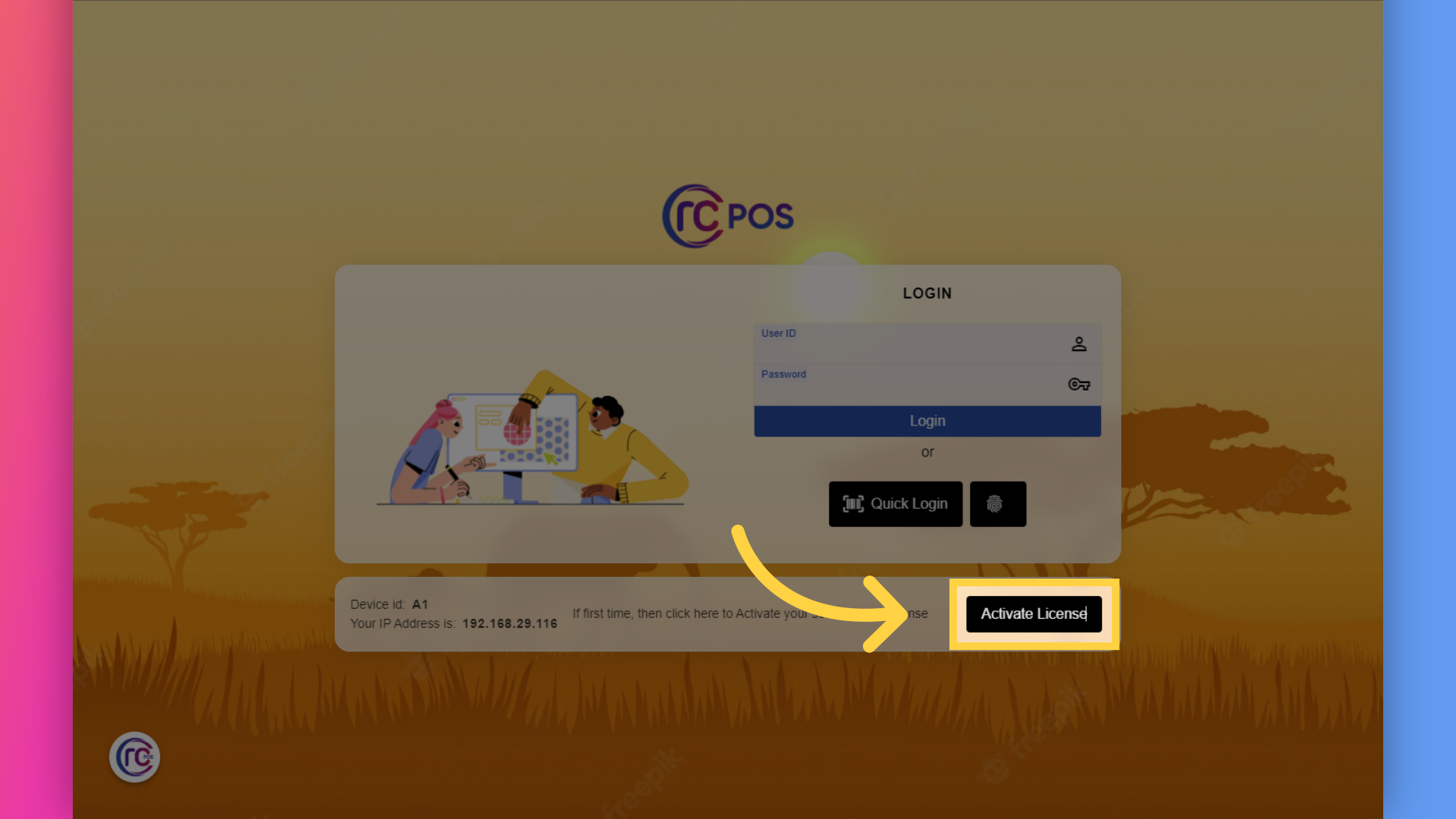
2. Click here
Obtain the lock number from your system. This unique identifier is required for license activation.Provide the lock number to your RCPos representative. You can contact them via email, phone, or any other preferred method.
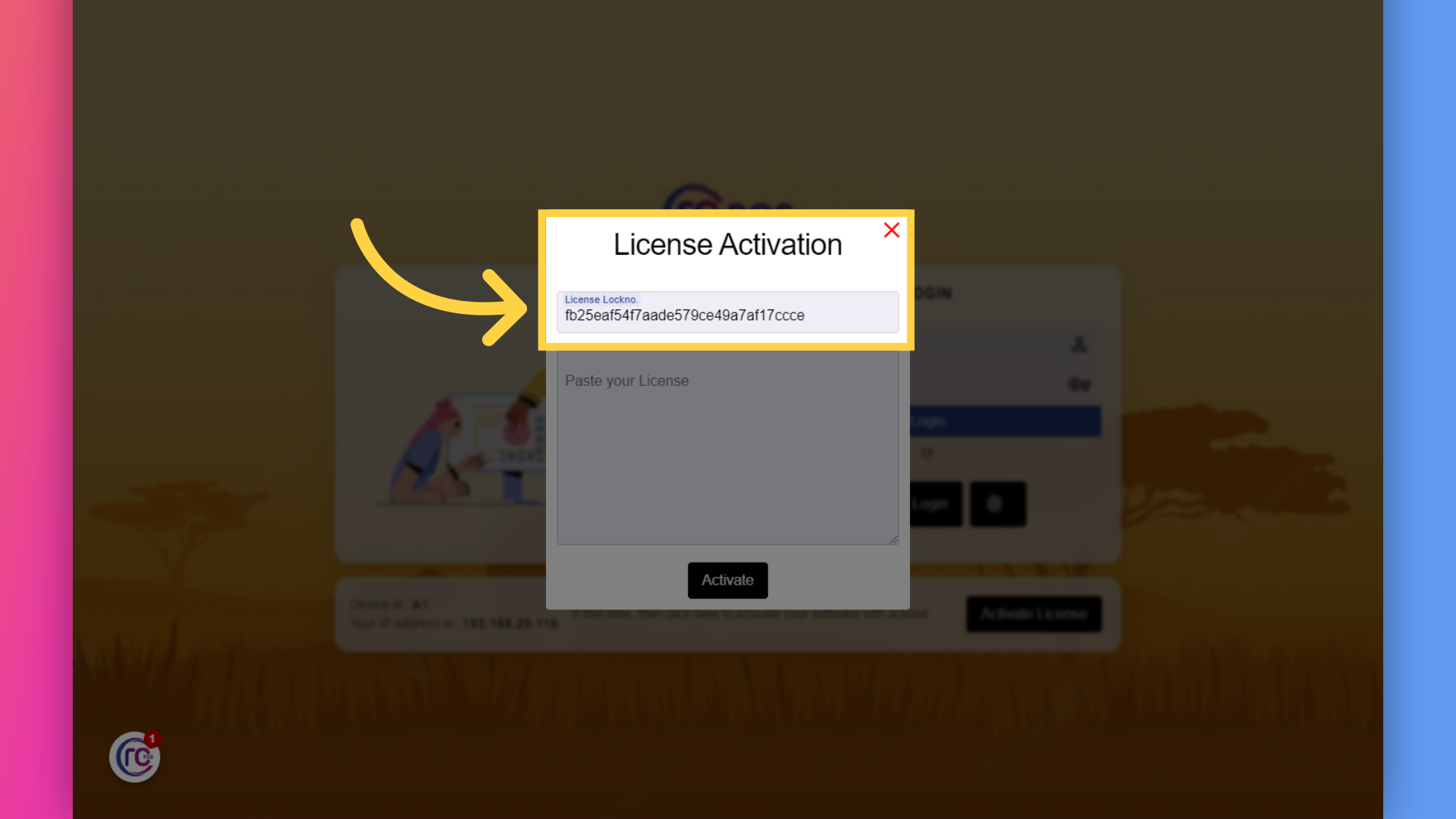
3. License file
The RCPOS representative will send you a license file. This may be delivered via email or another communication method. Open the license file you received
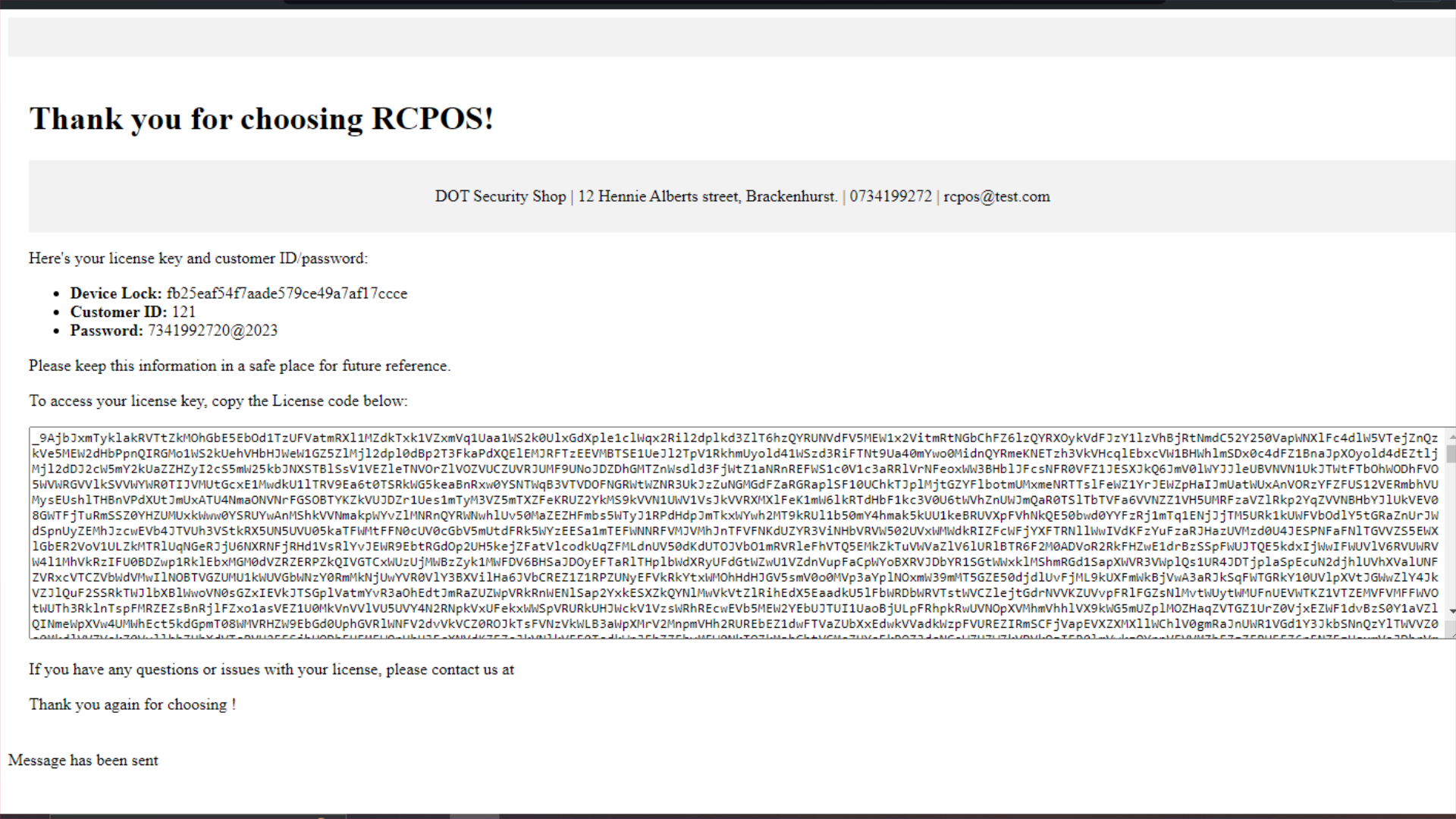
4.Copy the license key
and copy the license key provided.
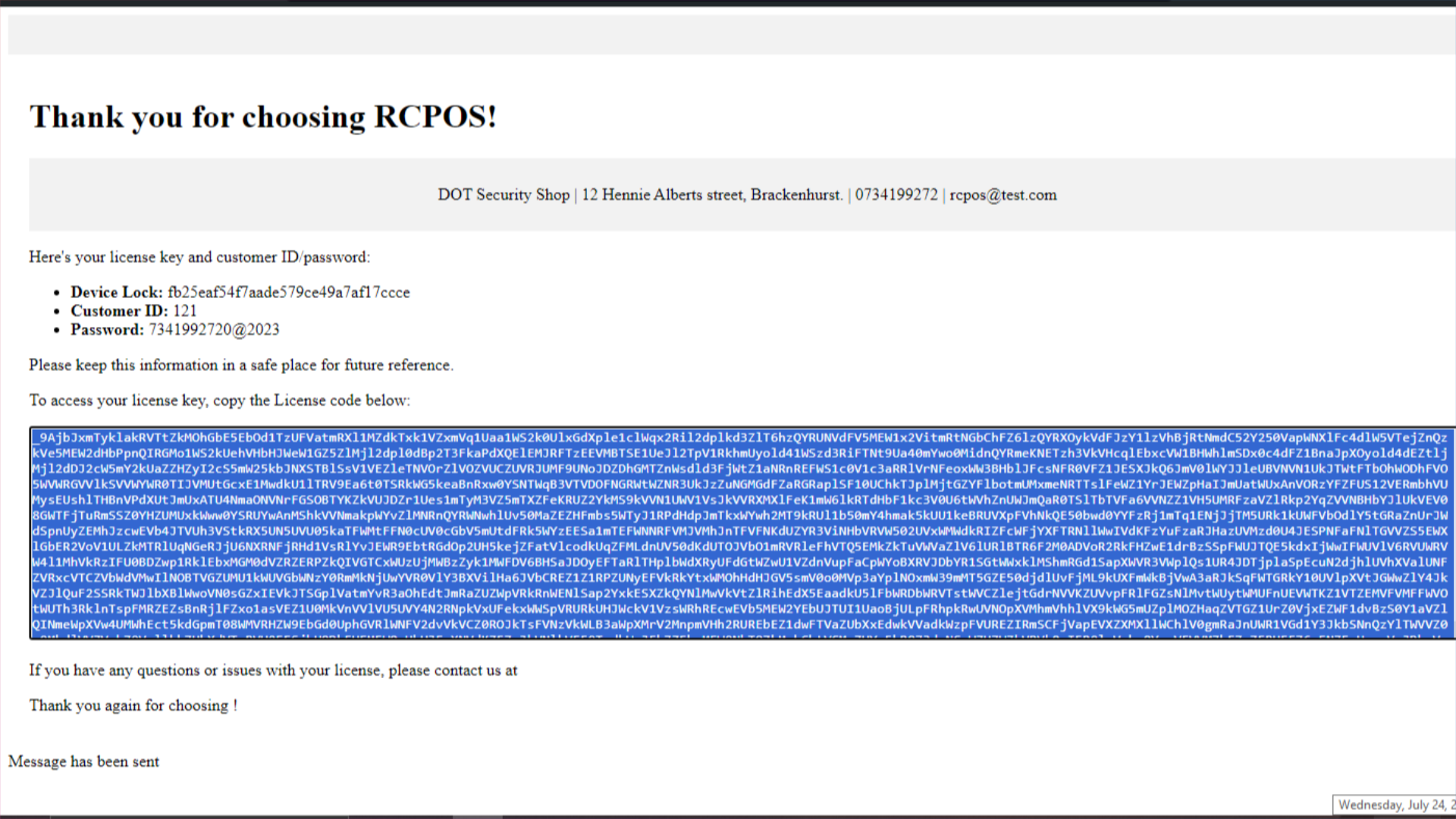
5. Paste copied License key
Go to the login.Click on Activate Licensed. There, you will find a license box where you can paste the copied license key.
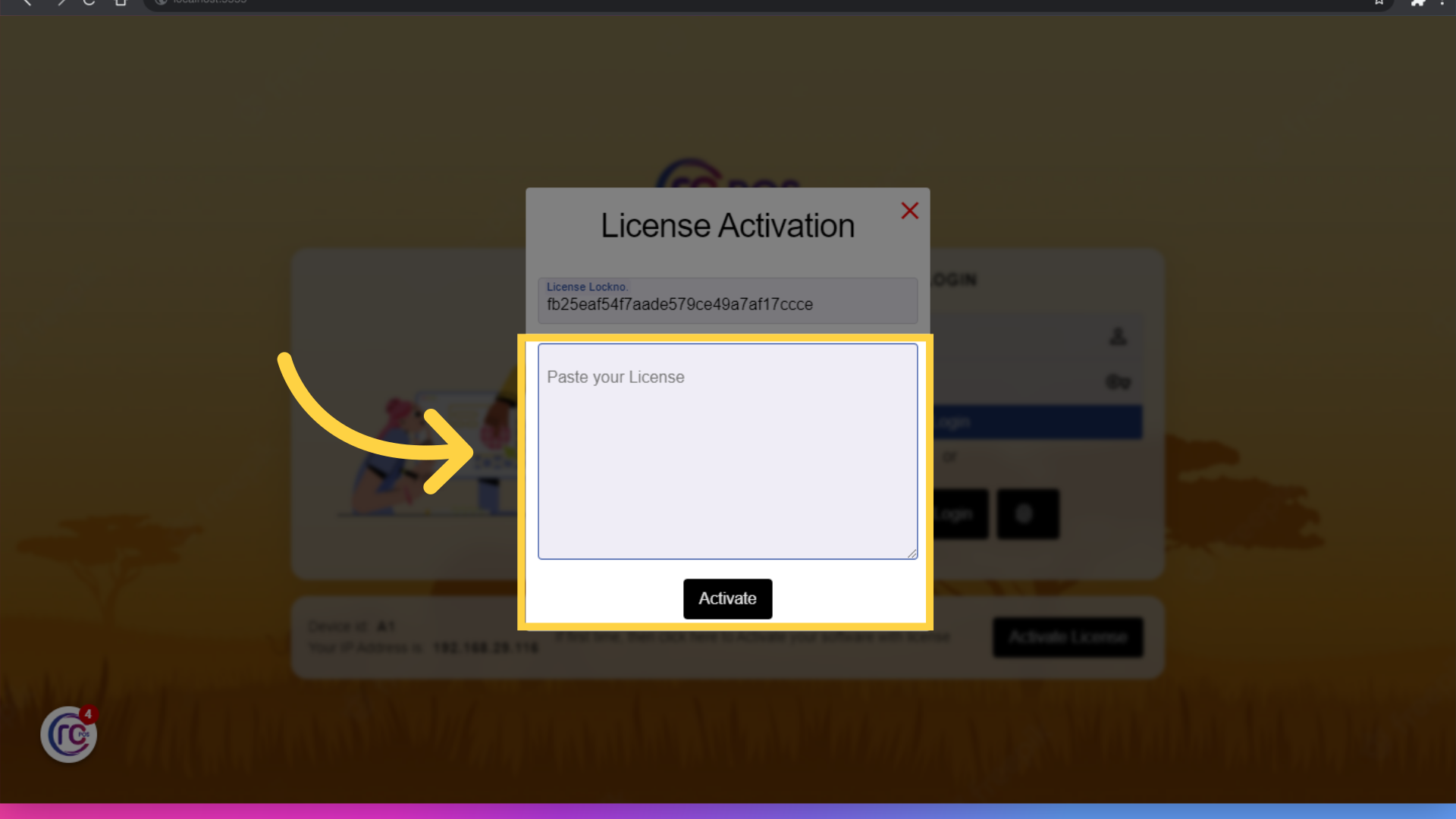
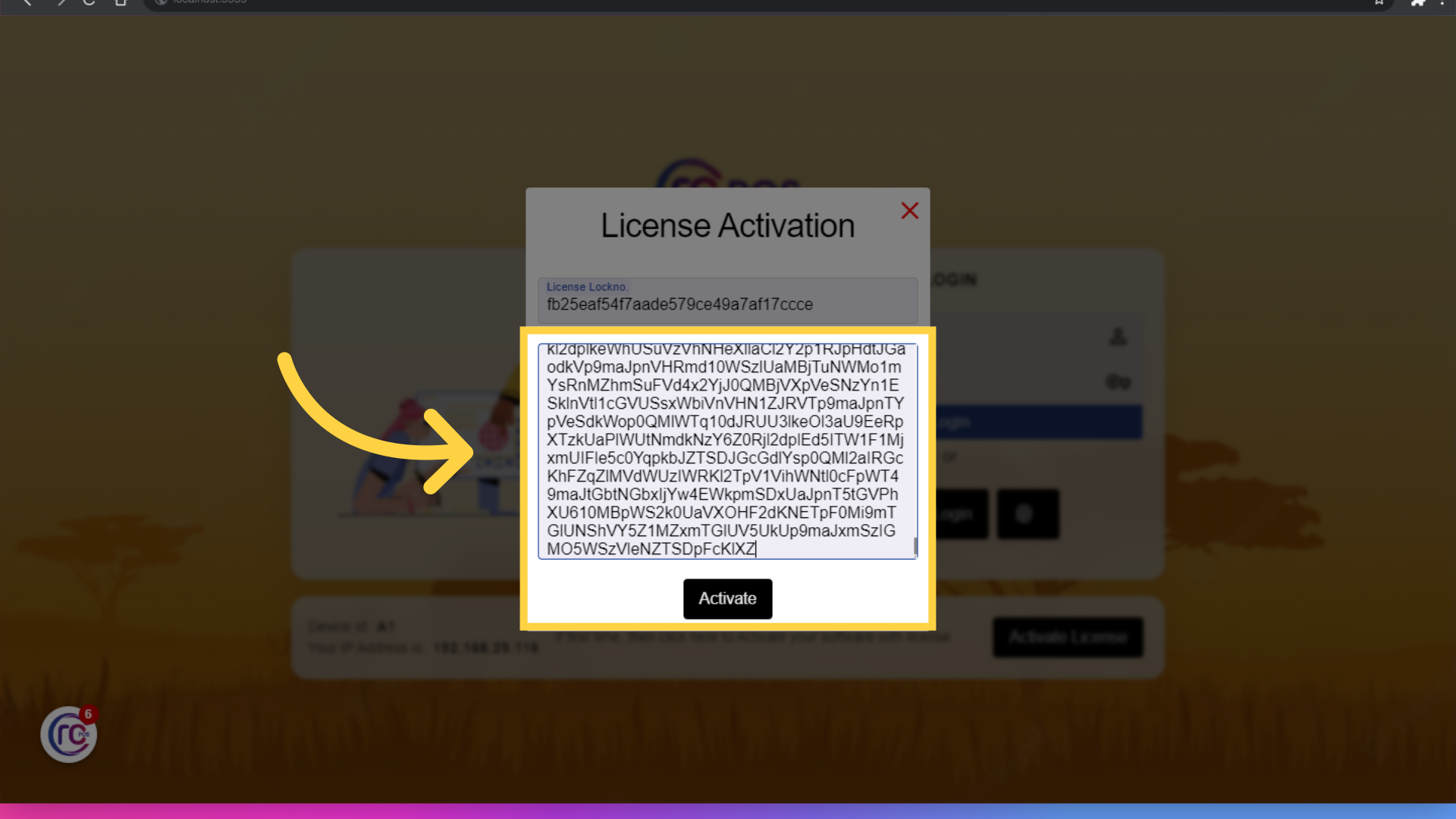
6. Click Activate
After pasting the license key, click on "Activate". A confirmation message stating "Your License is Activated" will appear, indicating that the process is complete.
7. Fill "User ID"
Fill the User ID and password given to you in the license file
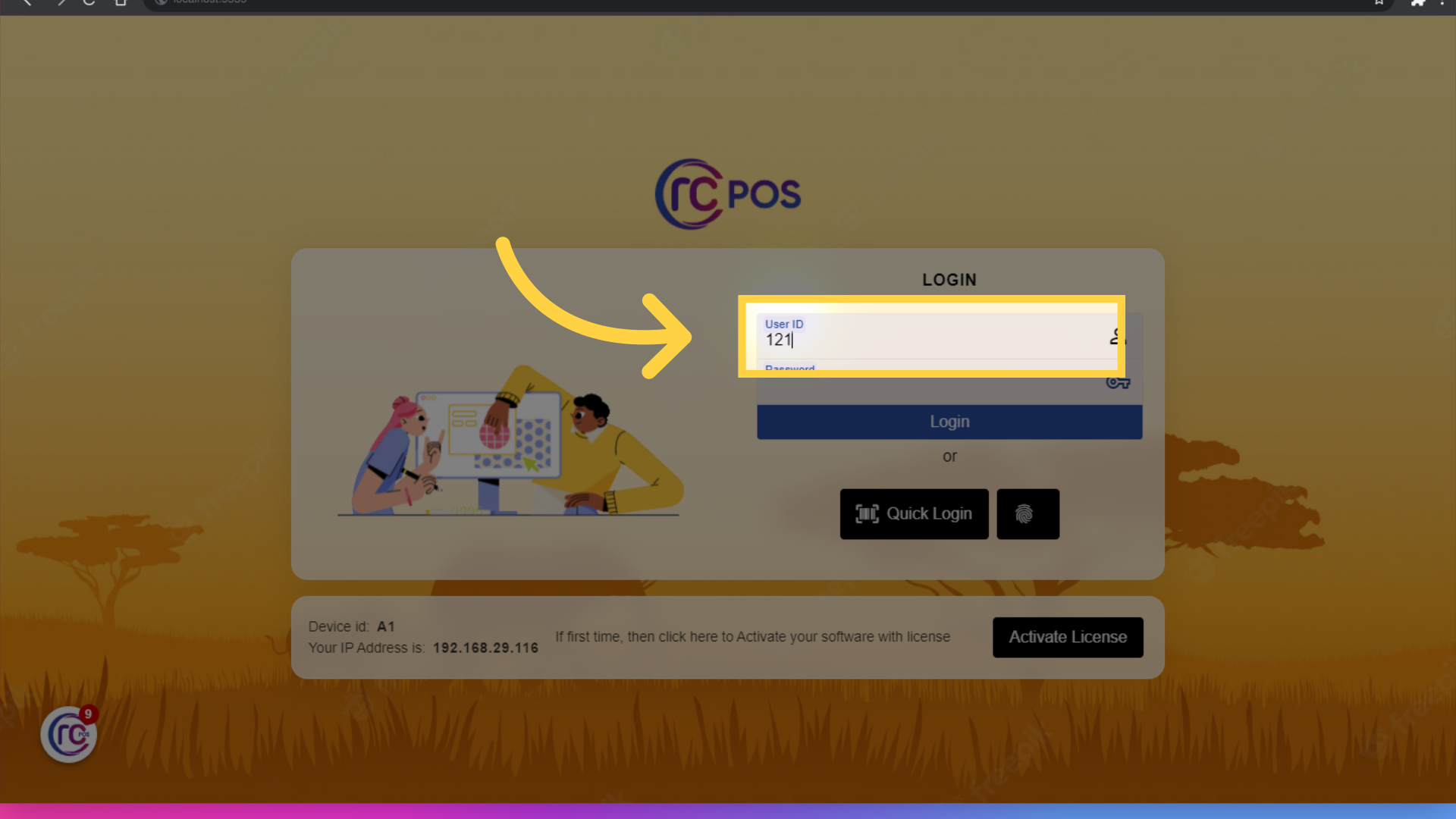
8. Fill "[password]"
Fill password
![Fill '[password]'](RCPos_Guide_license_files/8.png)
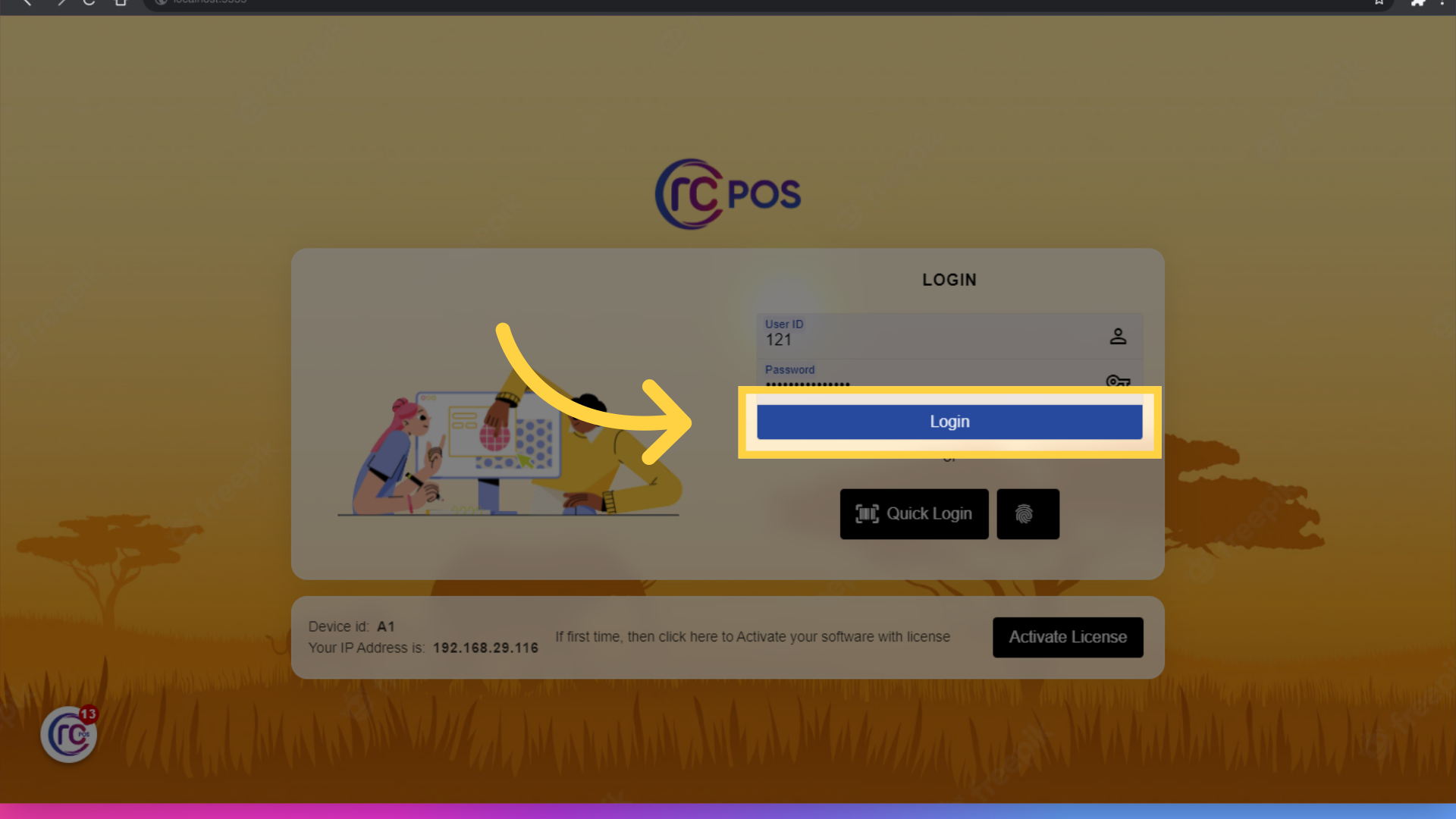
9. Click "Login"
Click login
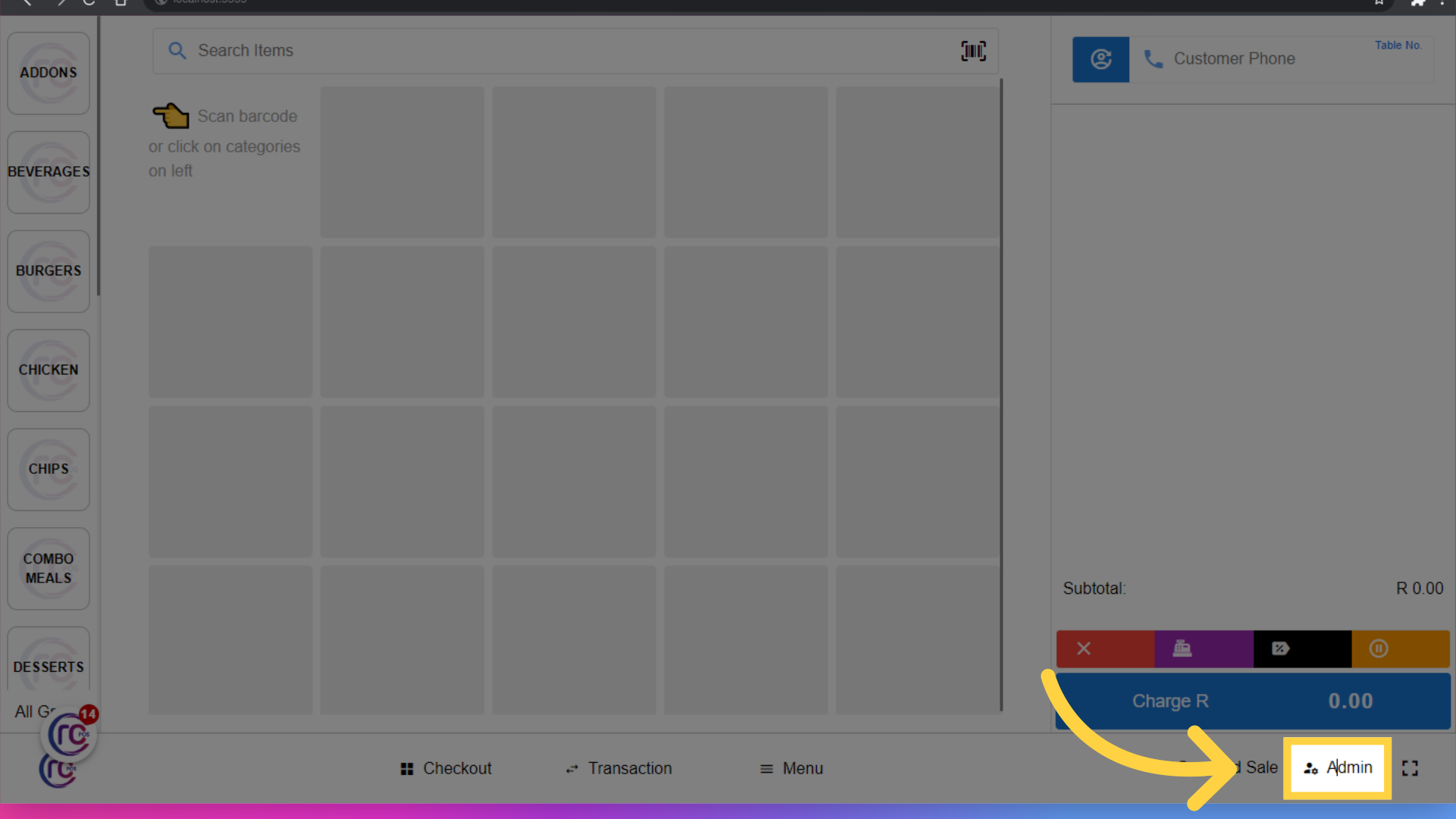
10. Click "Admin"
Navigate to 'admin'.
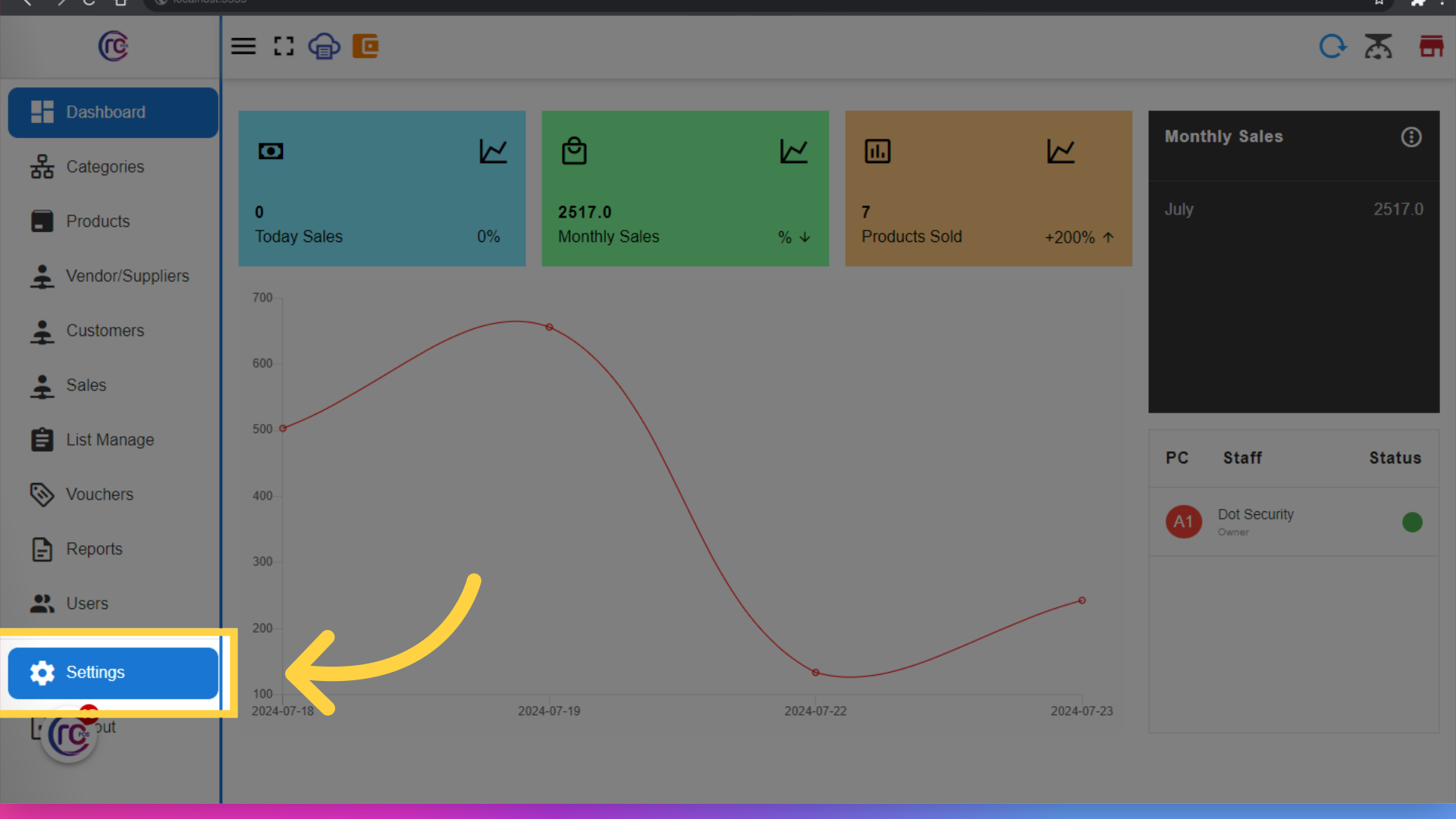
11. Click "Settings"
Navigate to "Settings"
12. Click "License"
Select the "License" option
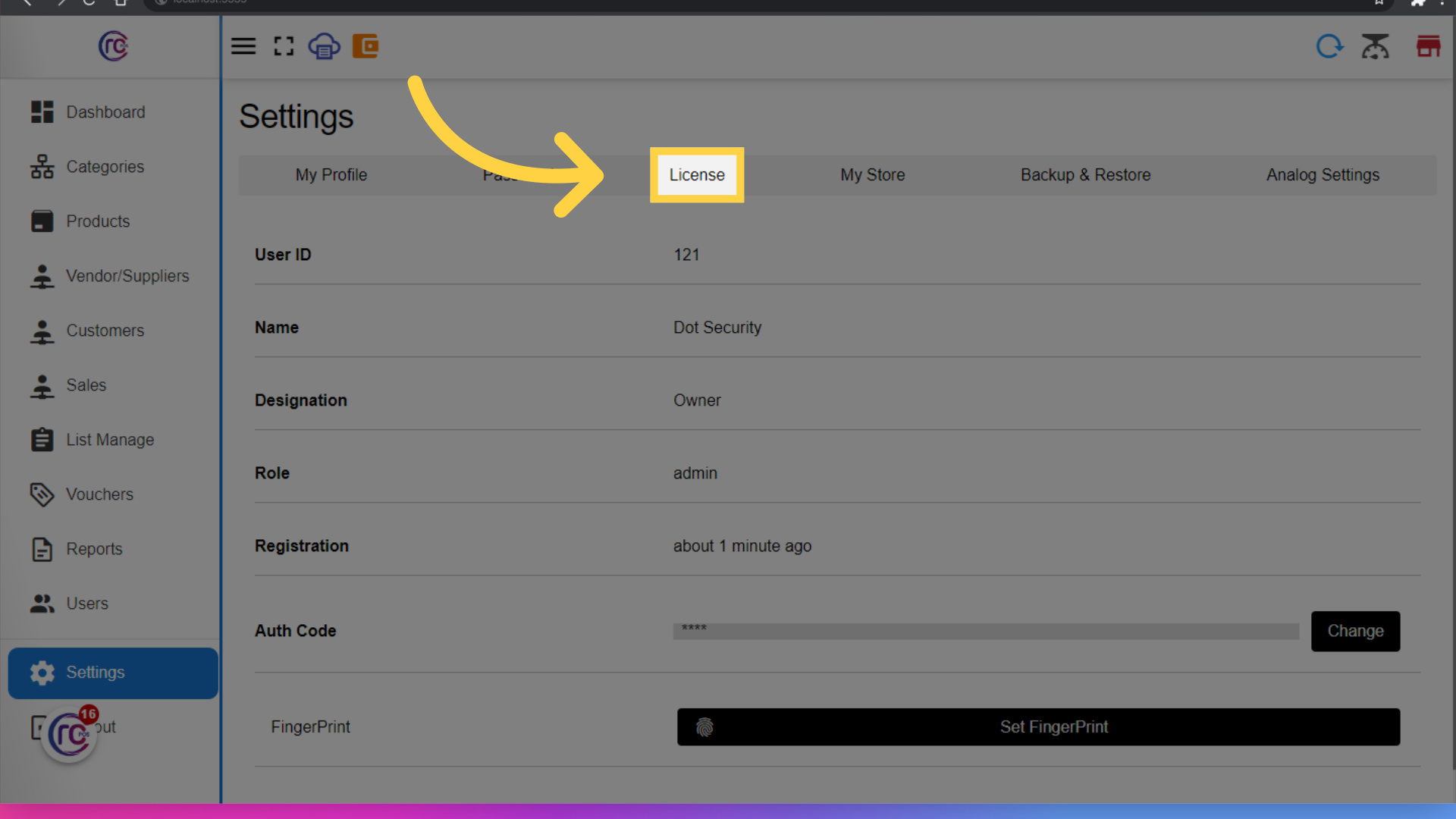
13.Updated License
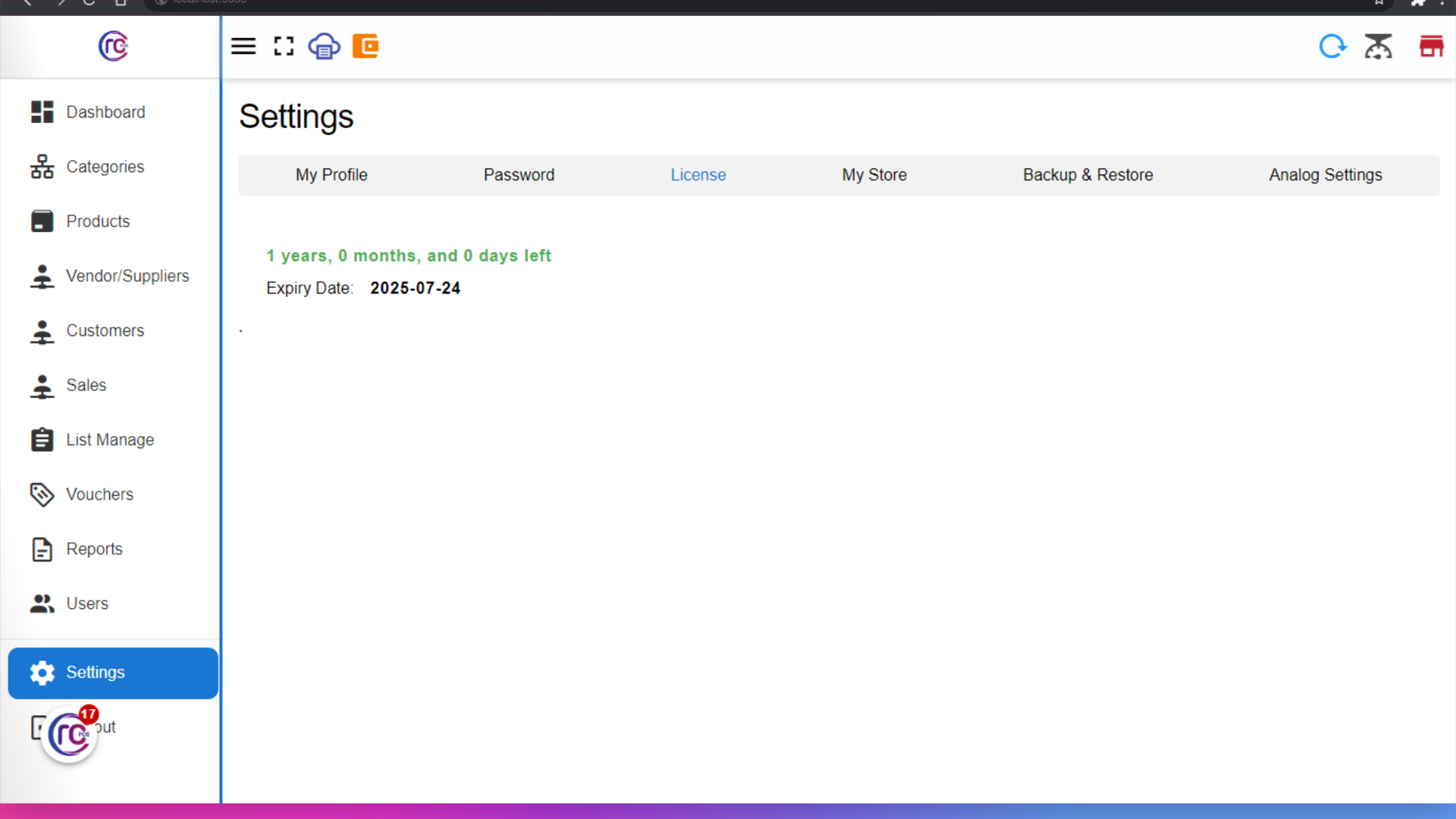
Here, you will see the updated license information,that your license has been activated successfully.