RCPos Guide
Welcome to RCPos,here we are going to show you how to use RCPos.
Go to localhost:5555
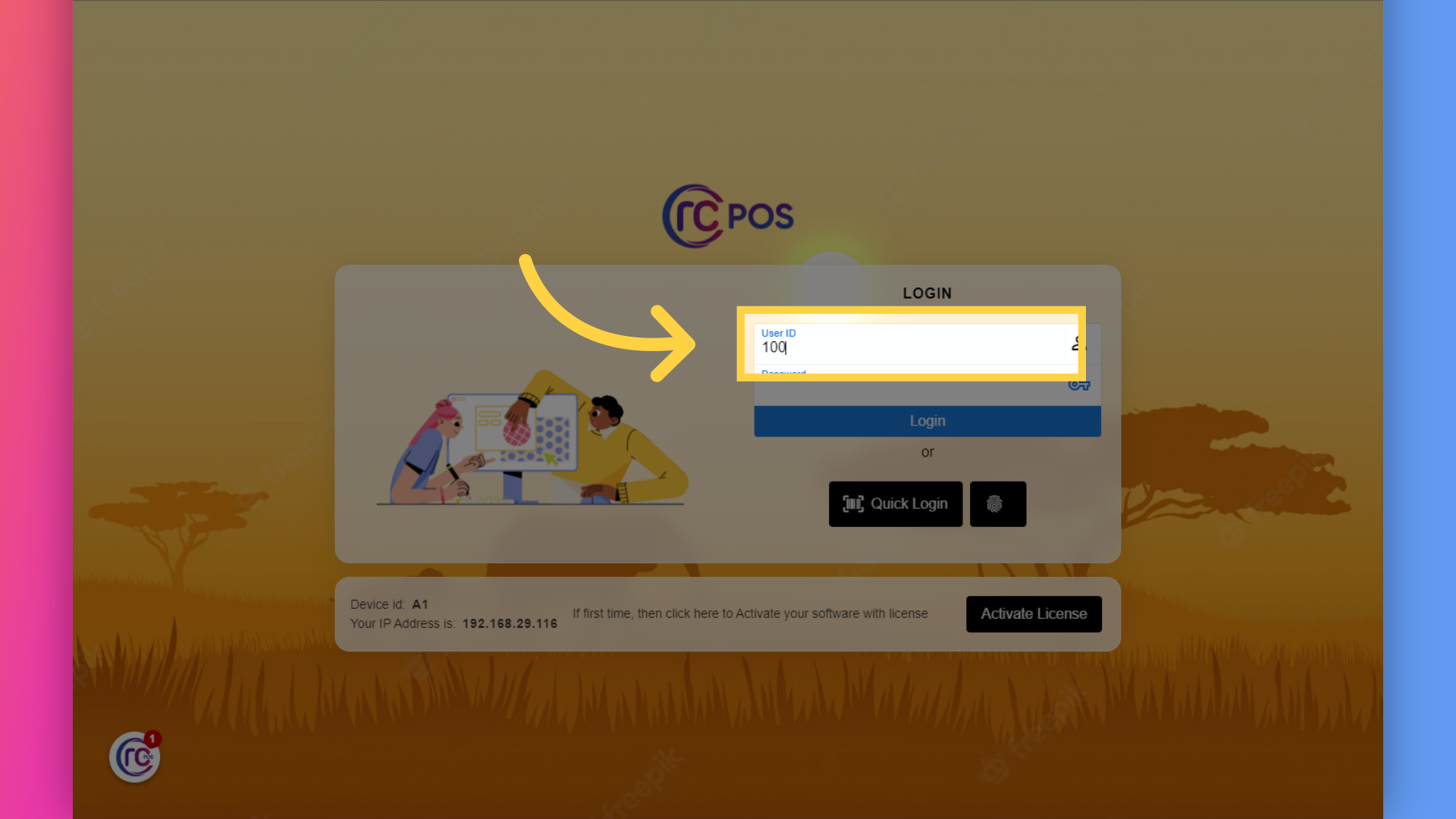
1. Fill "User ID"
Login in to RCPos .Fill User ID.
2. Fill "[password]"
Enter "[password]" in the provided field.
![Fill '[password]'](RCPos_Guide_files/2.png)
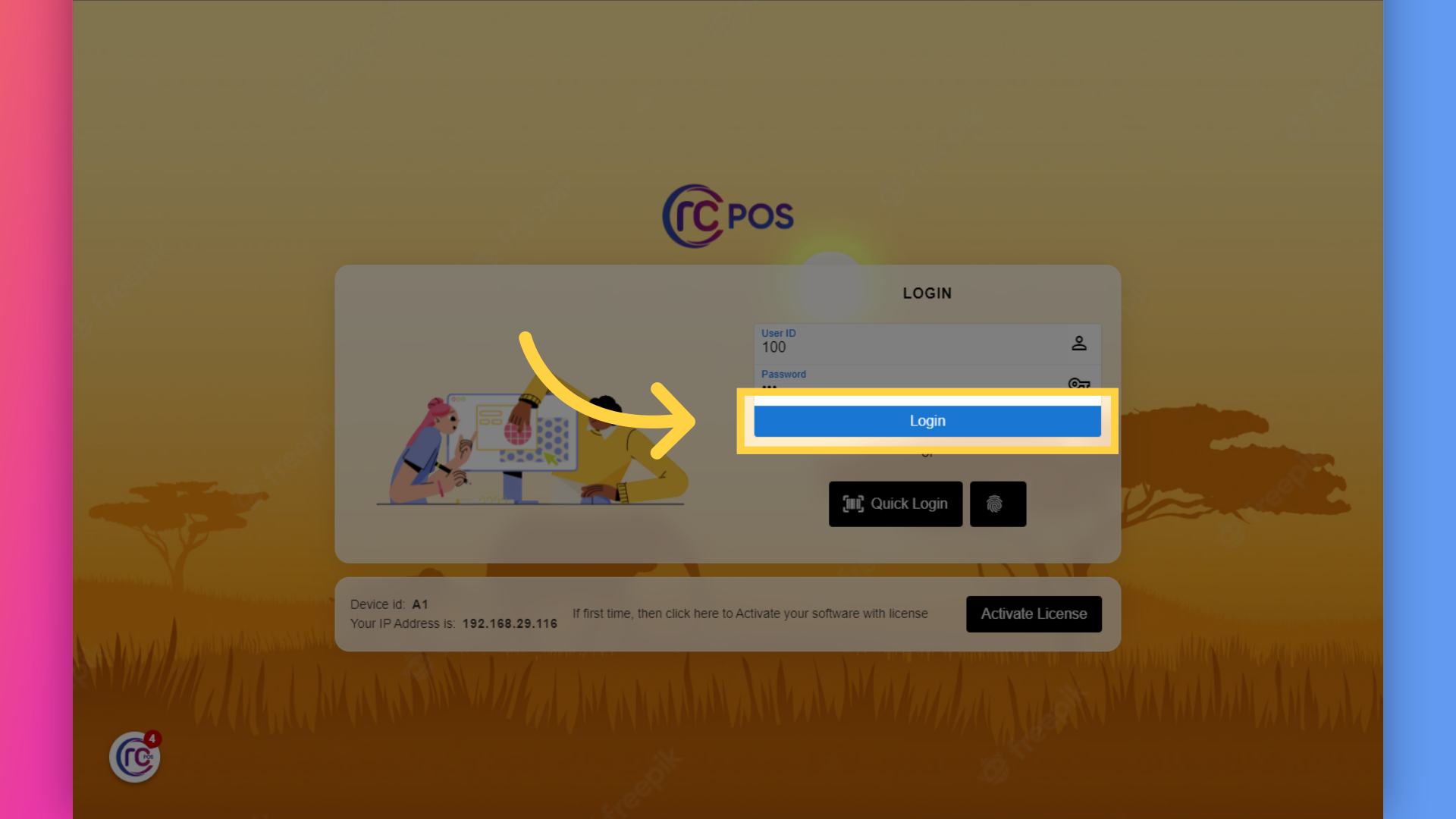
3. Click "Login"
Click on the "Login" button.
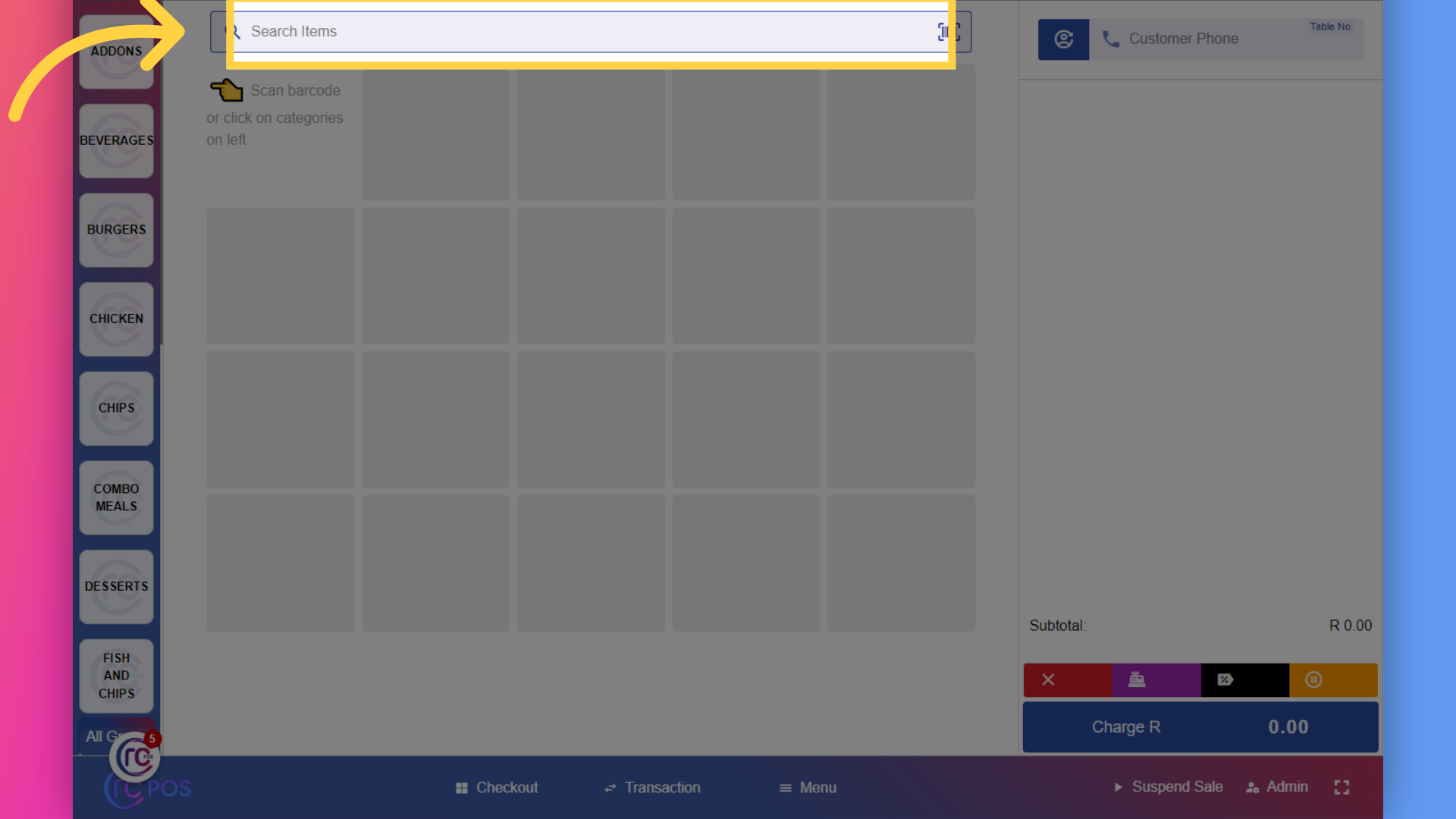
4. Click "Search Items"
Once RCPos is open,let's add products to the cart.There are four ways to do this. 1.Click on this field and scan the product barcode with your scanner.
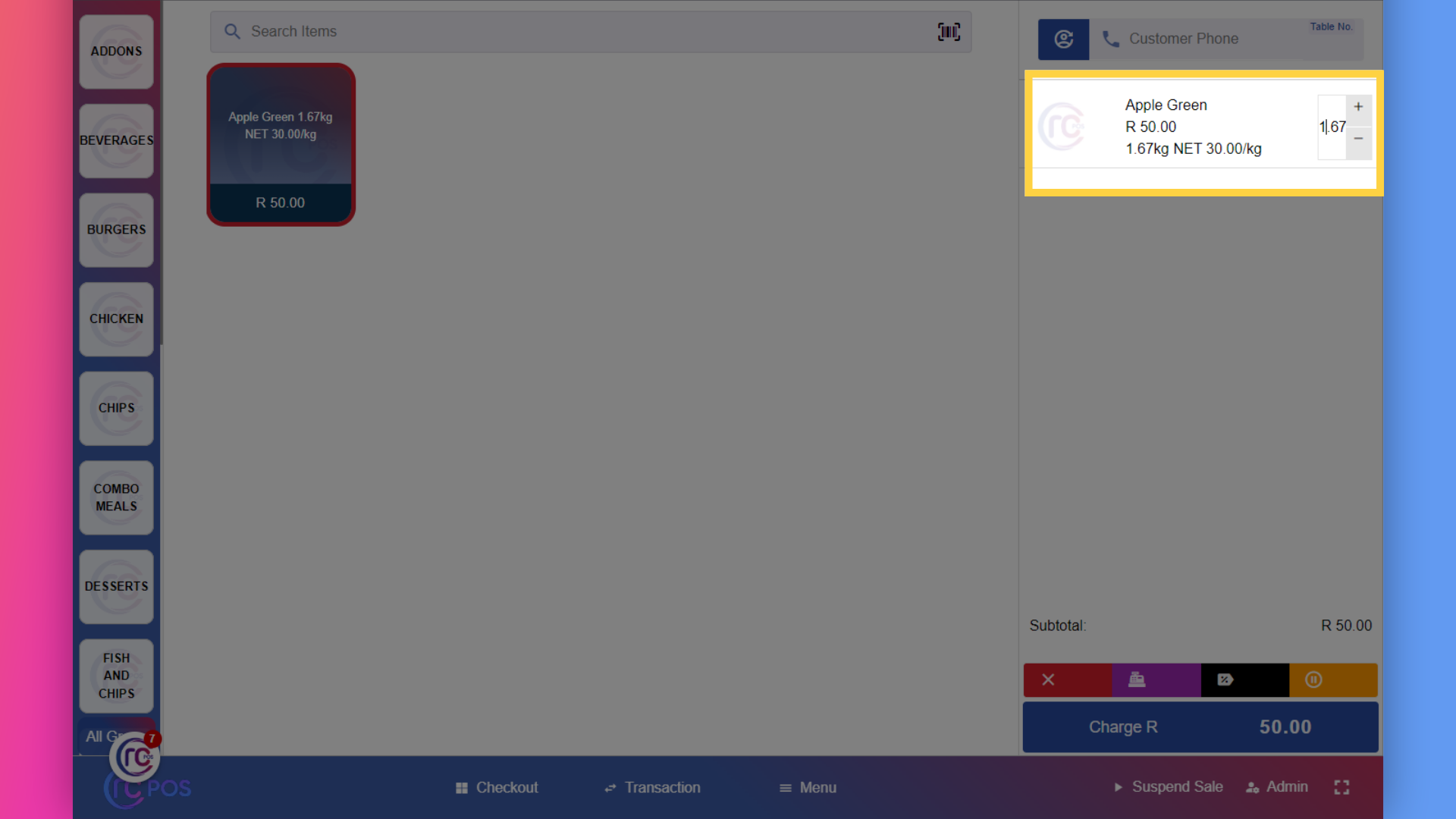
5. Click "Apple GreenR 50.00 1.67kg NET 30.00/kg"
and the product will be added to the cart automatically.
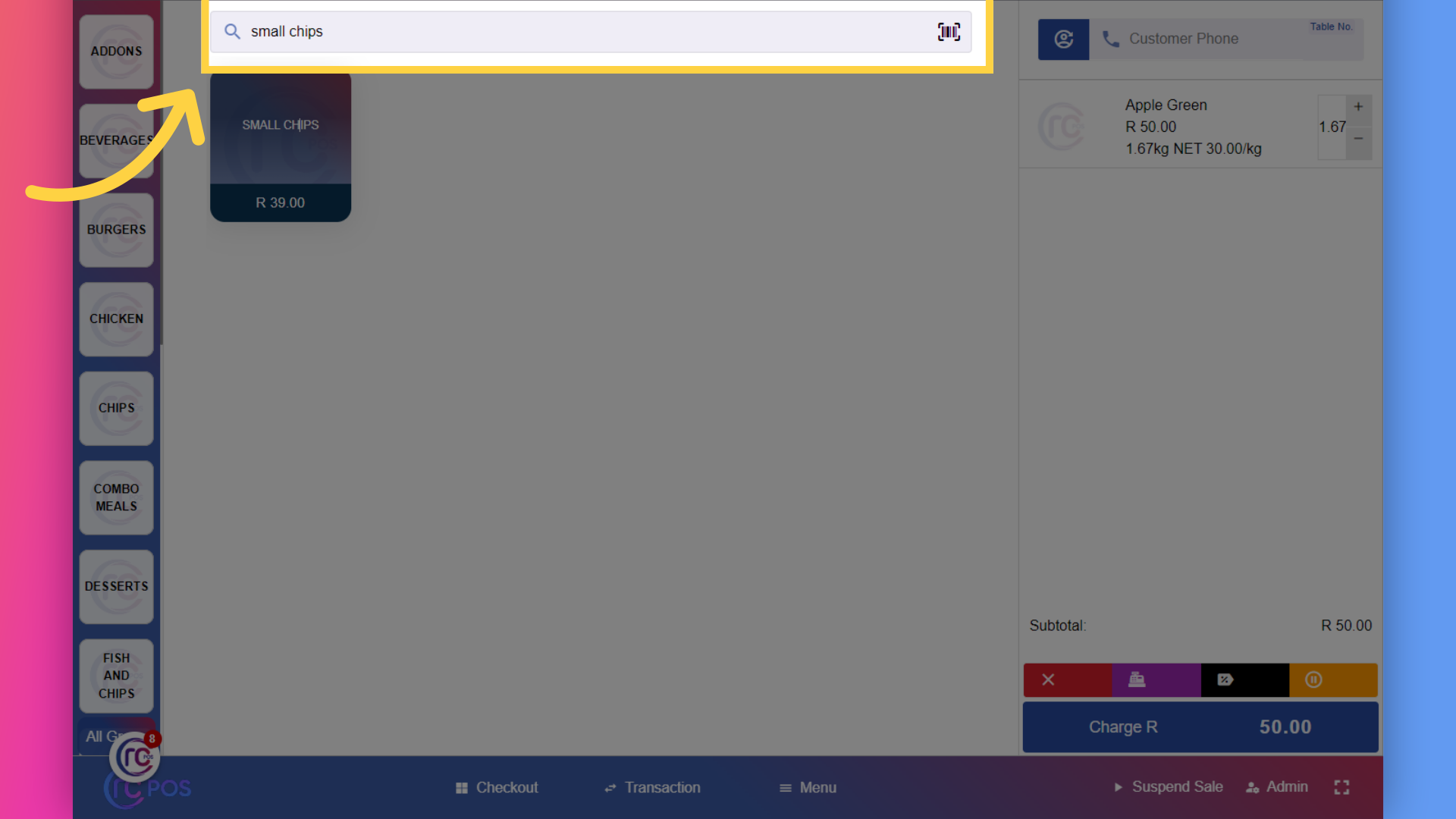
6. Search Product here
2.By using the search bar to find the products by name
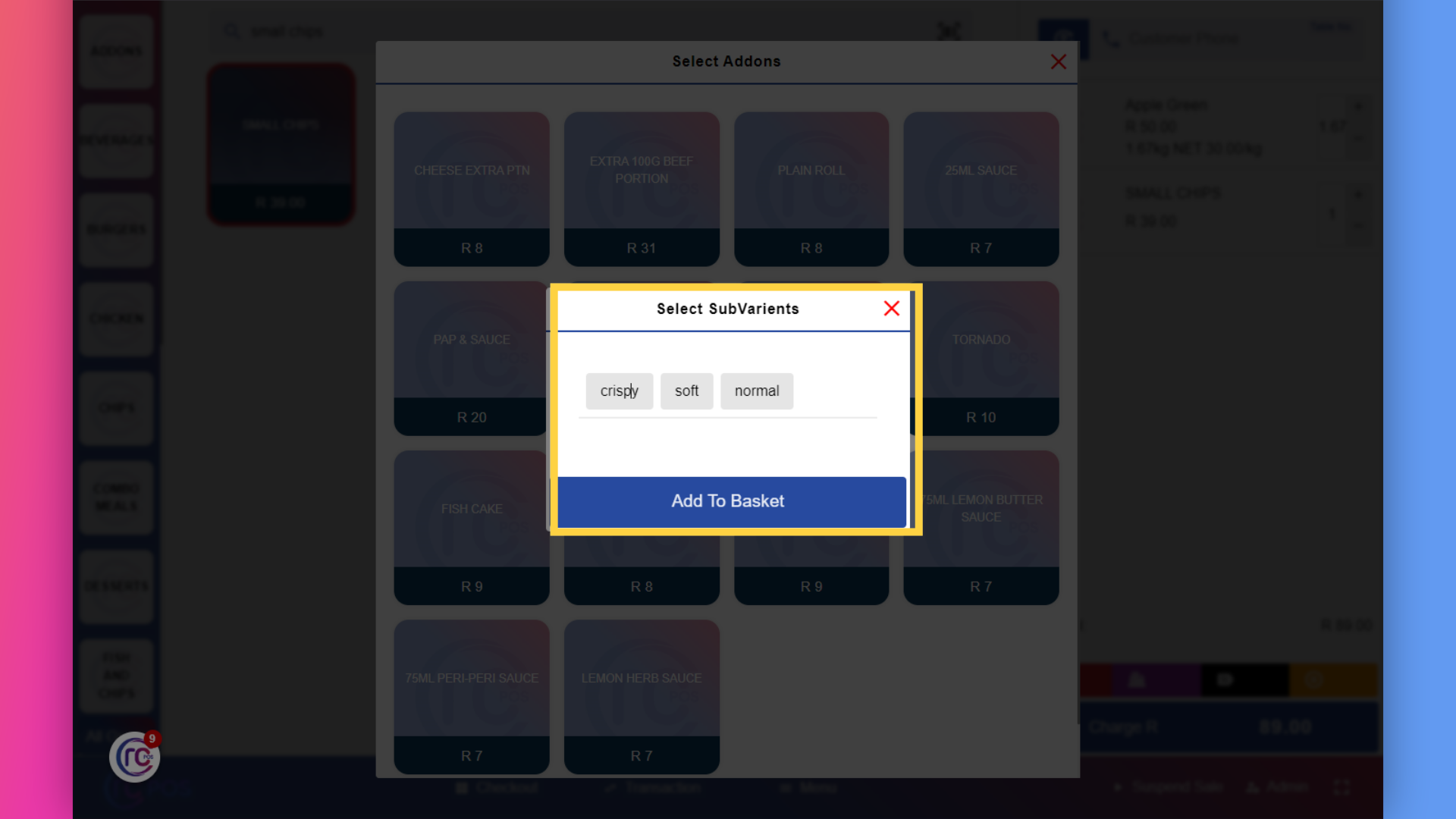
7. Select Variant
Click on the product you want and it will be added to cart and if the product has variants then it will ask to Select Variant.
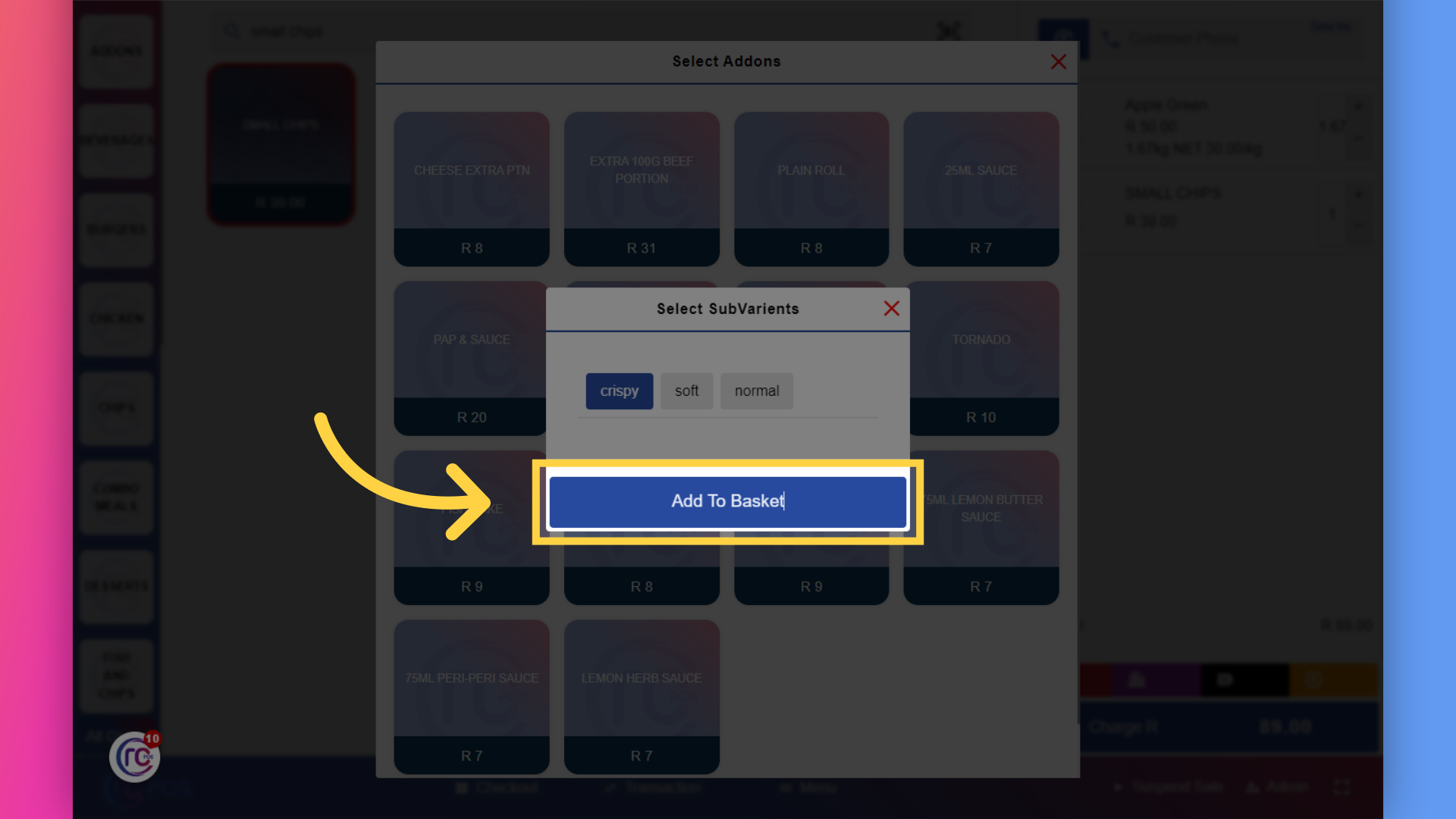
8. Click "Add to Basket"
Click on "Add to Basket".
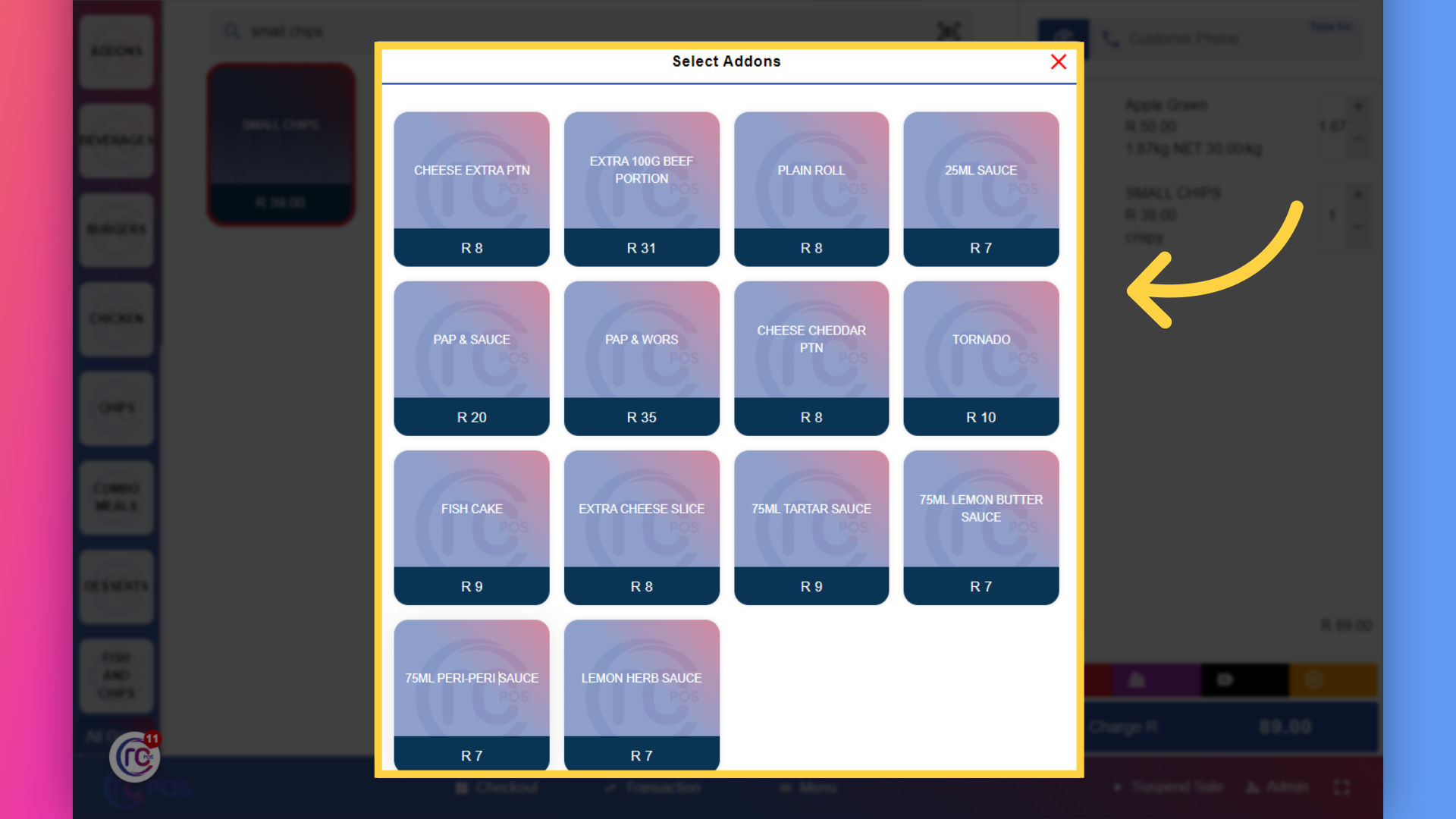
9. Click "Addons"
Select "Addons" to upsell.
10. Click "CHICKEN"
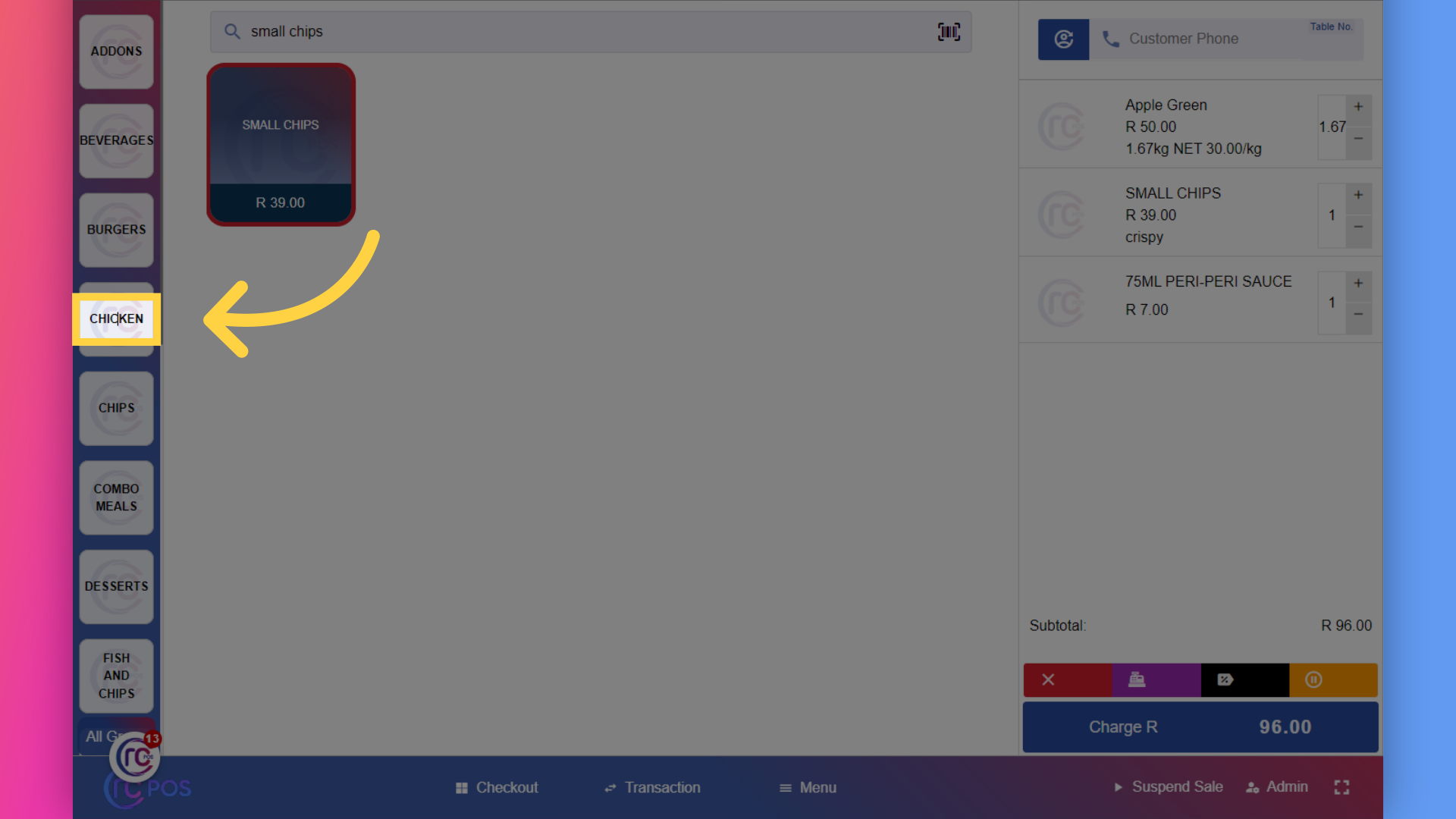
3.By navigating using category or product- Browse through categories and select the product you want
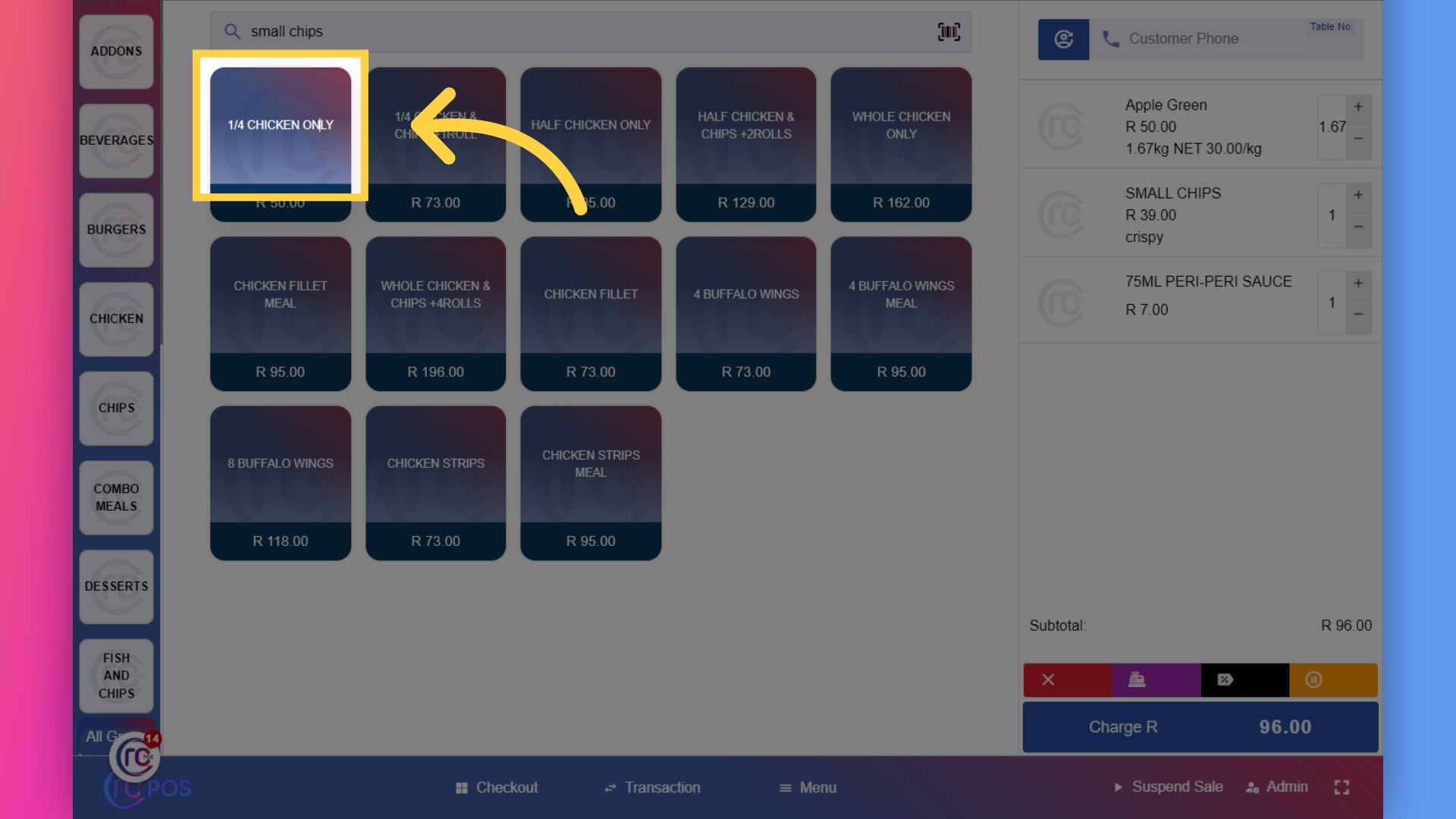
11. Click "on the product you want to add"
and it will be added to cart
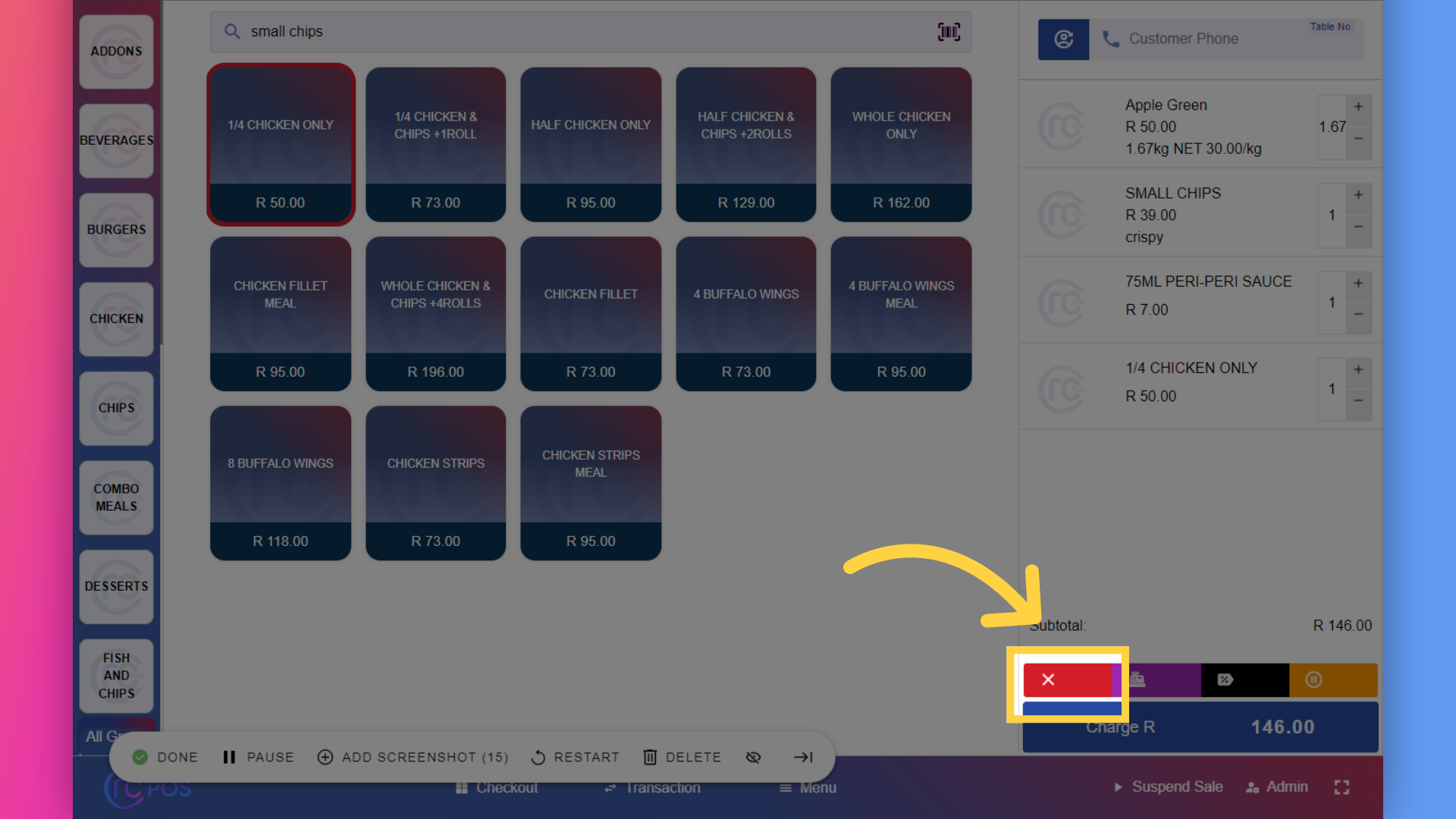
12. Click here
To cancel the sale click on the cancel sale button.
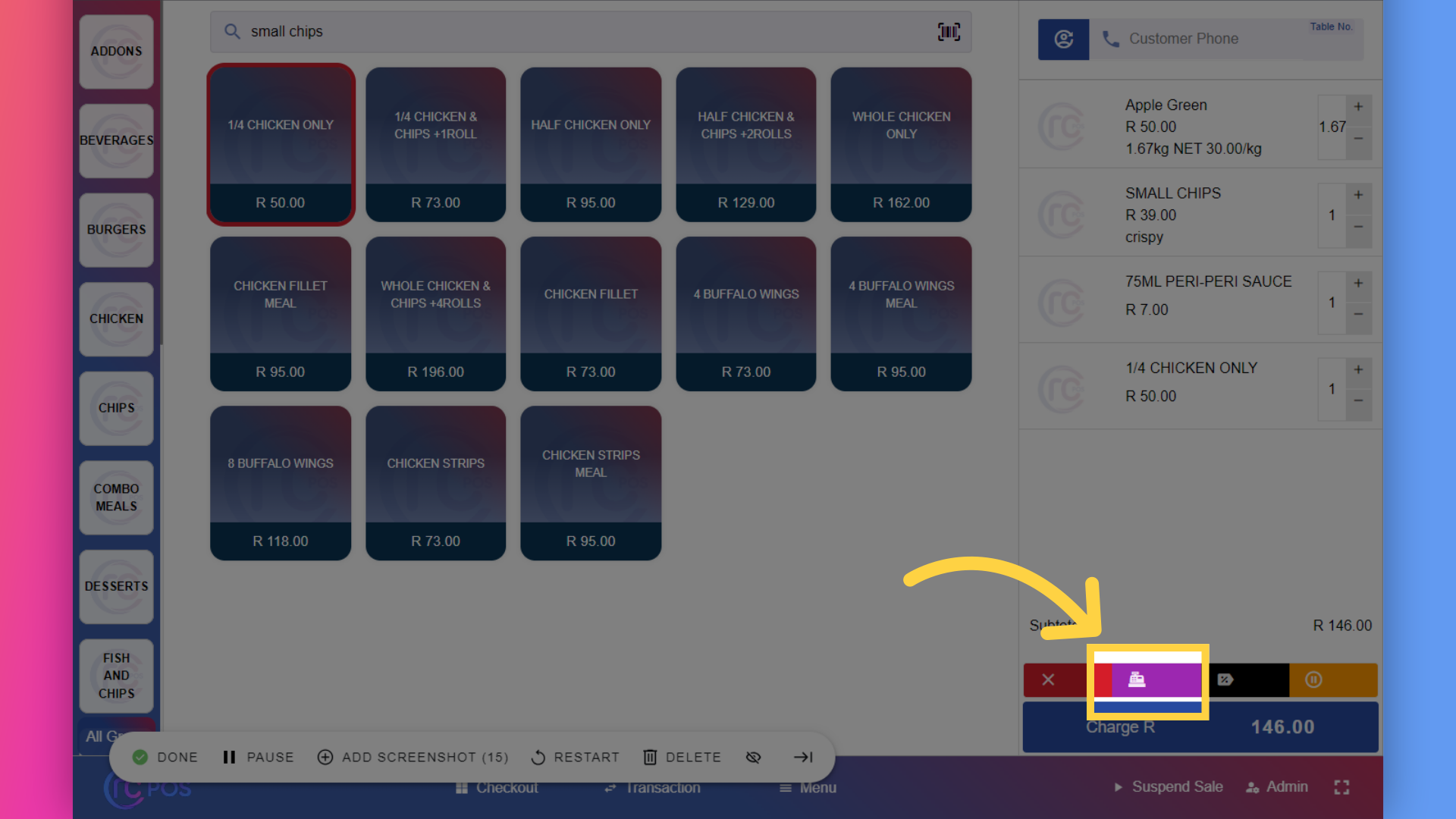
13. Click here
To open the cash drawer,click on the open cash drawer button.
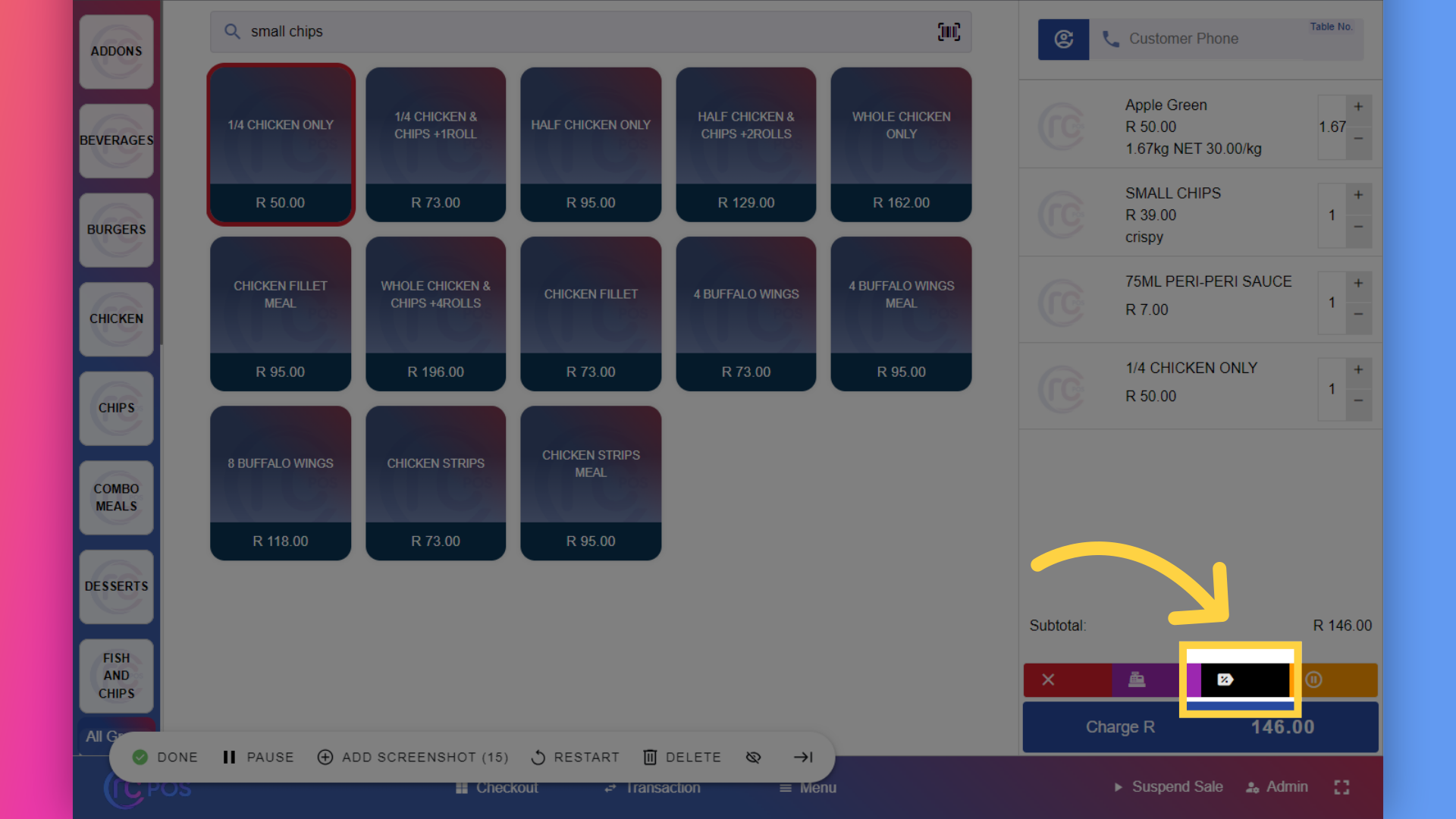
14. Click here
To add a discount to the sale,click on the 'Add Voucher'button.
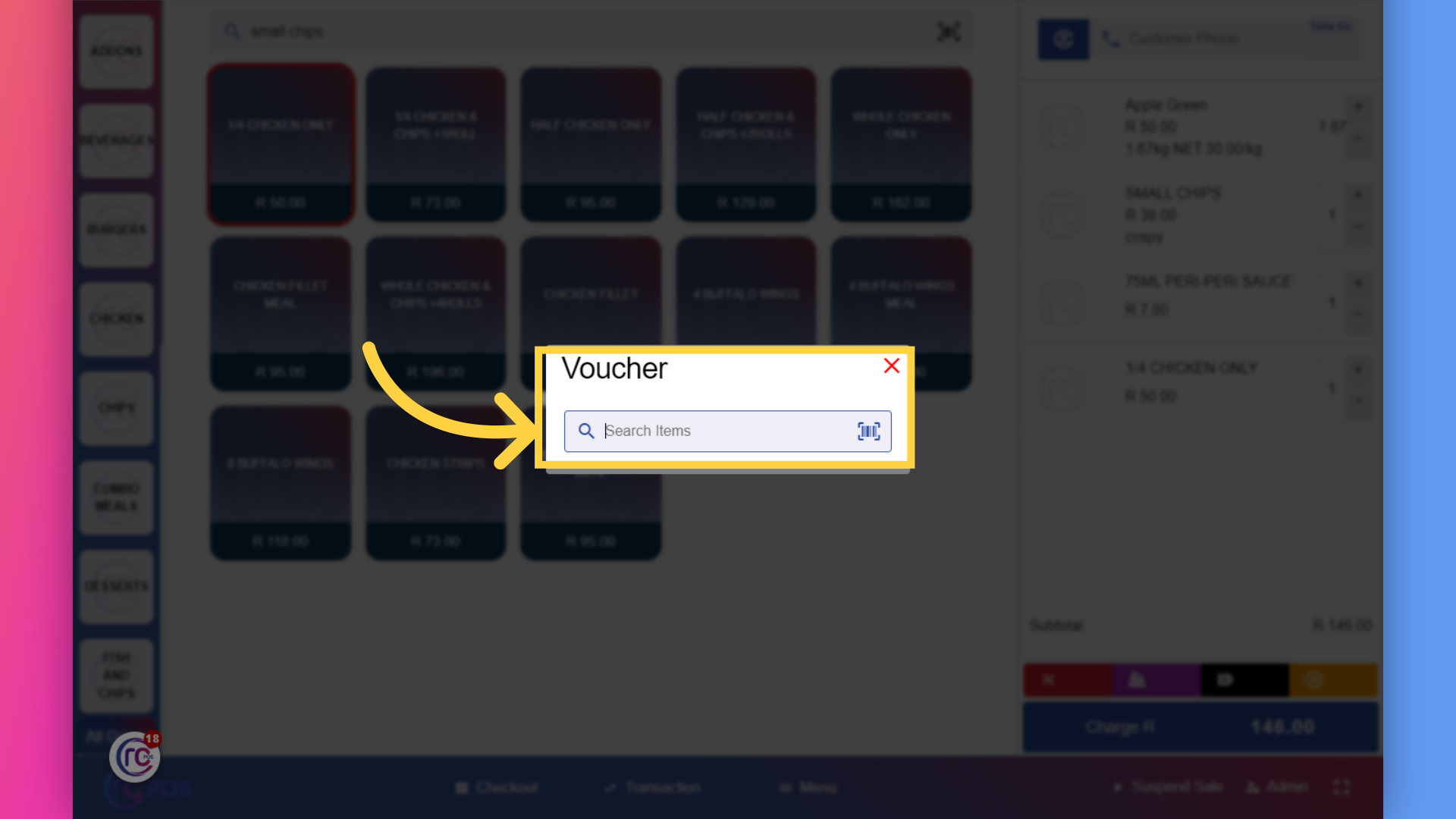
15. Enter "Discount Details"
Enter discount details
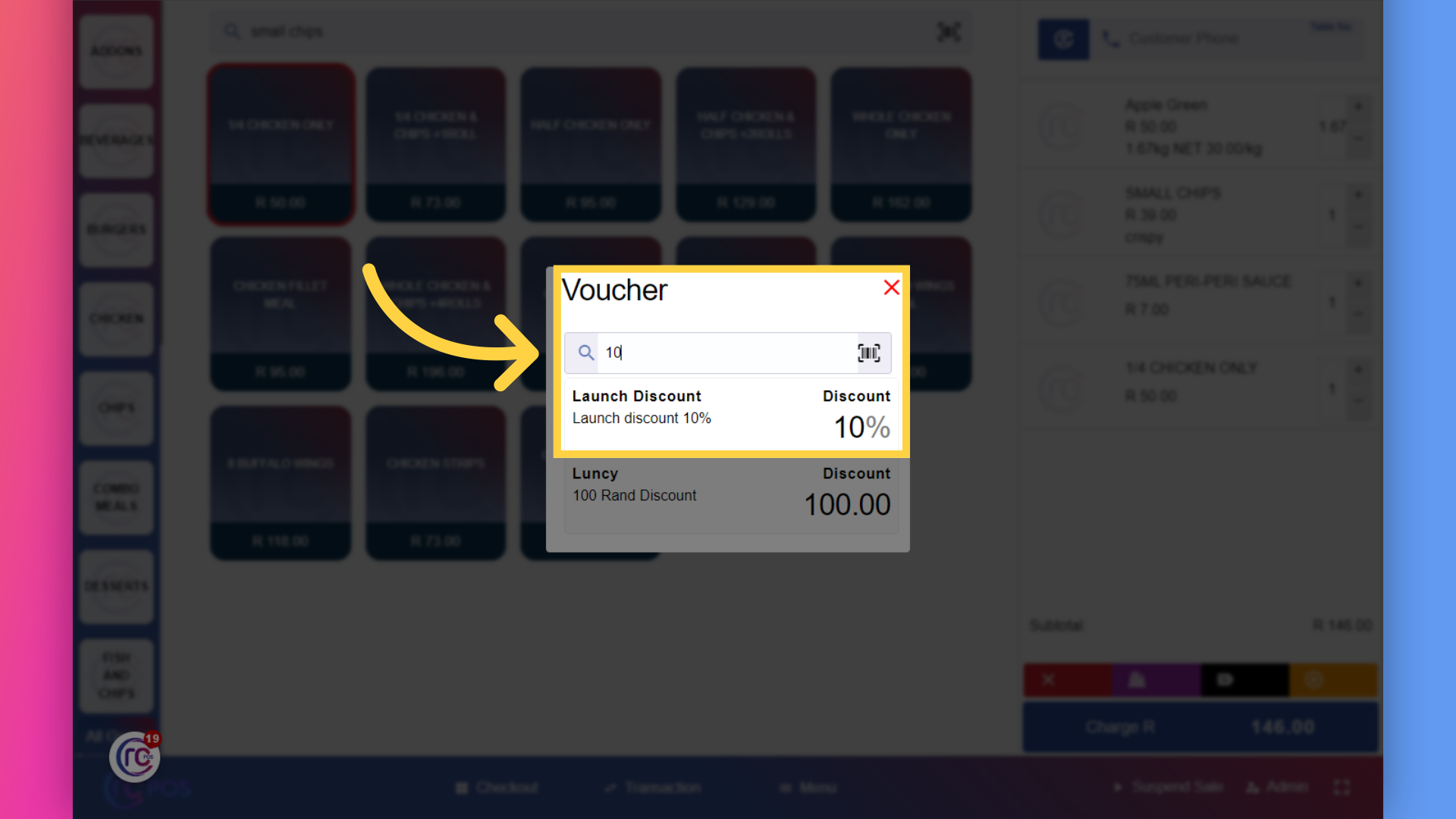
16. Select "Discount"
Click on "Launch Discount"
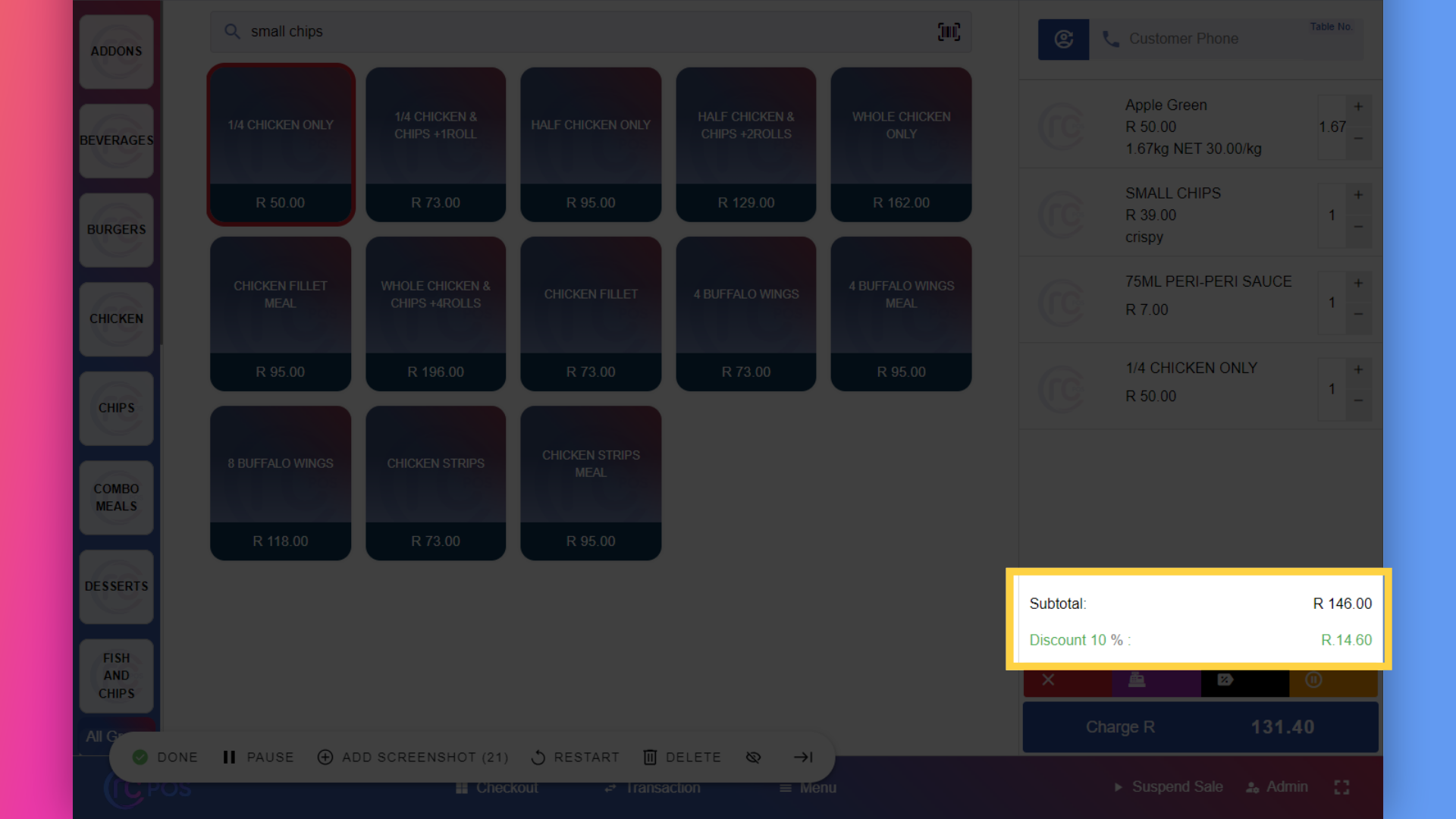
17. View "RCPOS"
and the discount will be added.
18. Click here
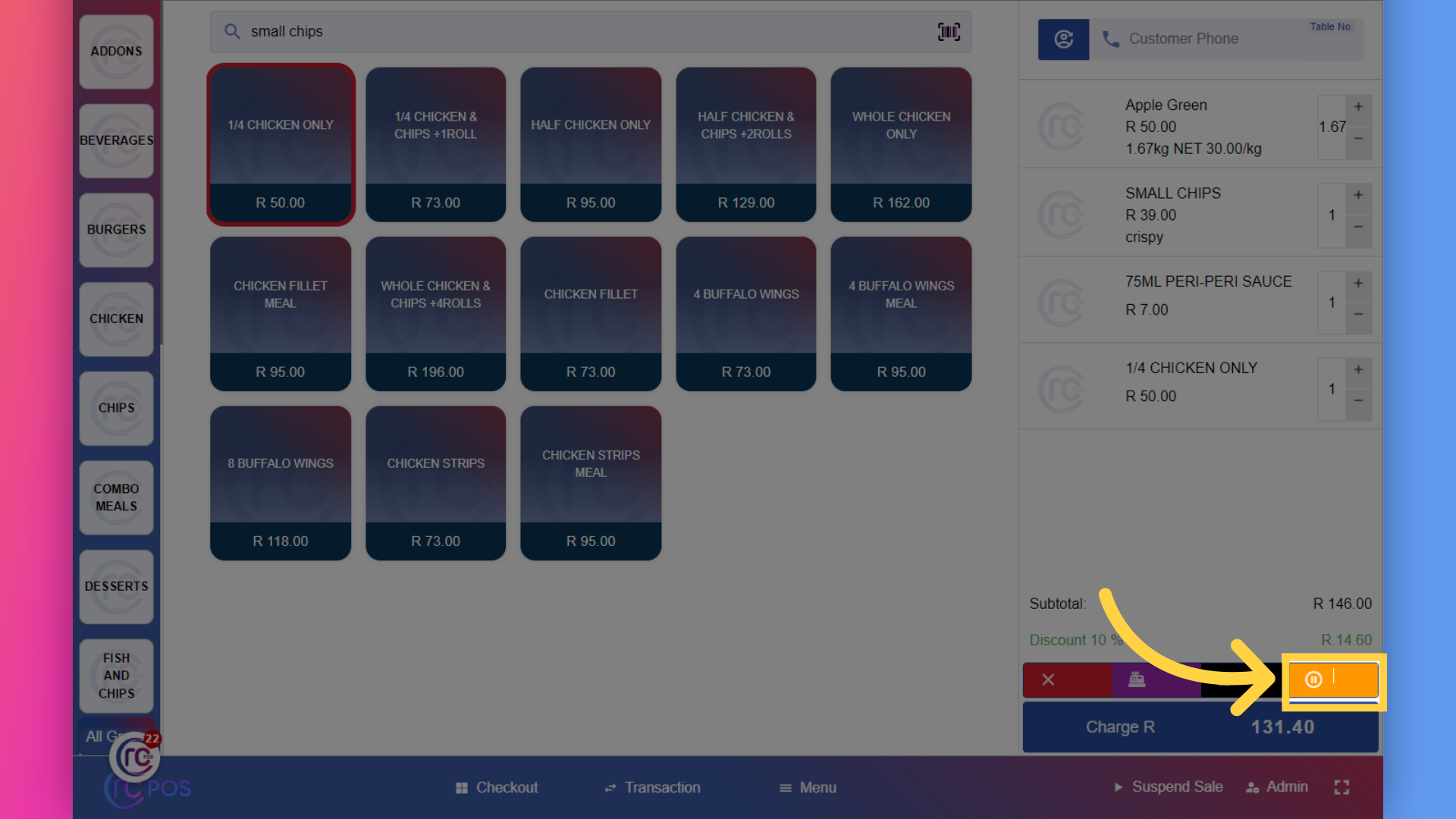
To suspend a sale,click on the Suspend Sale button.
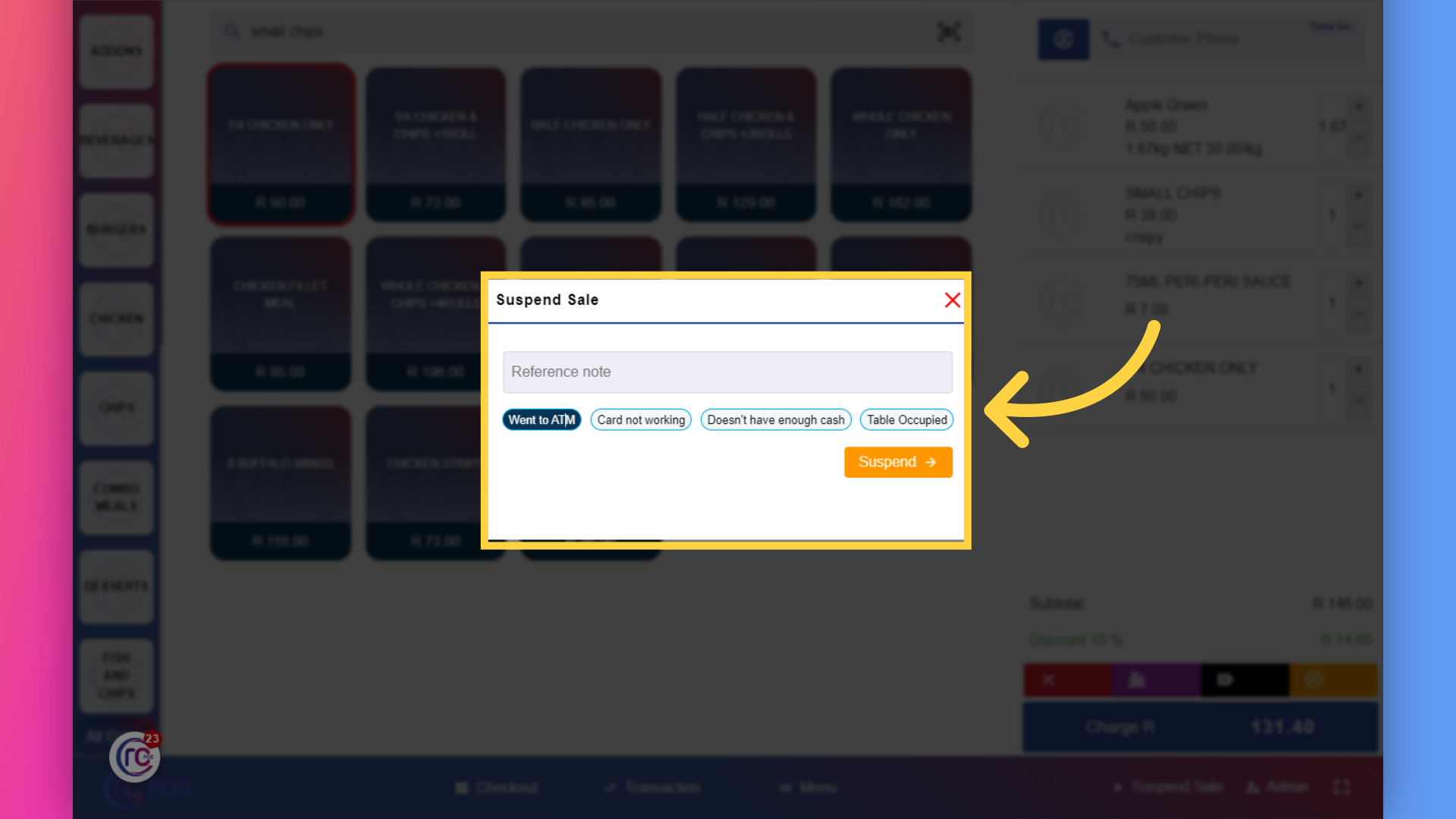
19. Click "on any of the reasons"
You'll be ask to provide a reason....I'll give went to atm
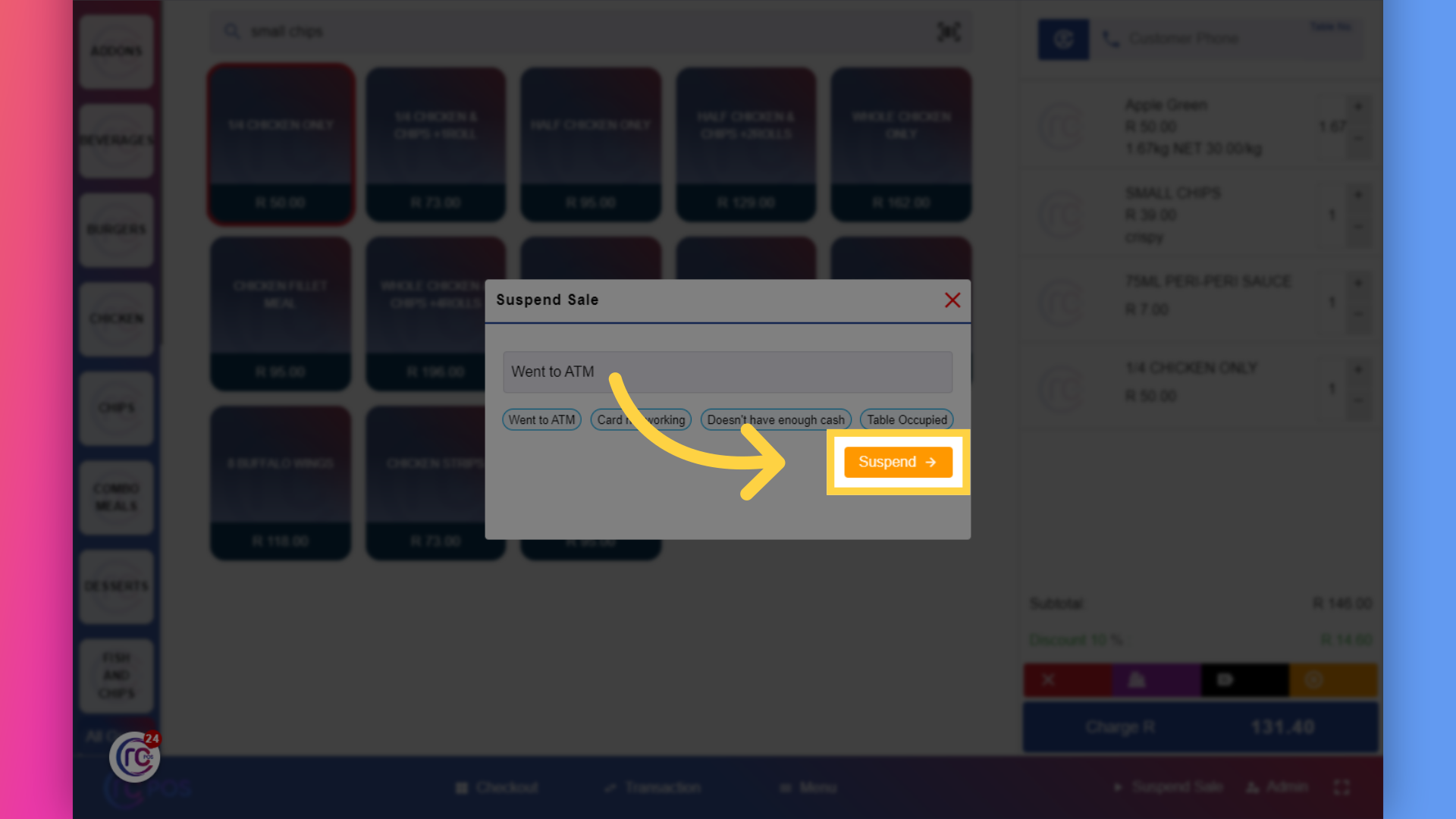
20. Click "Suspend"
Then click on the "Suspend" button,and your sale will be suspended.
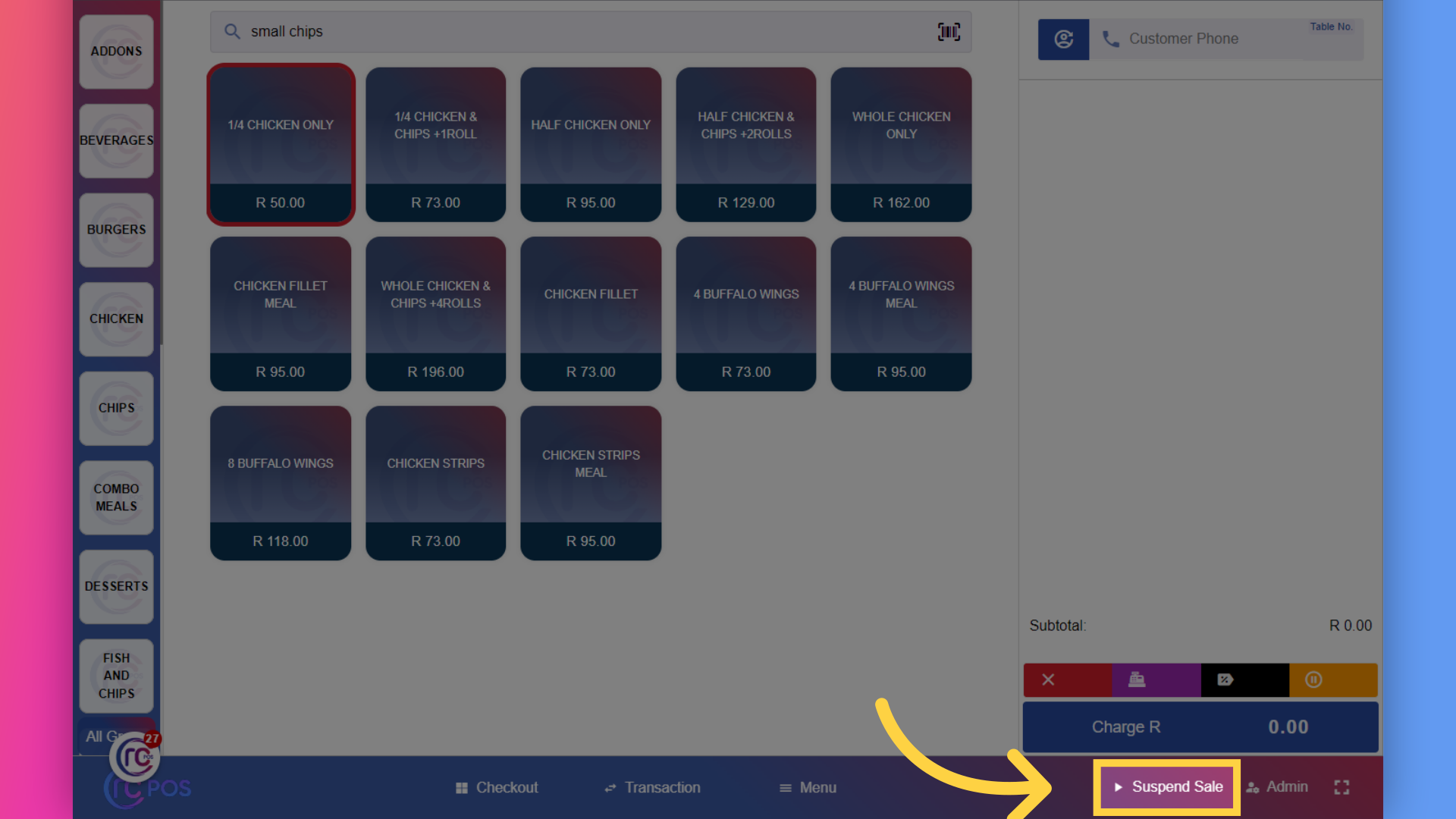
21. Click "Suspend Sale"
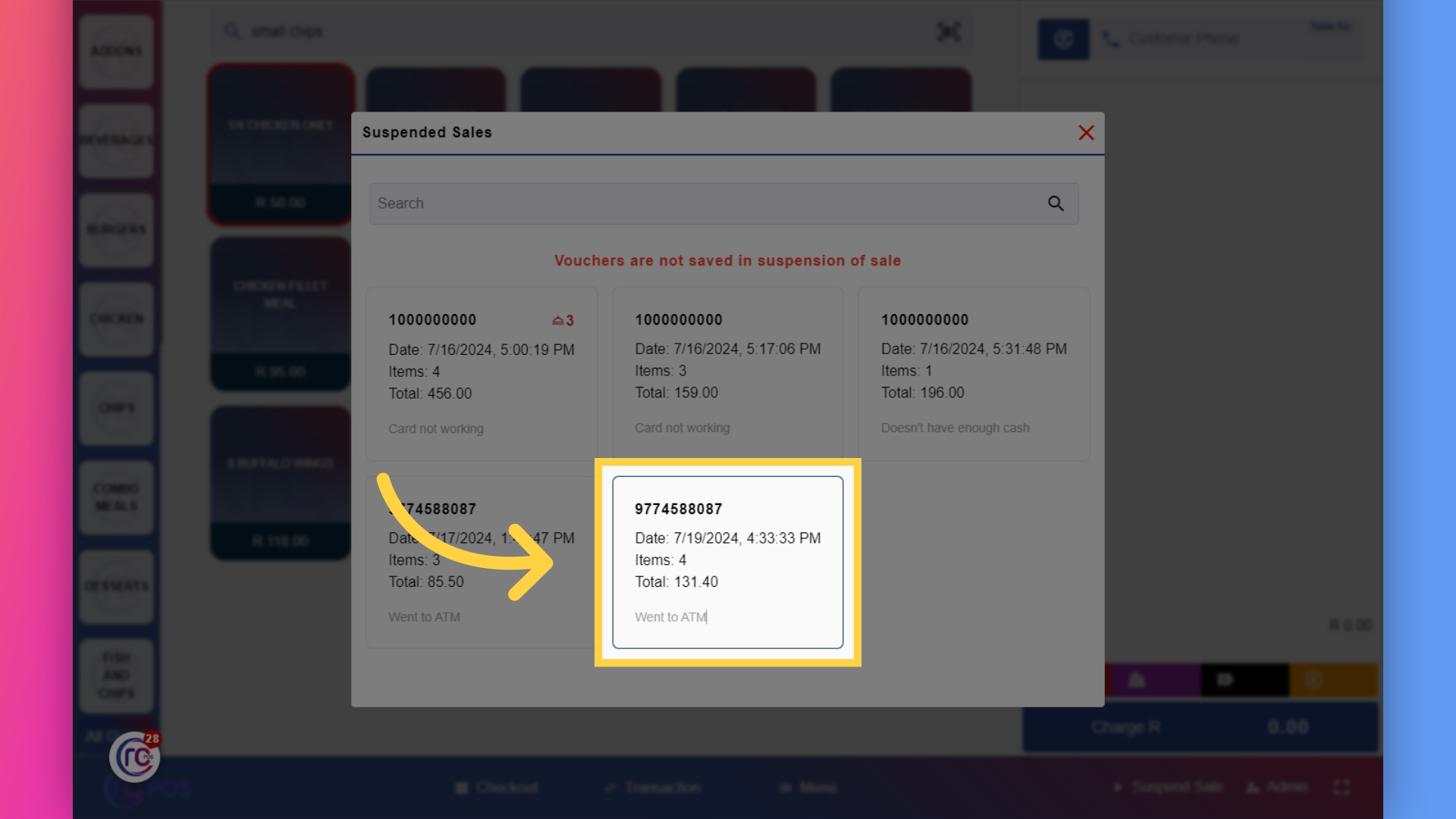
Later,to resume the sale,click on this Suspend Sale
22. Click "on the suspended sale"
and select the suspended sale .It will be restored to the cart.
23. Click here for marking a sale
Now ,let's mark the sale, click here
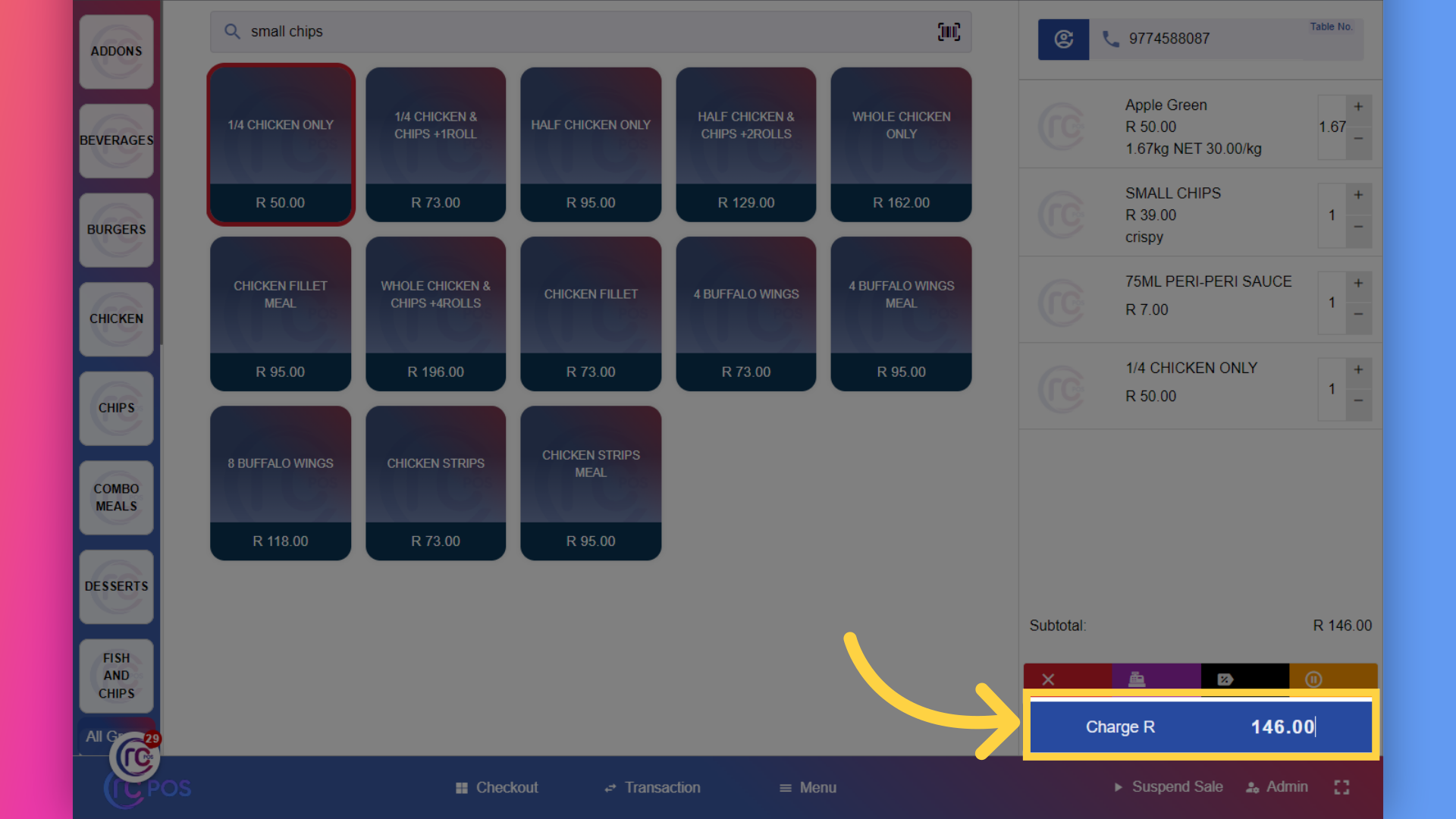
24. Click "146.00"
if the customer total is 146
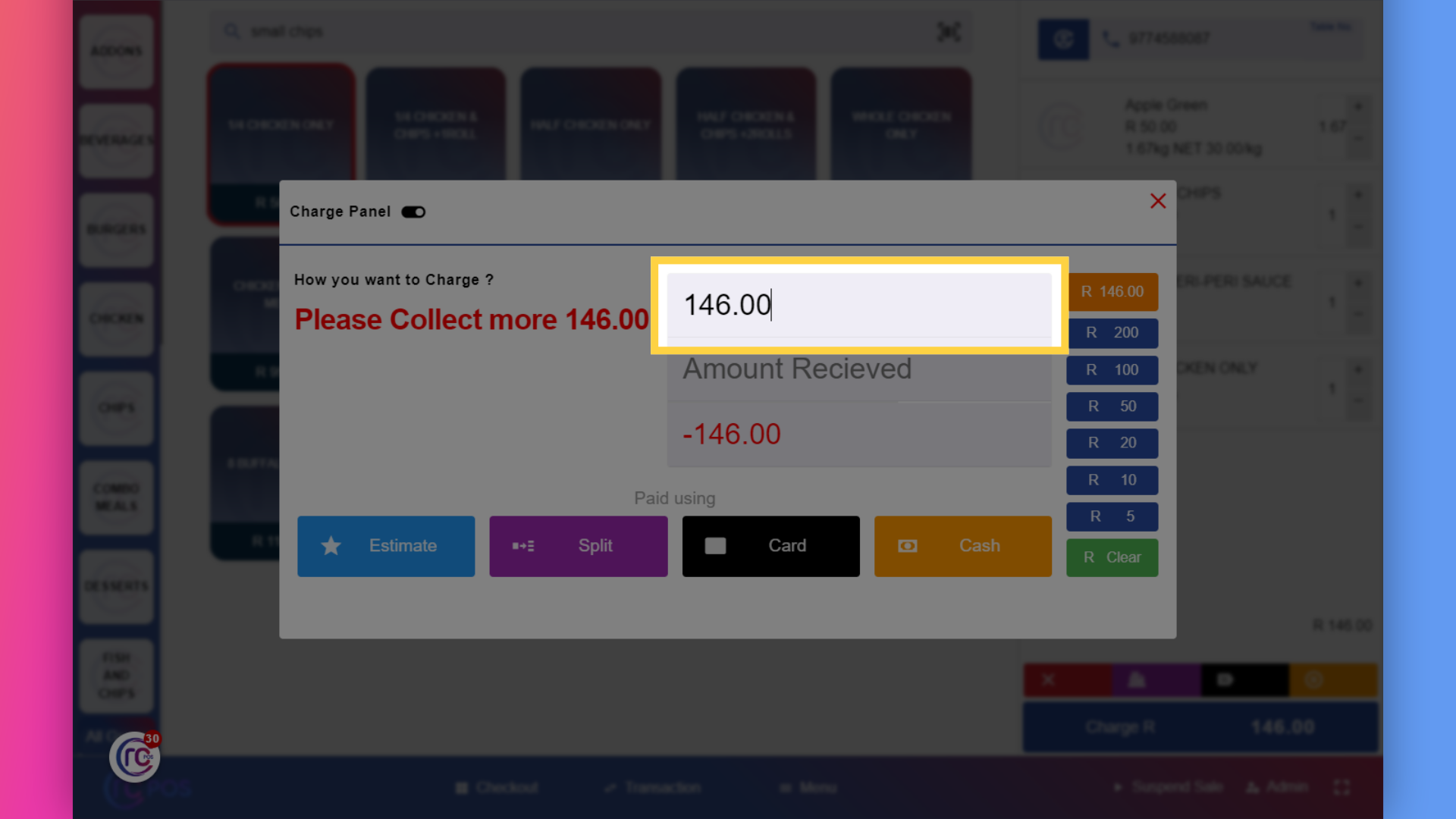
25. Fill the "Amount Recieved"
and the customer gives you 200
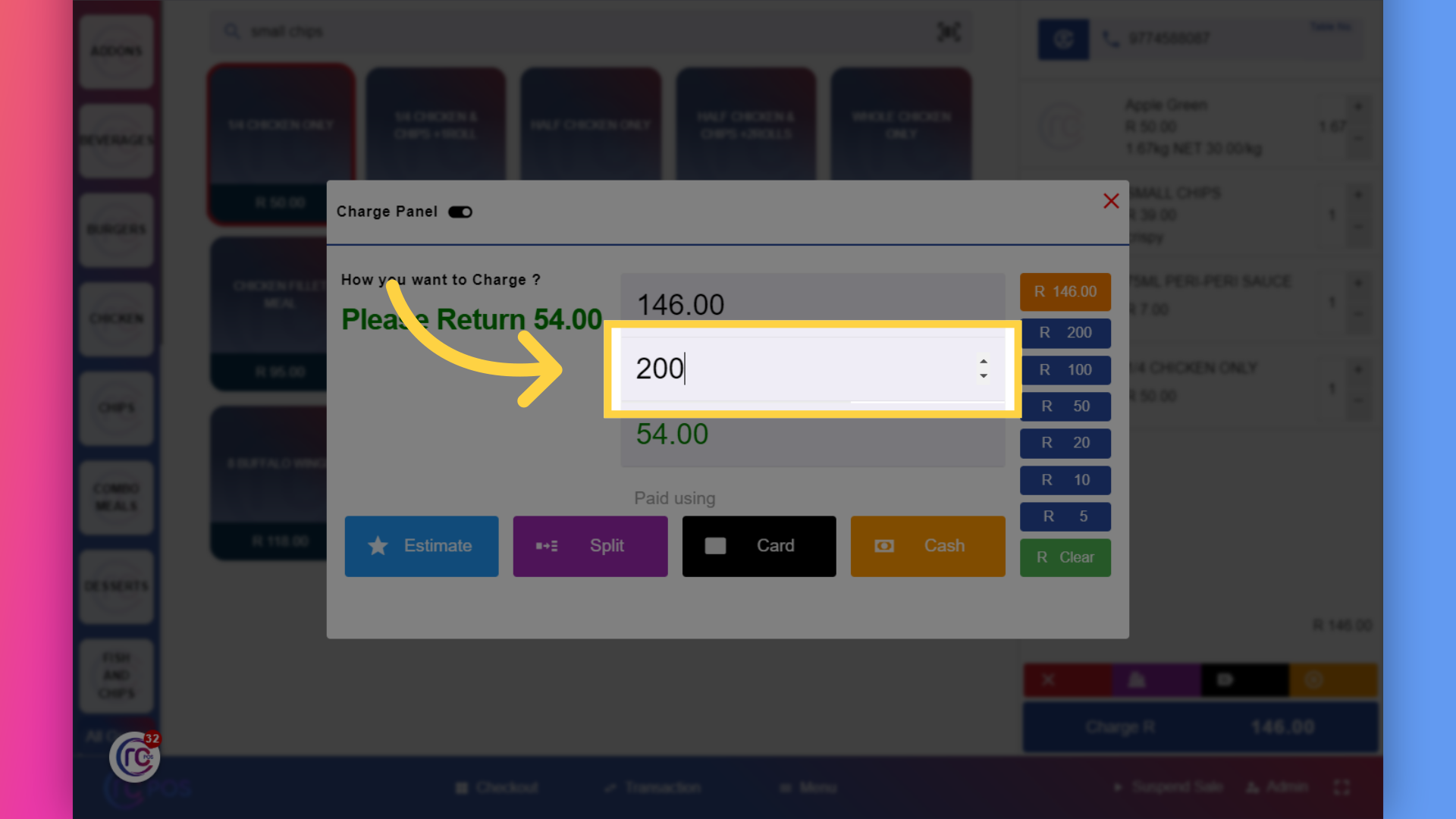
26. Click "54.00"
the system will calculate and show the change to give back,which is 54
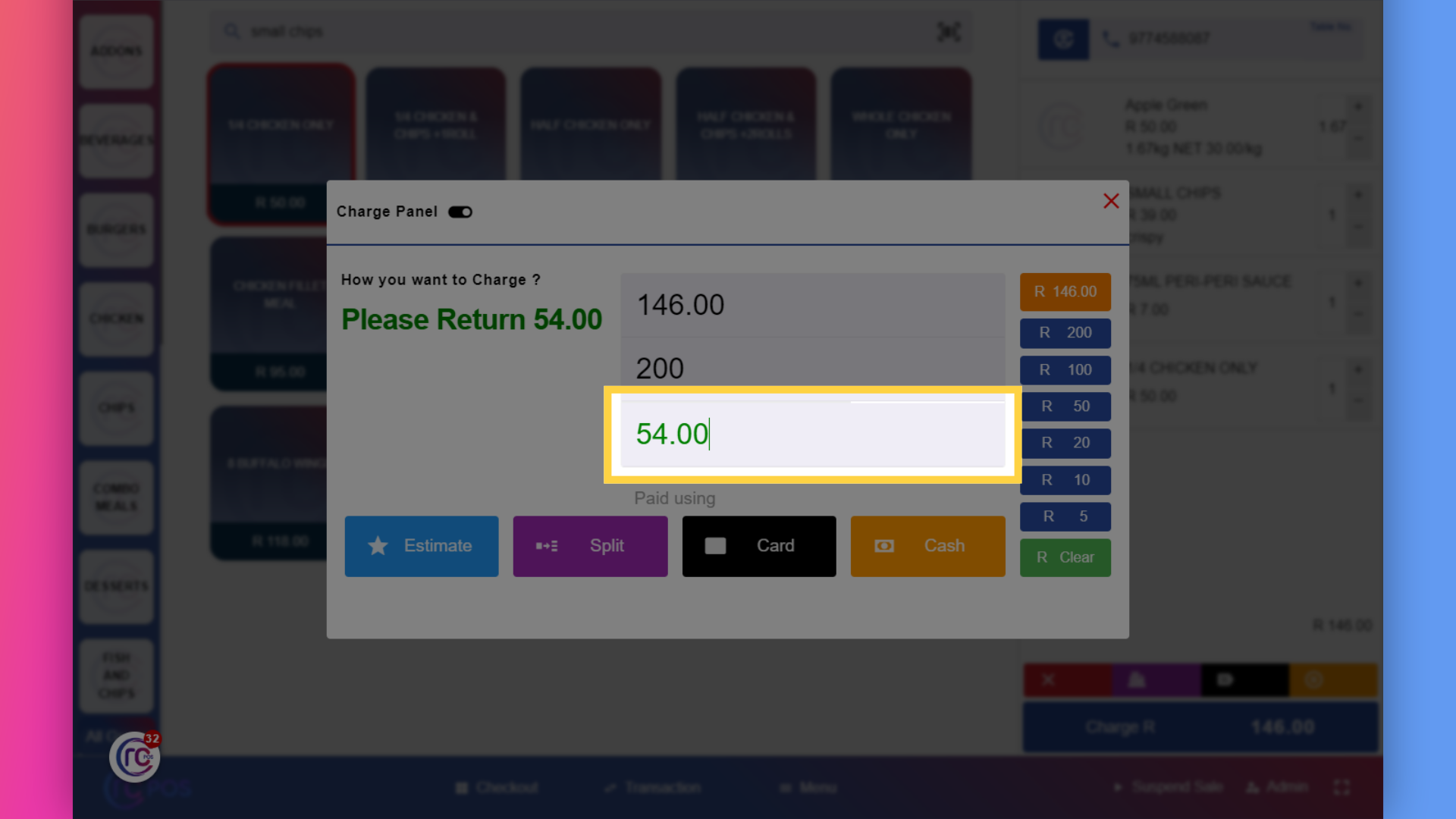
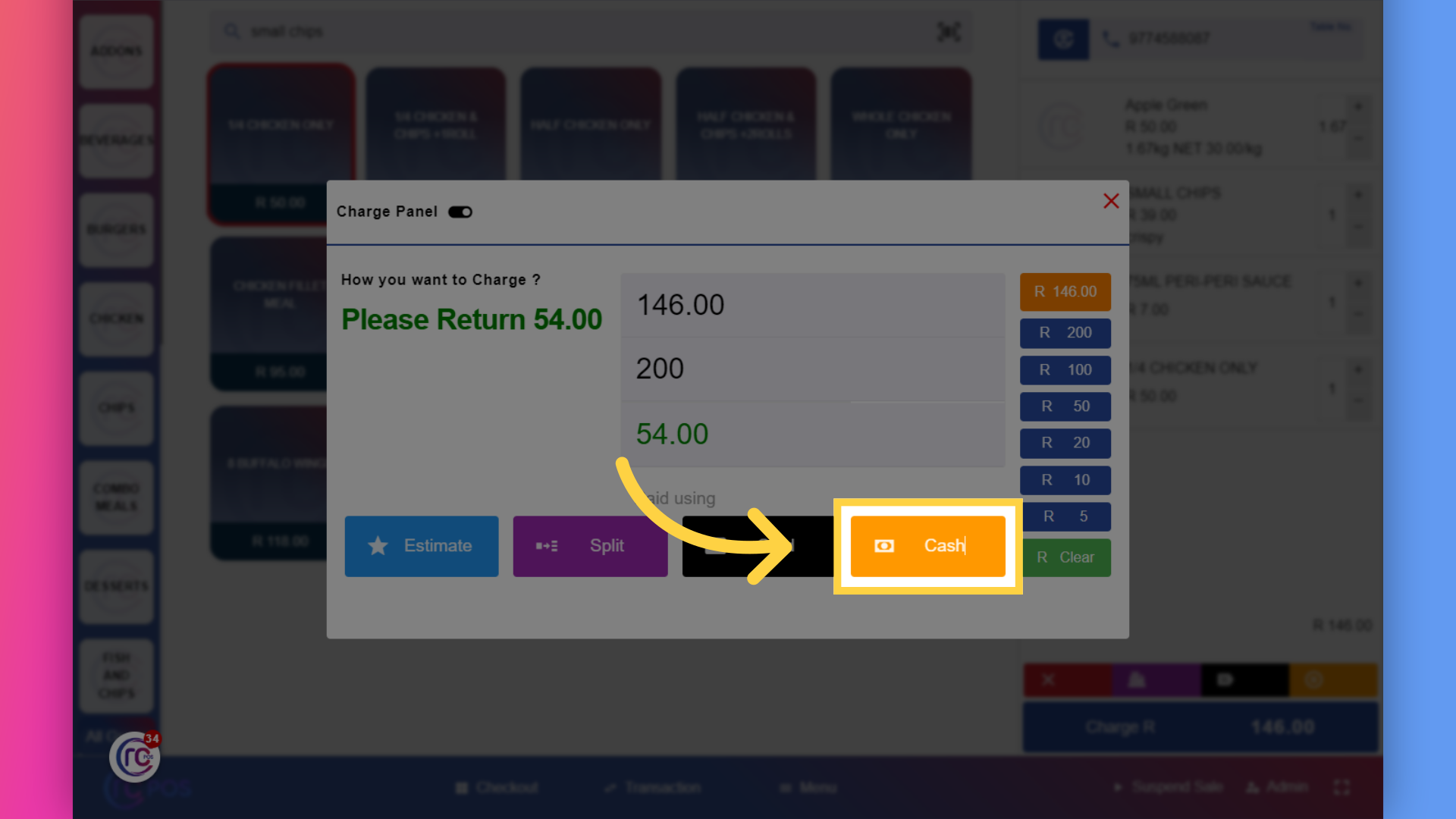
27. Click "Cash"
and Select the cash sale option. After marking the sale,
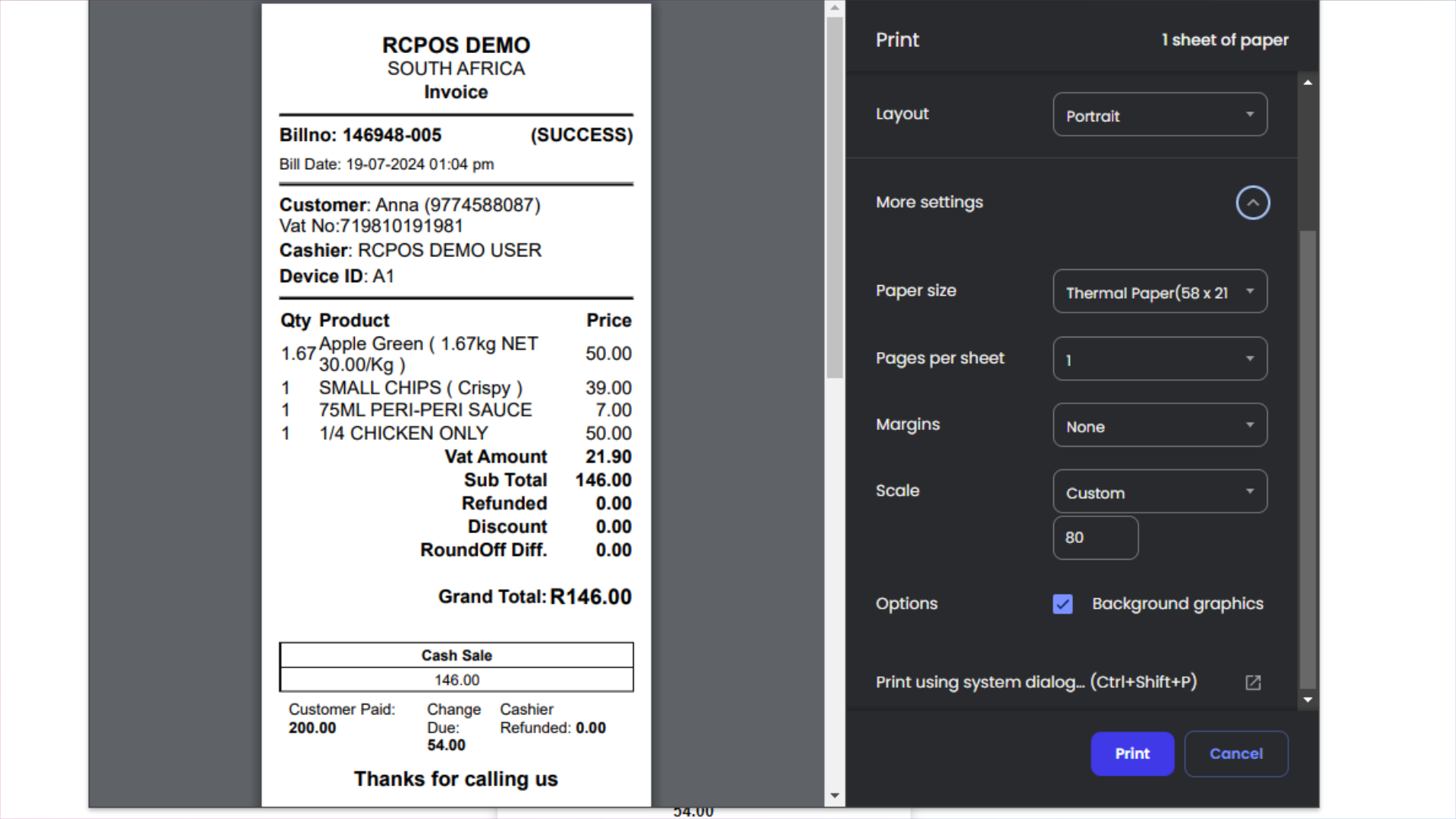
28.
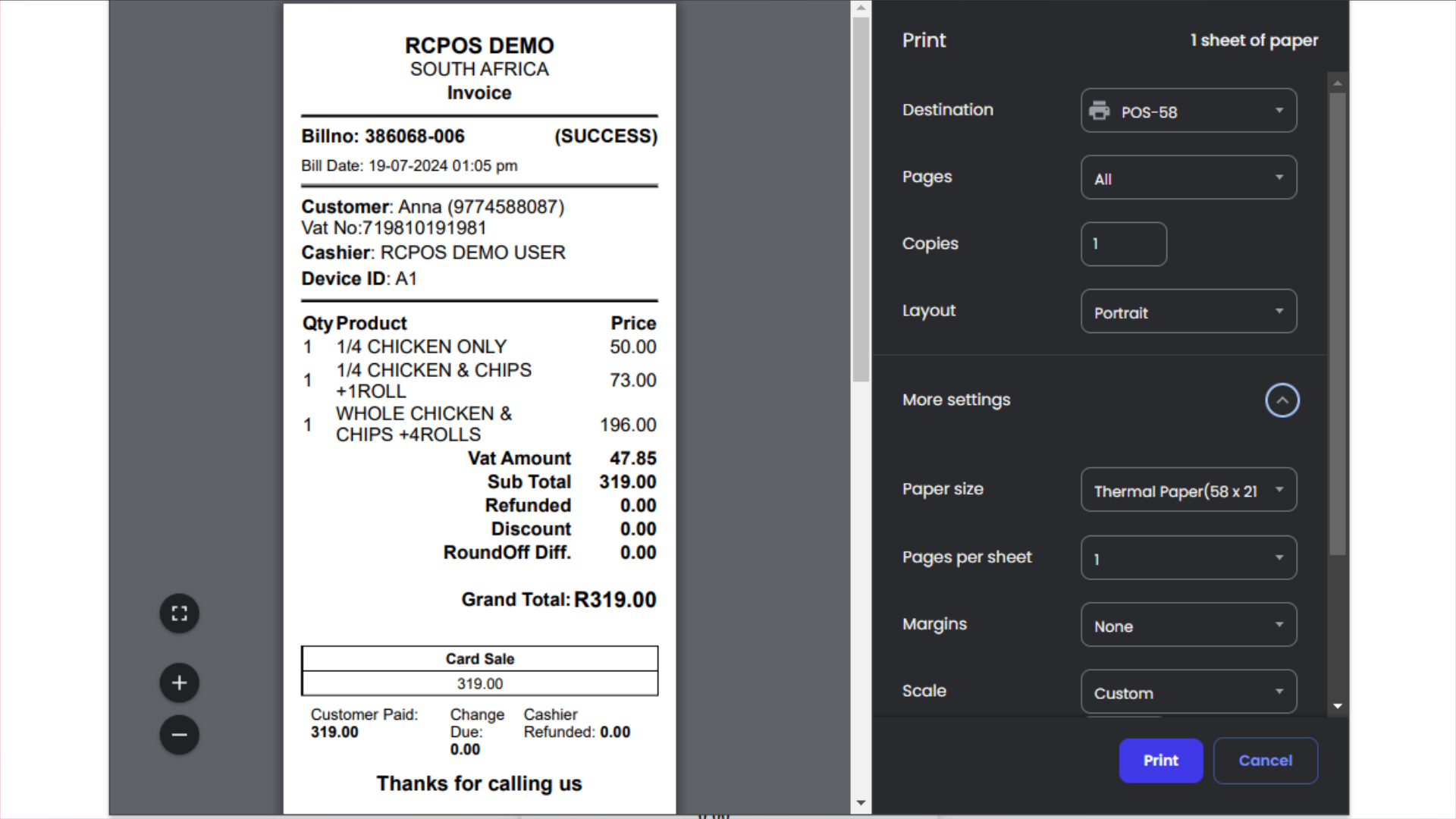
an invoice will be printed. To configure the invoice printing settings for the first time.Go to more settings,set the margin to 'None',set the scale to 80% and check the box for'Background Graphics'
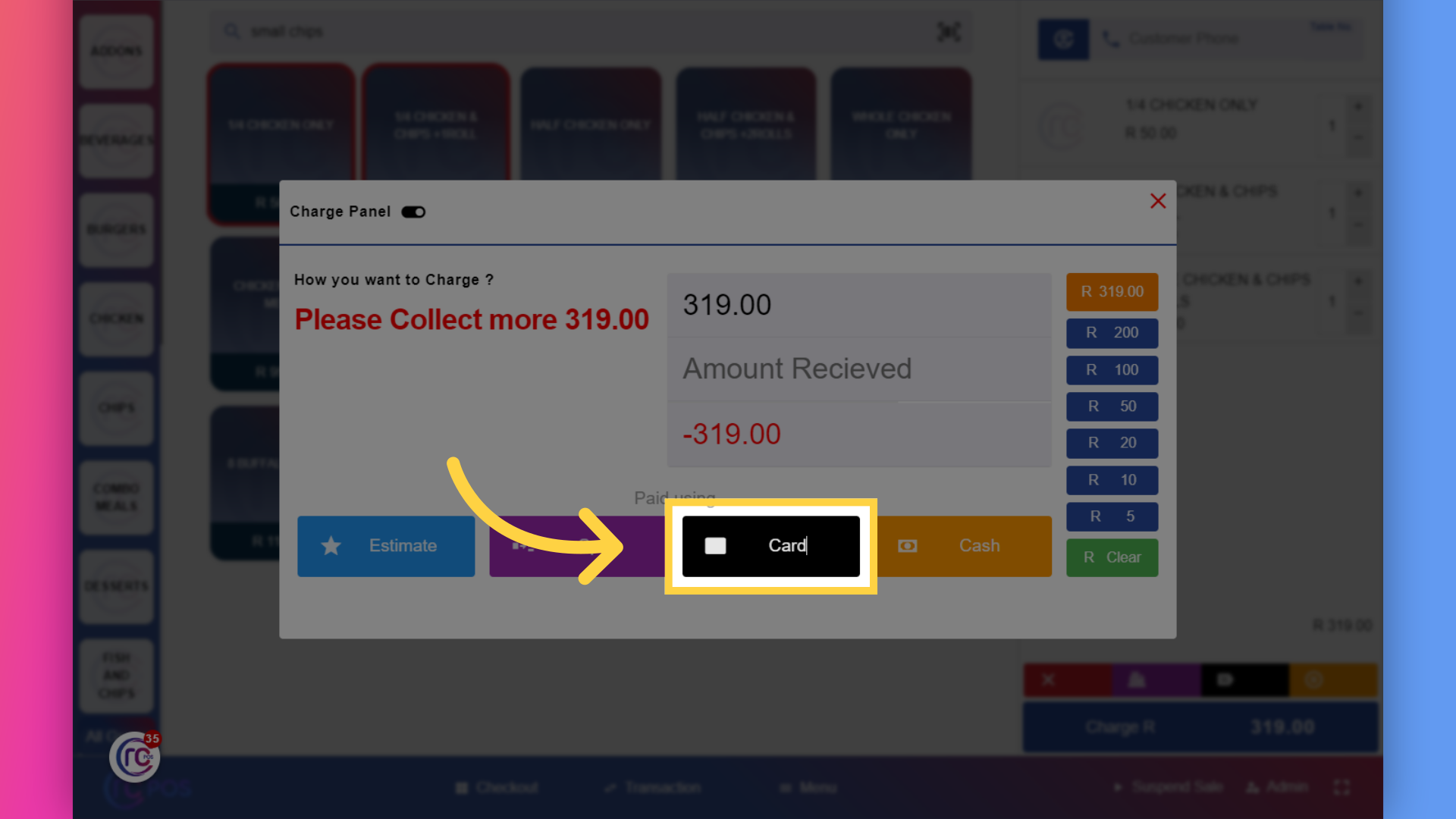
29. Click "Card"
another option to mark the sale is card sale.Select the card sale option and process the transaction through your card reader.
30.
After marking the sale,an invoice will be printed.
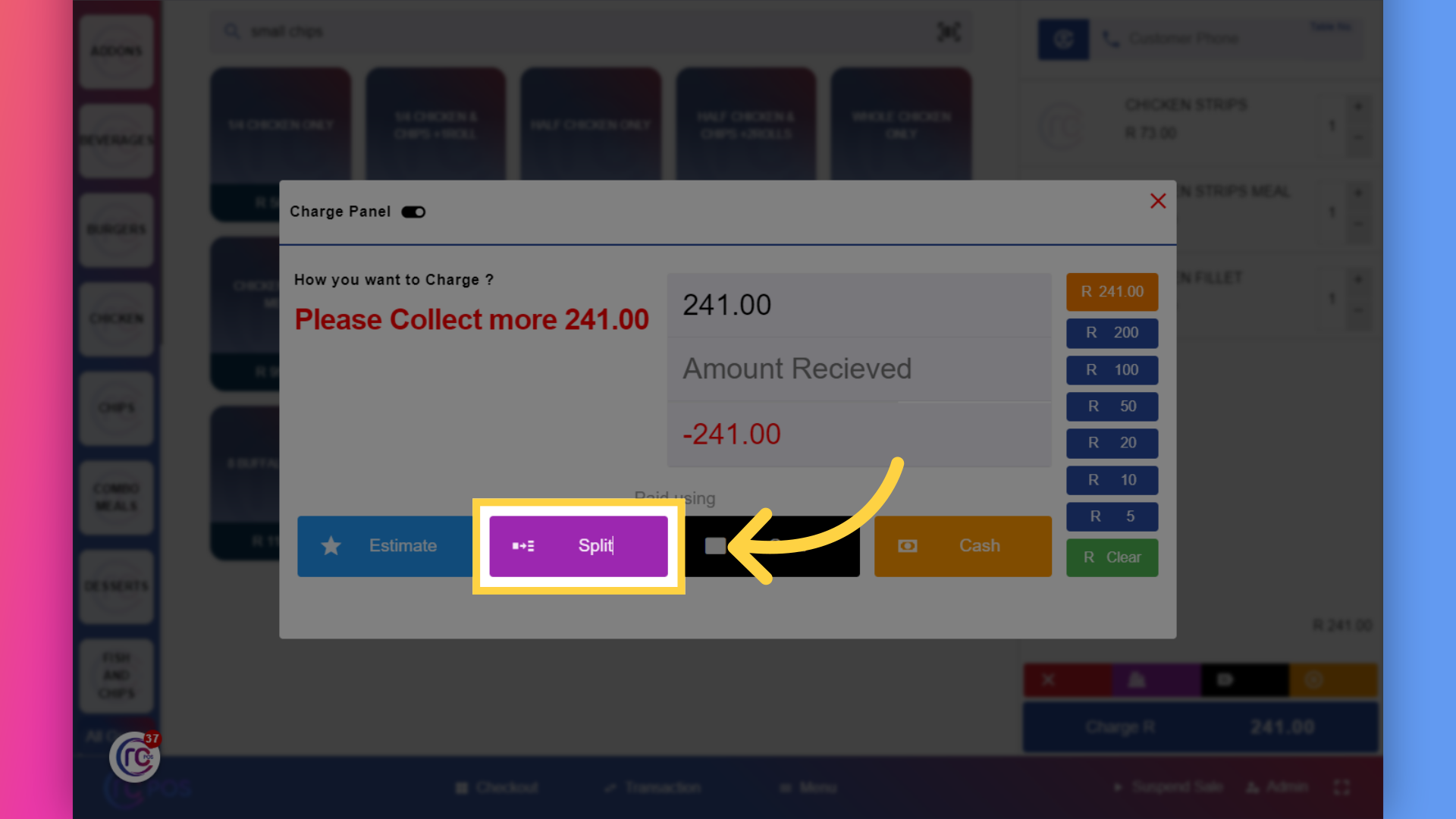
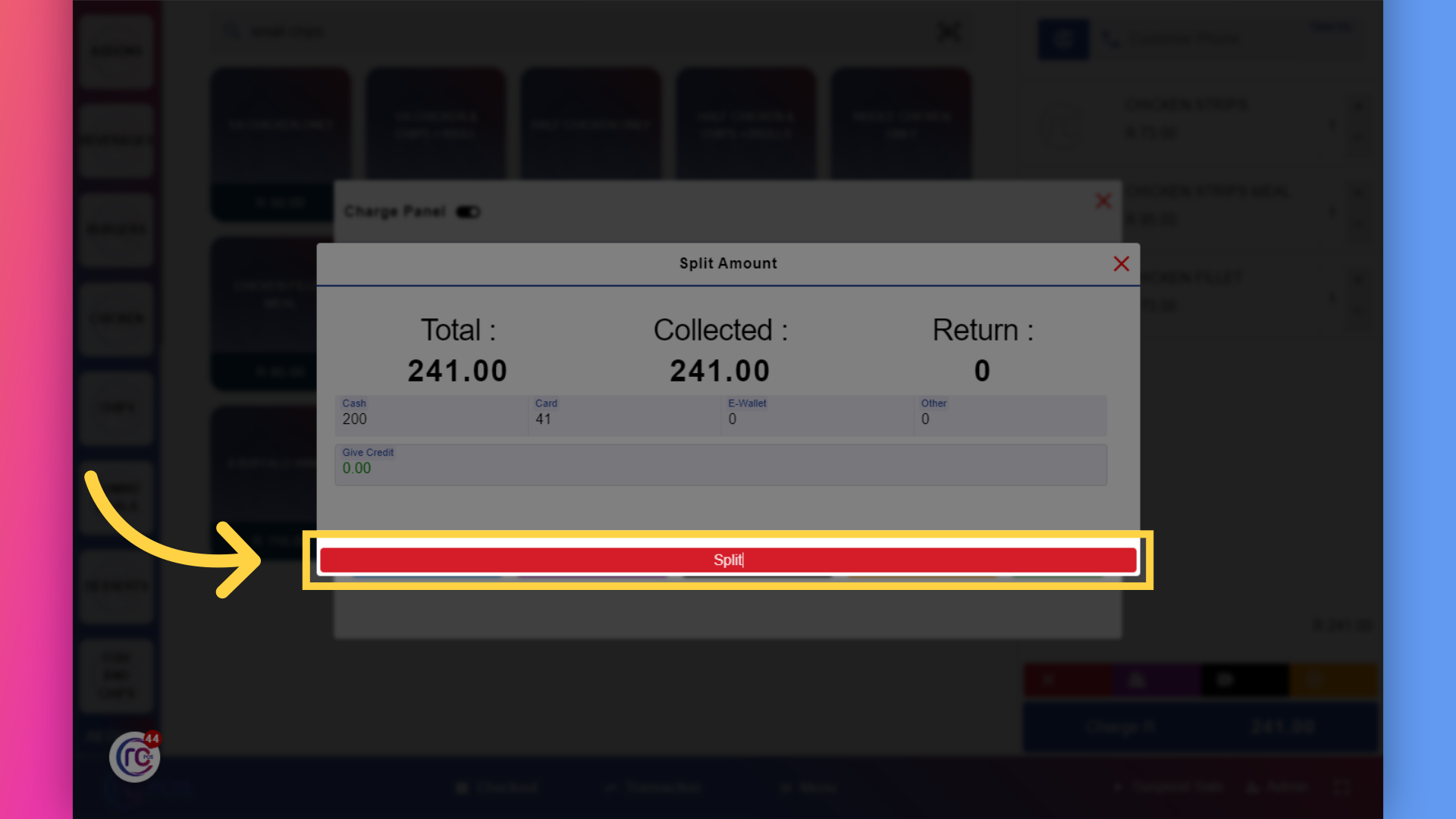
31. Click "Split"
next option is the split sale. Choose the split sale to divide the payment between cash and card.
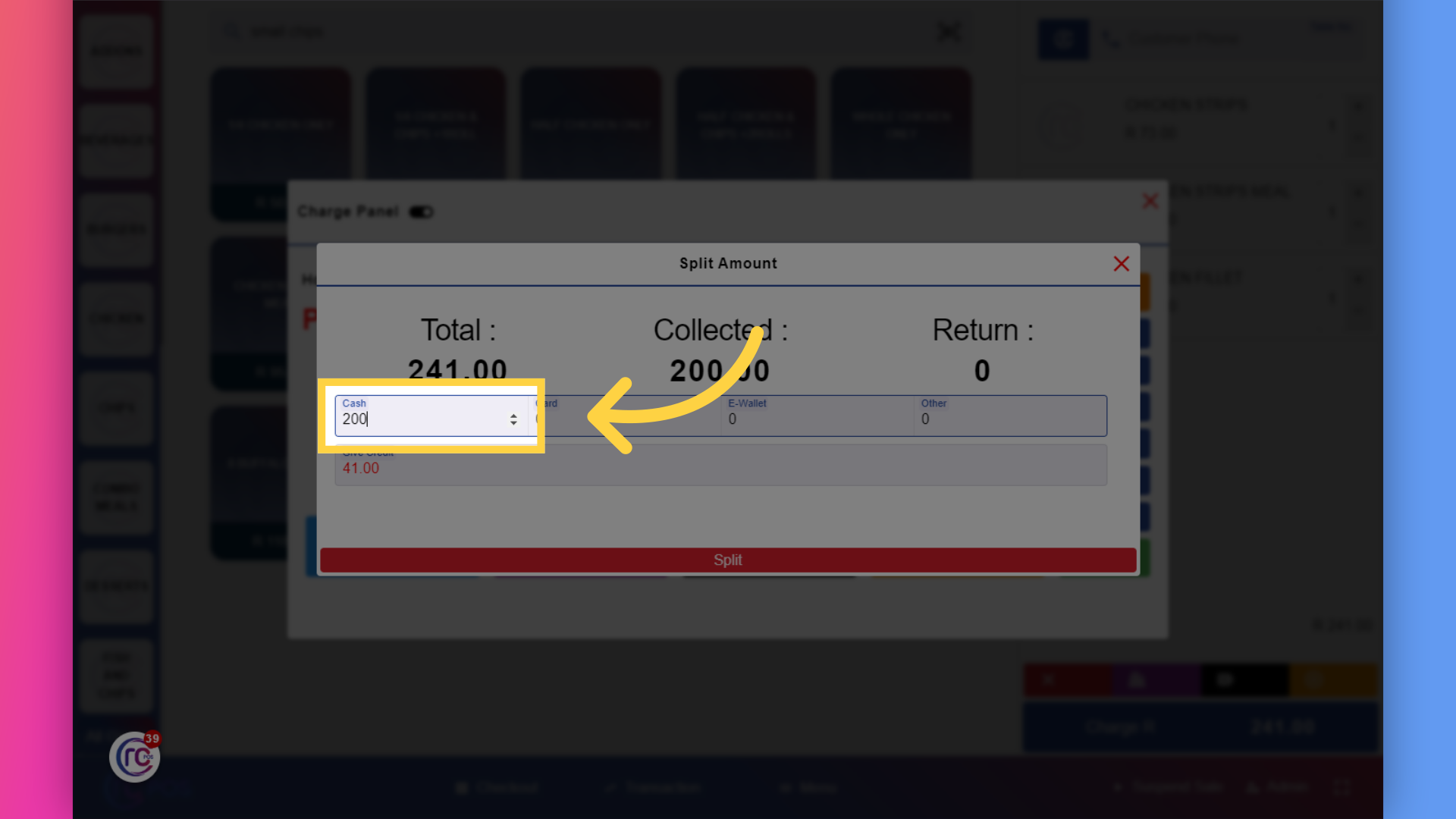
32. Enter "the amount for cash"
enter the amounts for each method as instructed.
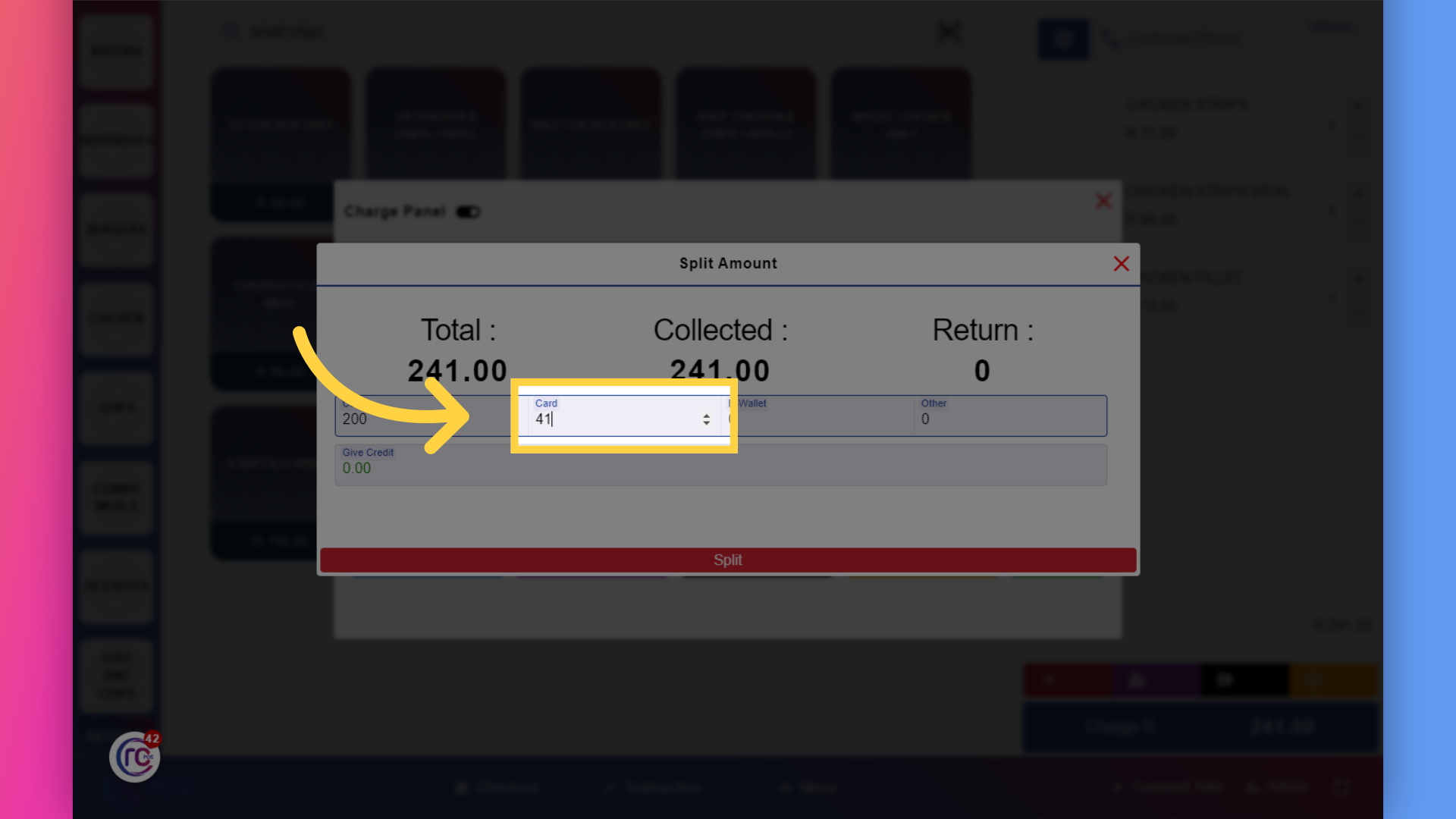
33. Fill "the remaining amount"
for the remaining amount I'll enter in the card option
34. Click "Split"
Click on "Split".
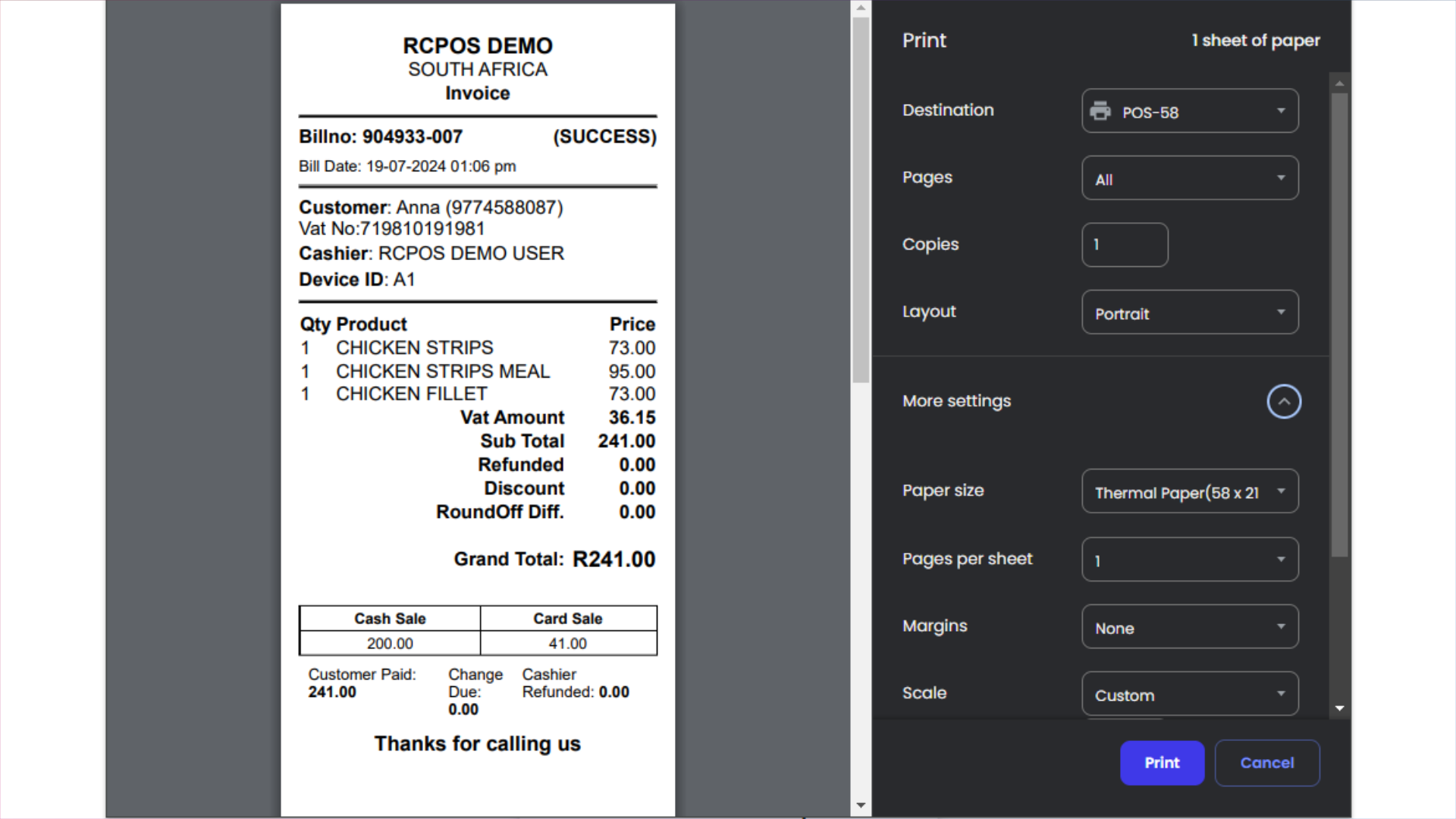
35.
after marking the sale,an invoice will be printed
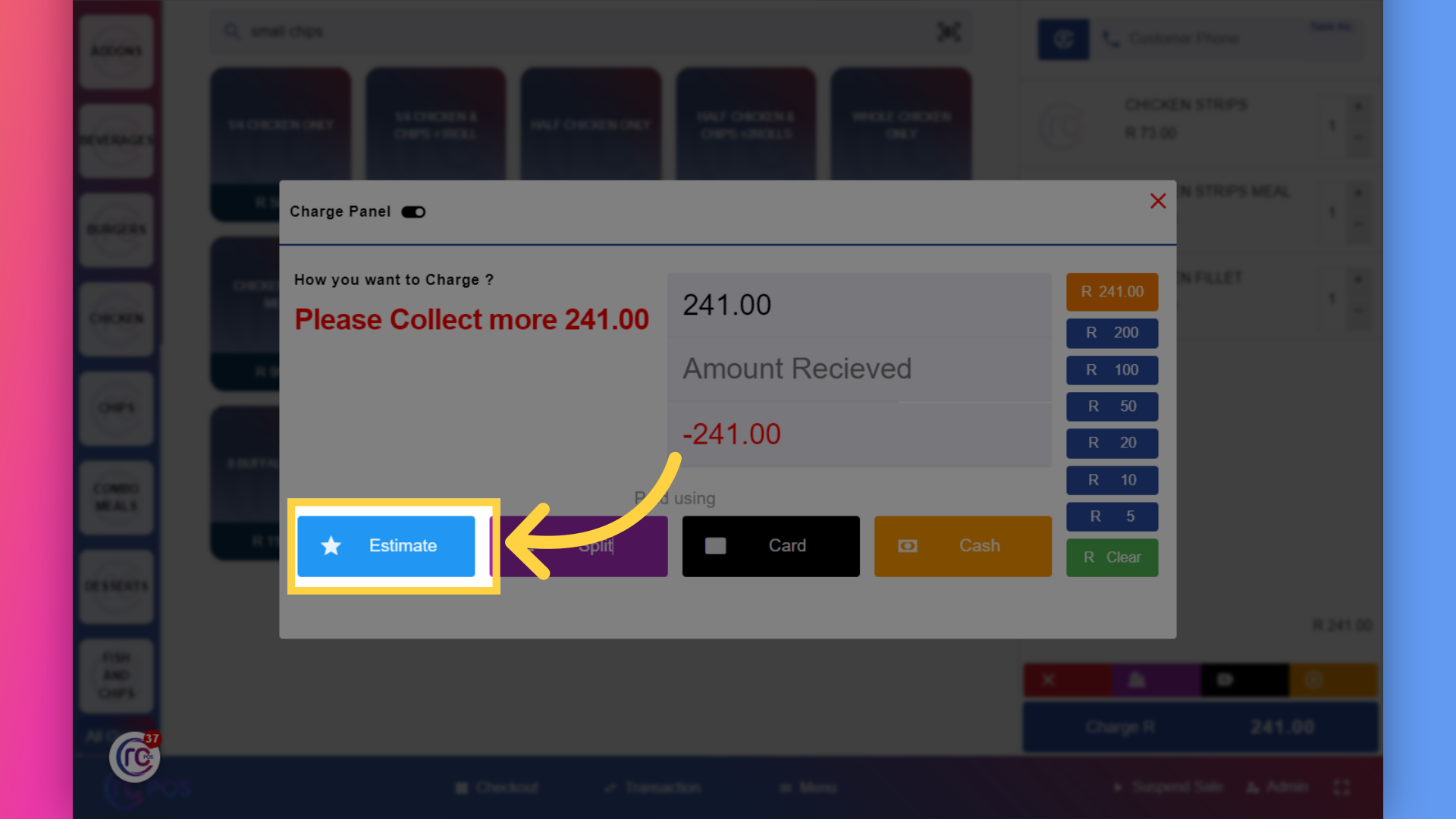
36. Click "Estimate"
The estimate option is use to create a provisional sale or quote.click on the estimate button
37. Fill in the customer details
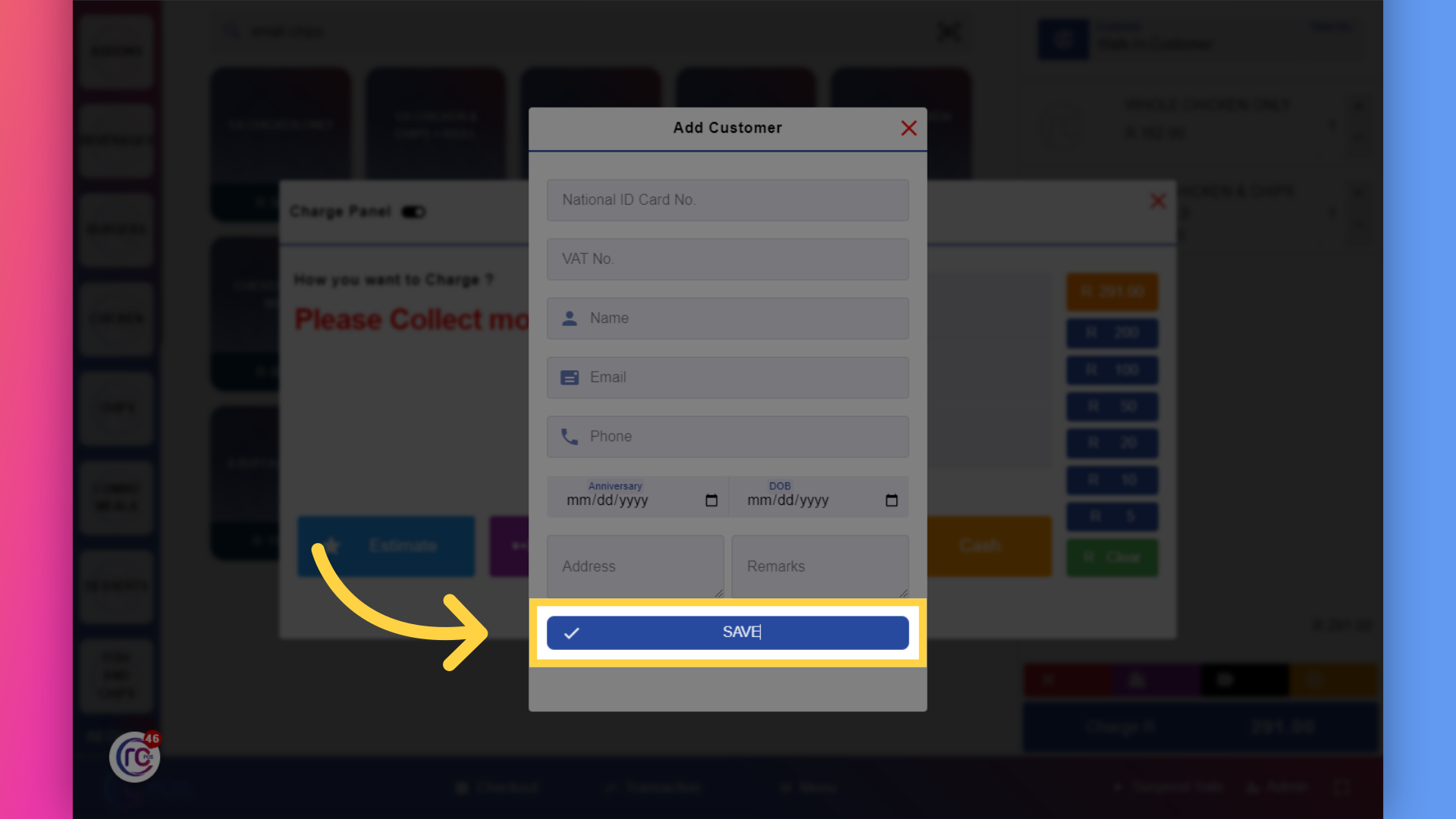
you will be asked to provide the customer detail, fill out all the fields
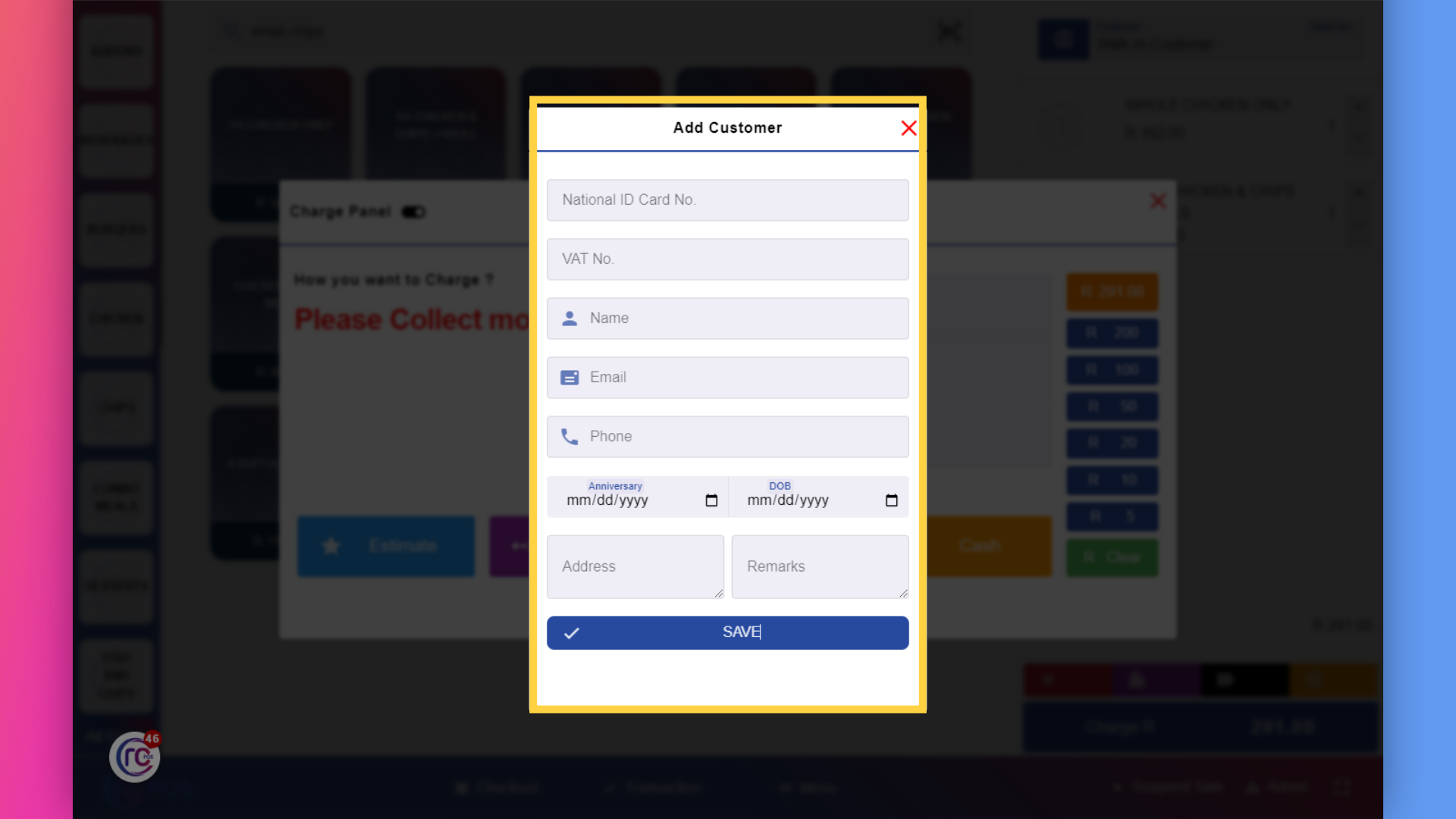
38. Click "SAVE"
then click on Save
39.
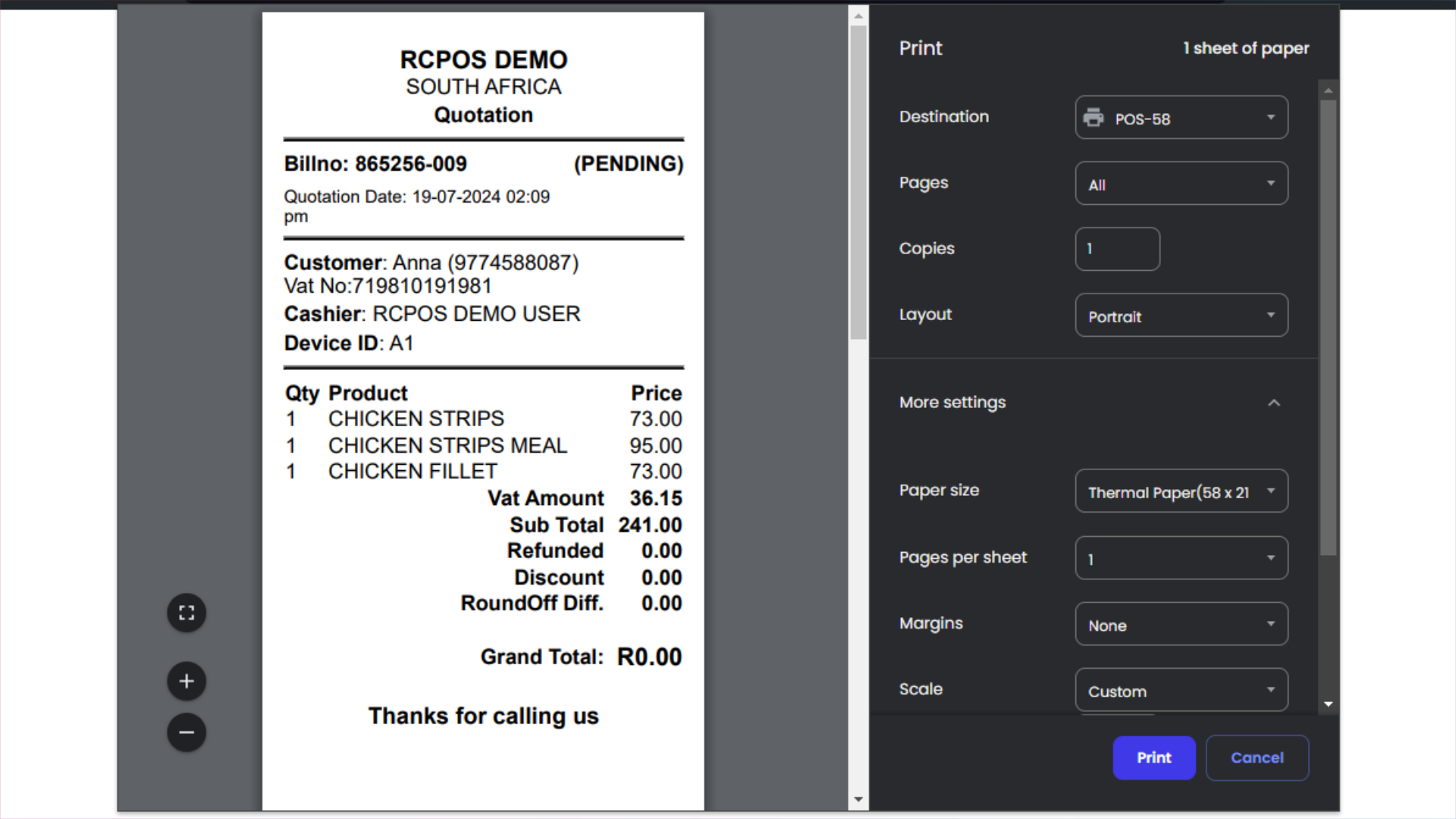
This does not finalize the sale but gives an estimate for the customer.And the invoice will be printed
40. Click "Transaction"
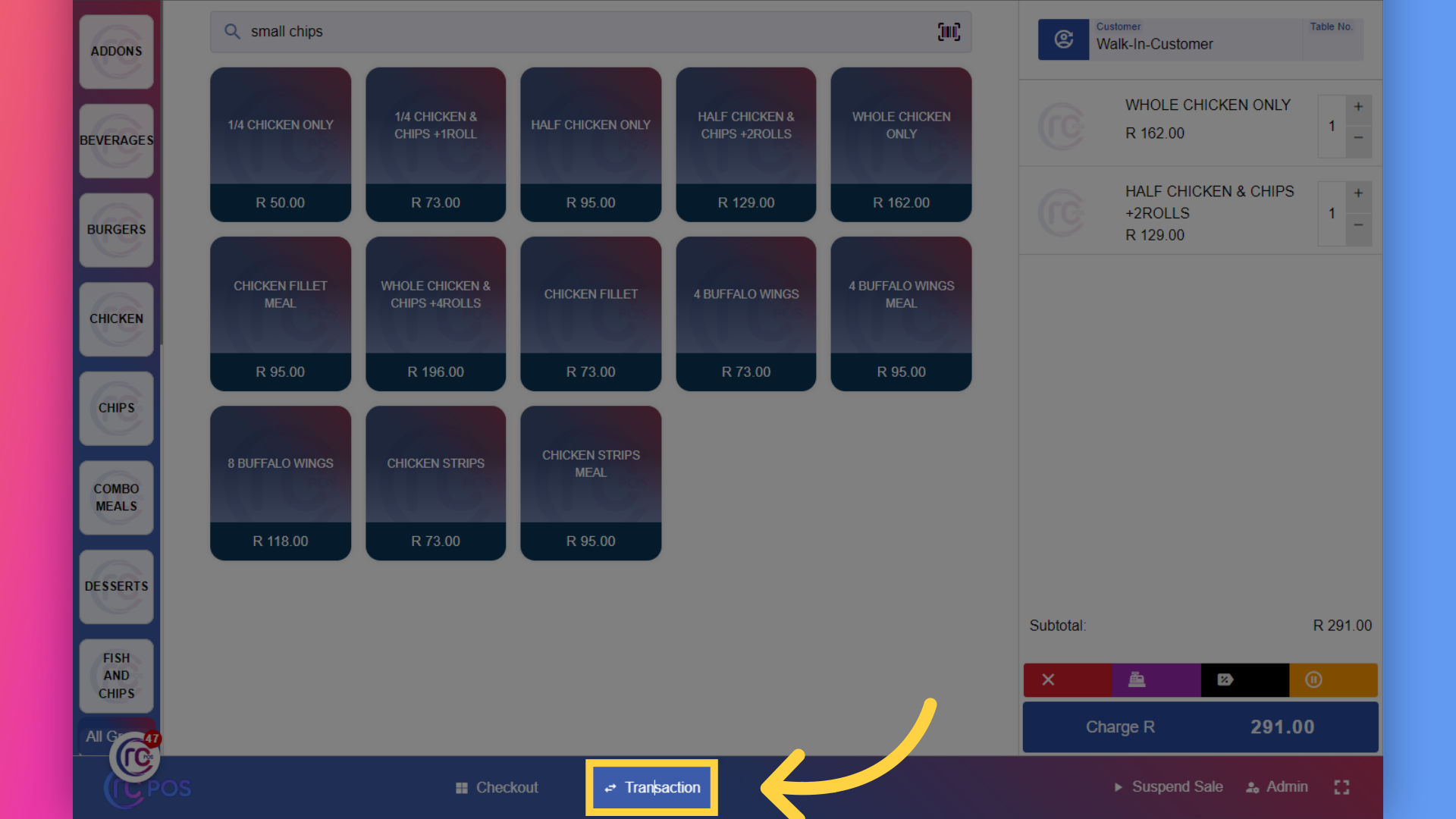
to view and print transactions ,go to transactions page to see all the transactions done day by day.
41. Click here
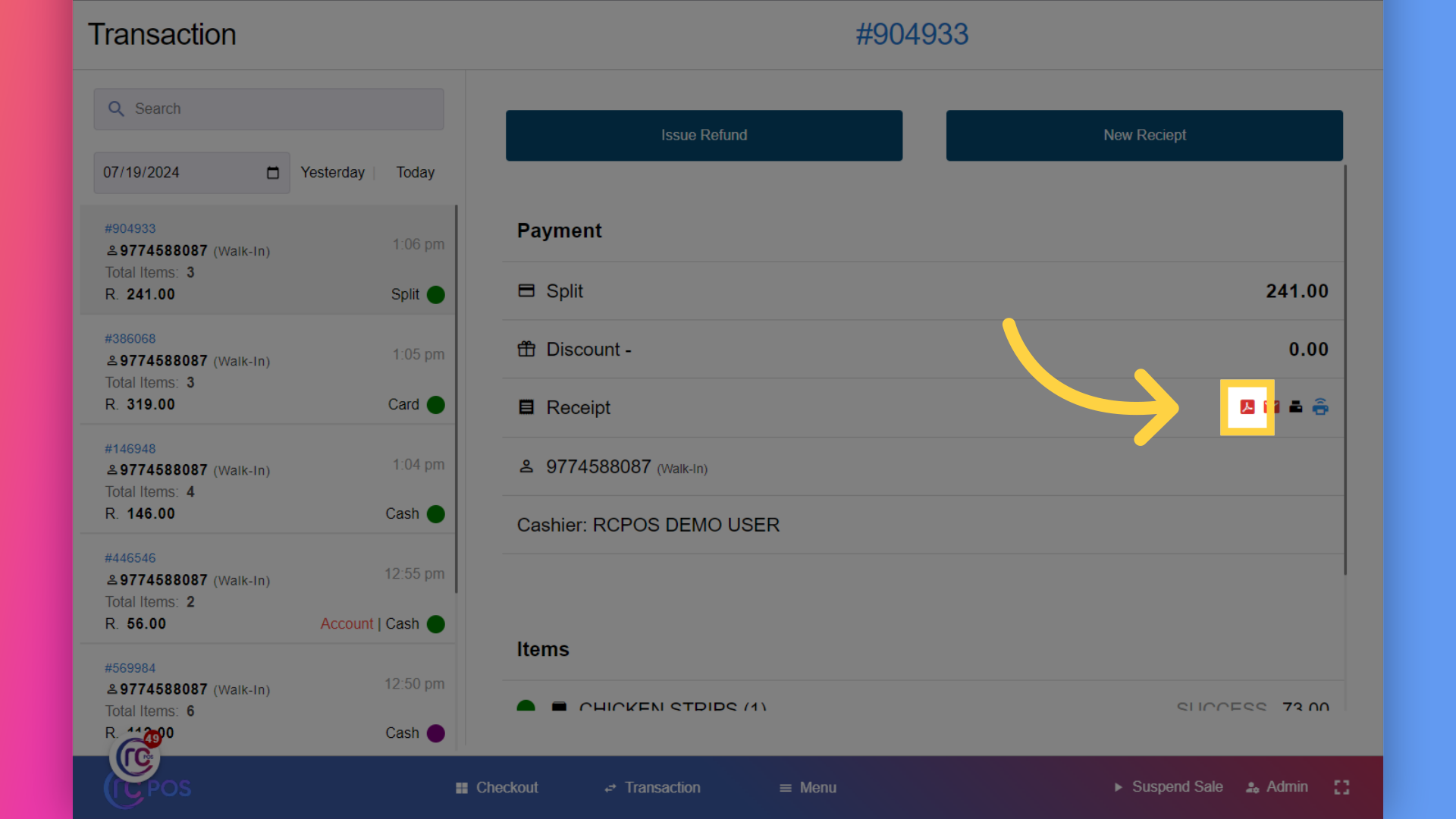
you can print transactions through different methods like pdf print,you can click here.
42. Click here
for email print click here
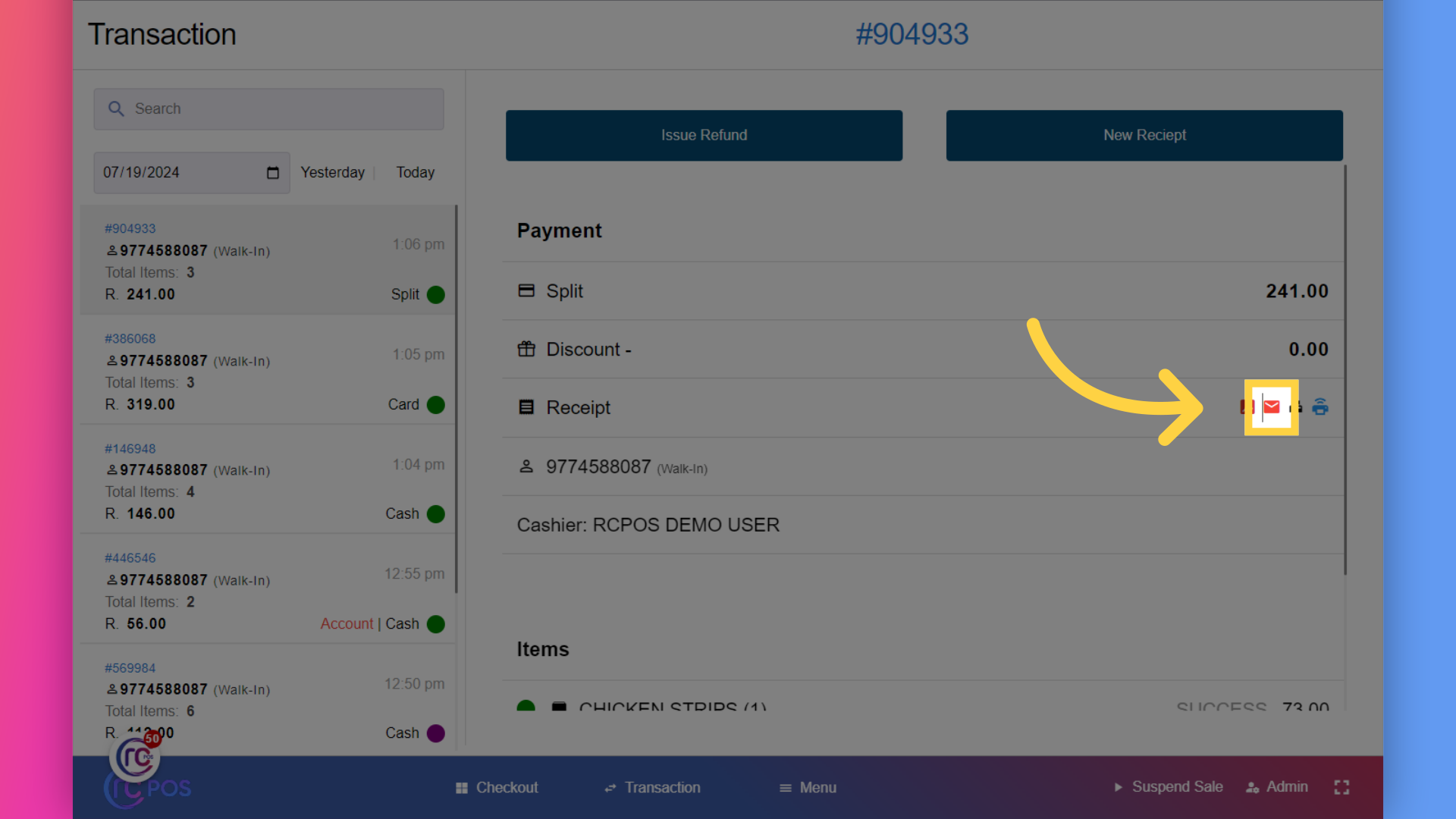
43. Click here
for thermal printer click here
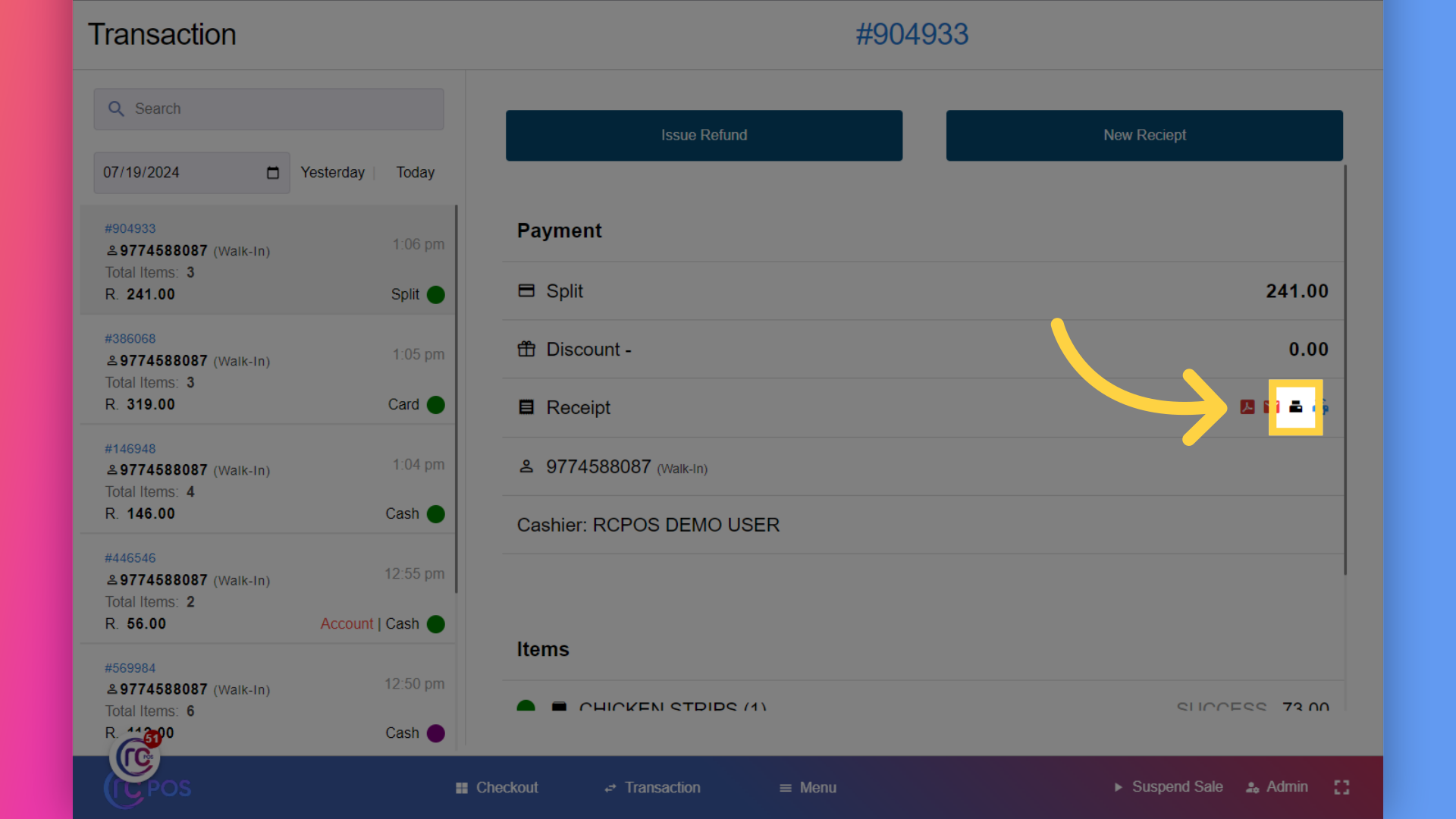
44. Click here
and for department printer click here
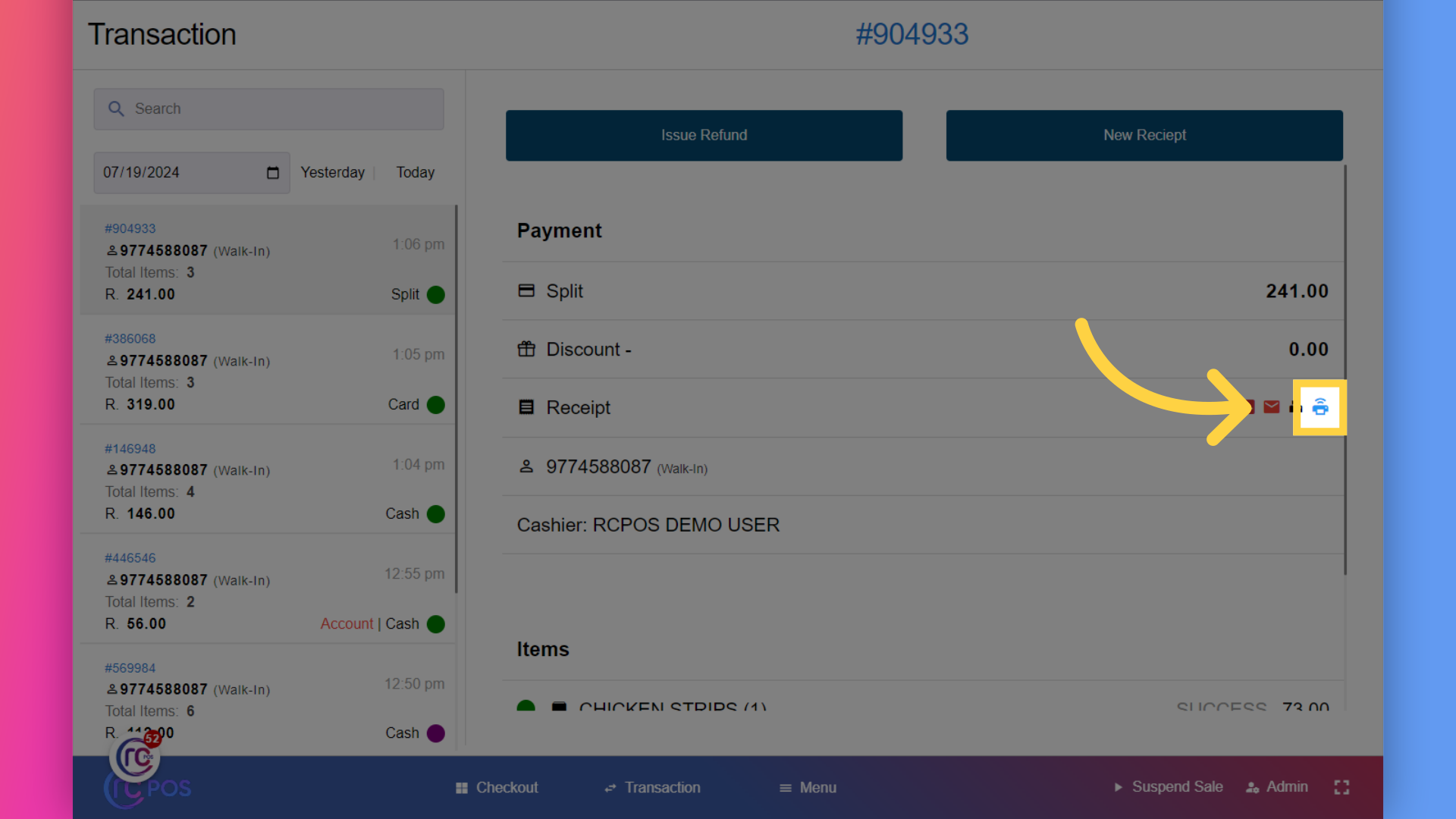
45. Click "Issue Refund"
to issue a refund ,click on the issue refund button.
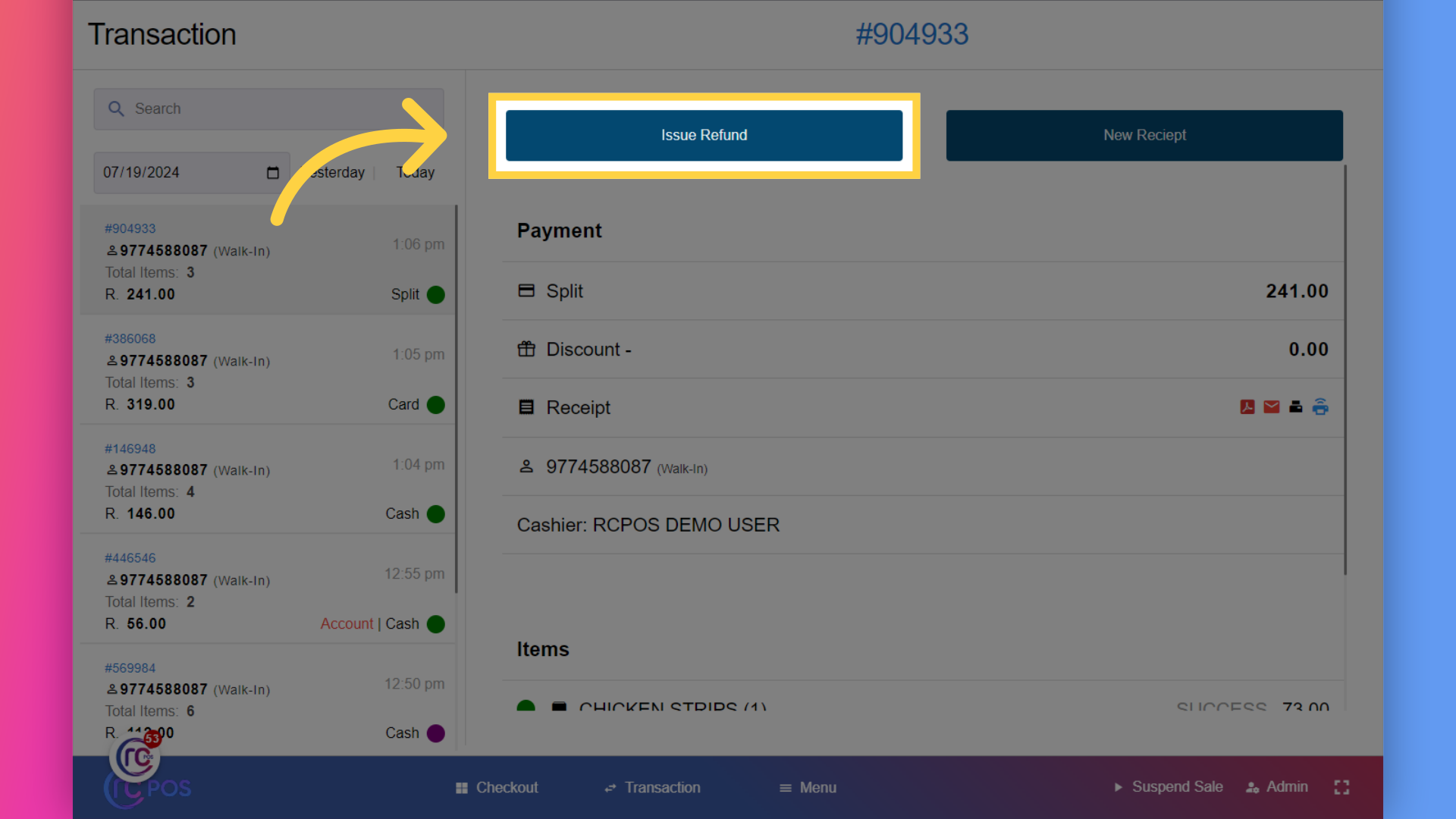
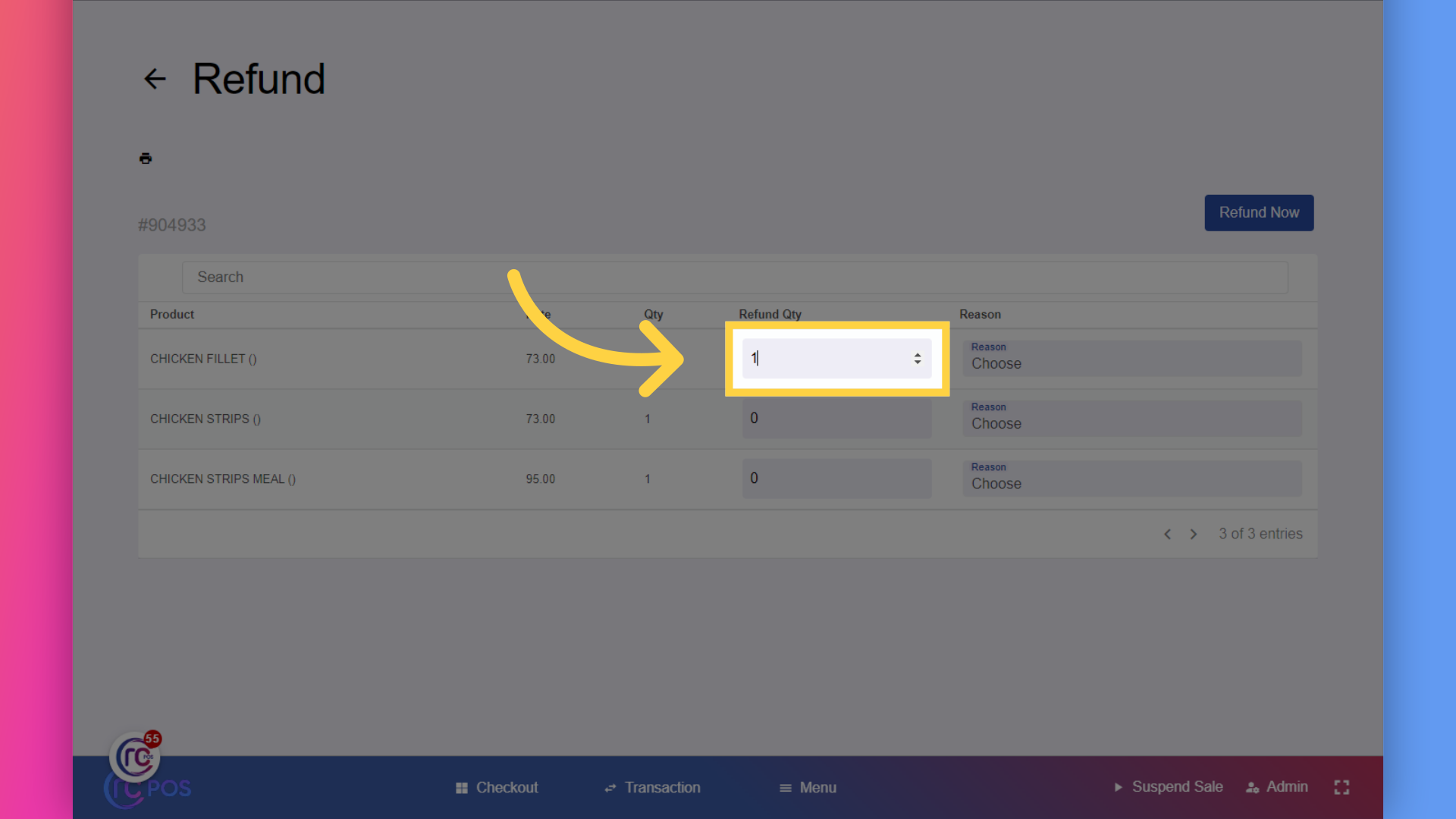
46. Fill "quanity"
give the quantity here
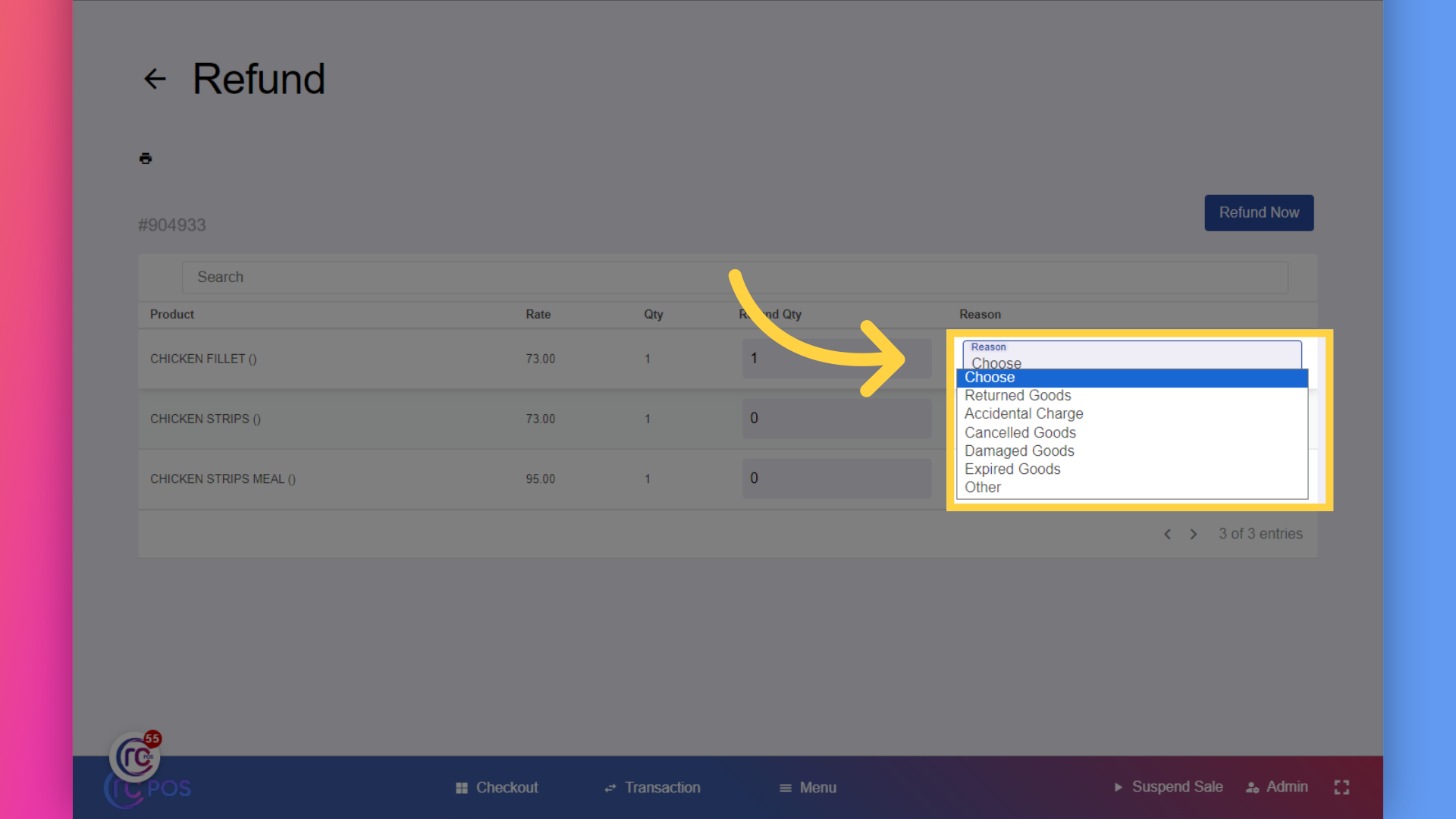
47. Choose "any reasons"
Click on "Choose" and give appropriate reason why you want to return the product
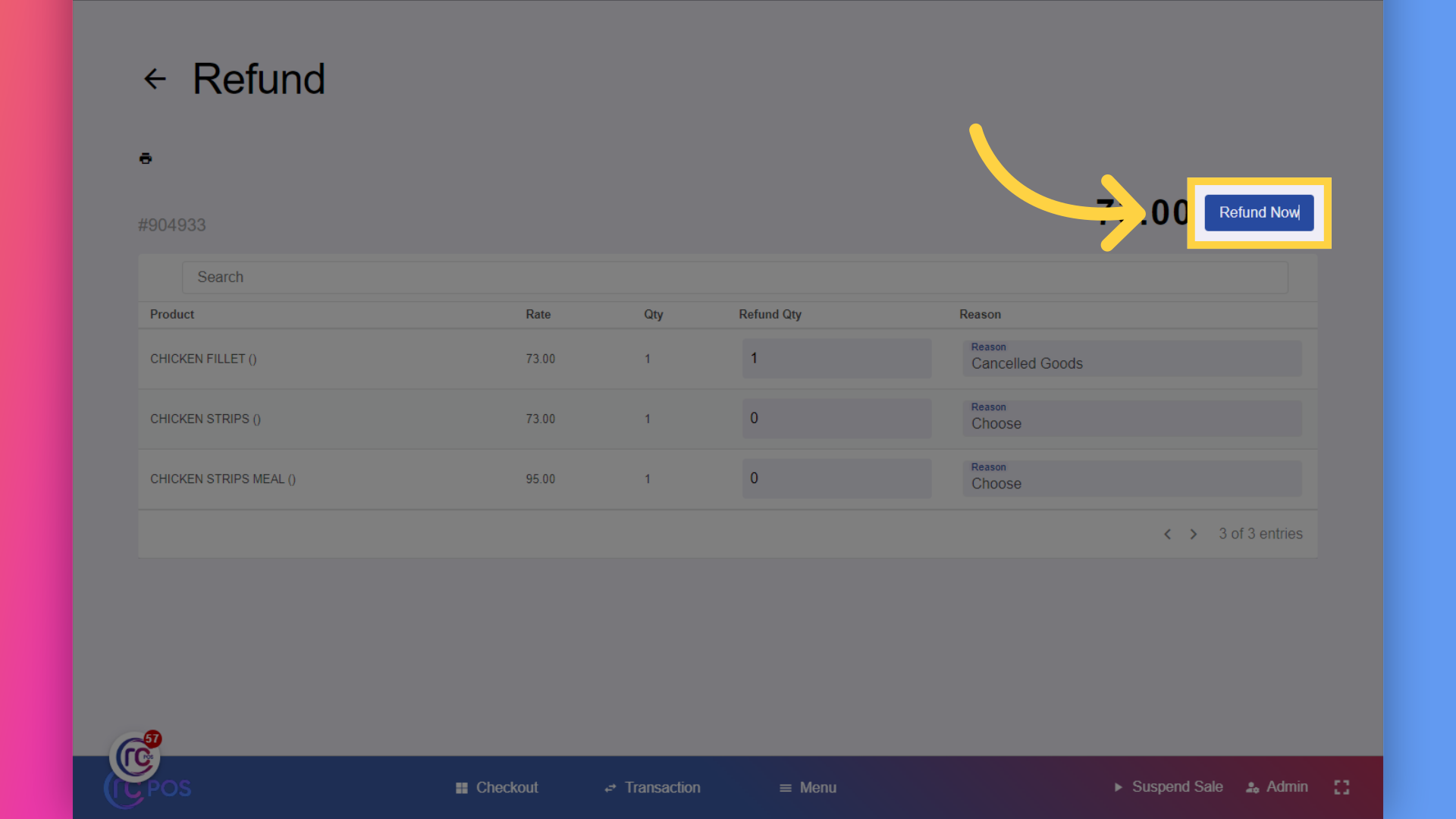
48. Click "Refund Now"
Click on "Refund Now".
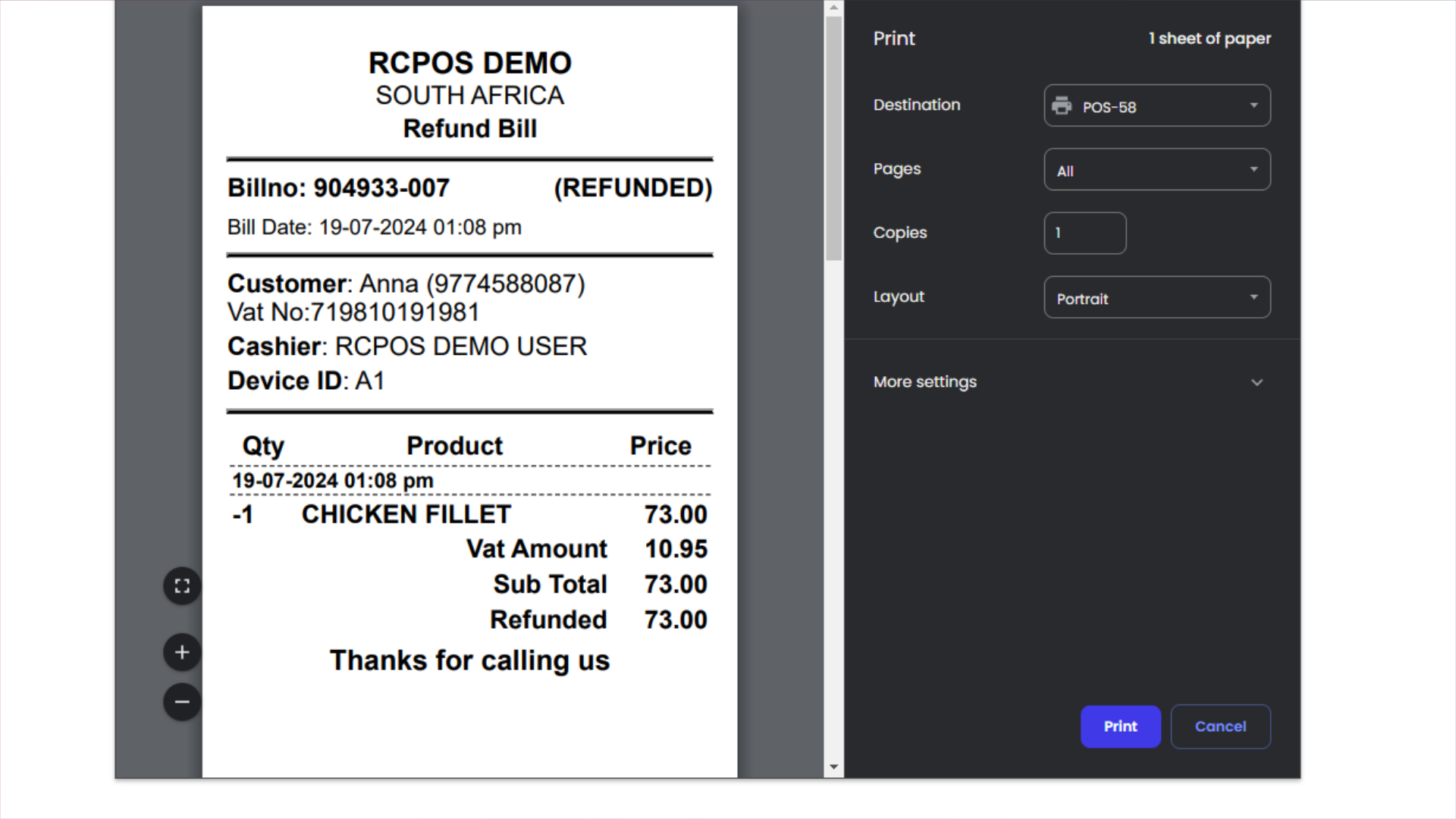
49.
an invoice for for successful refund will be printed
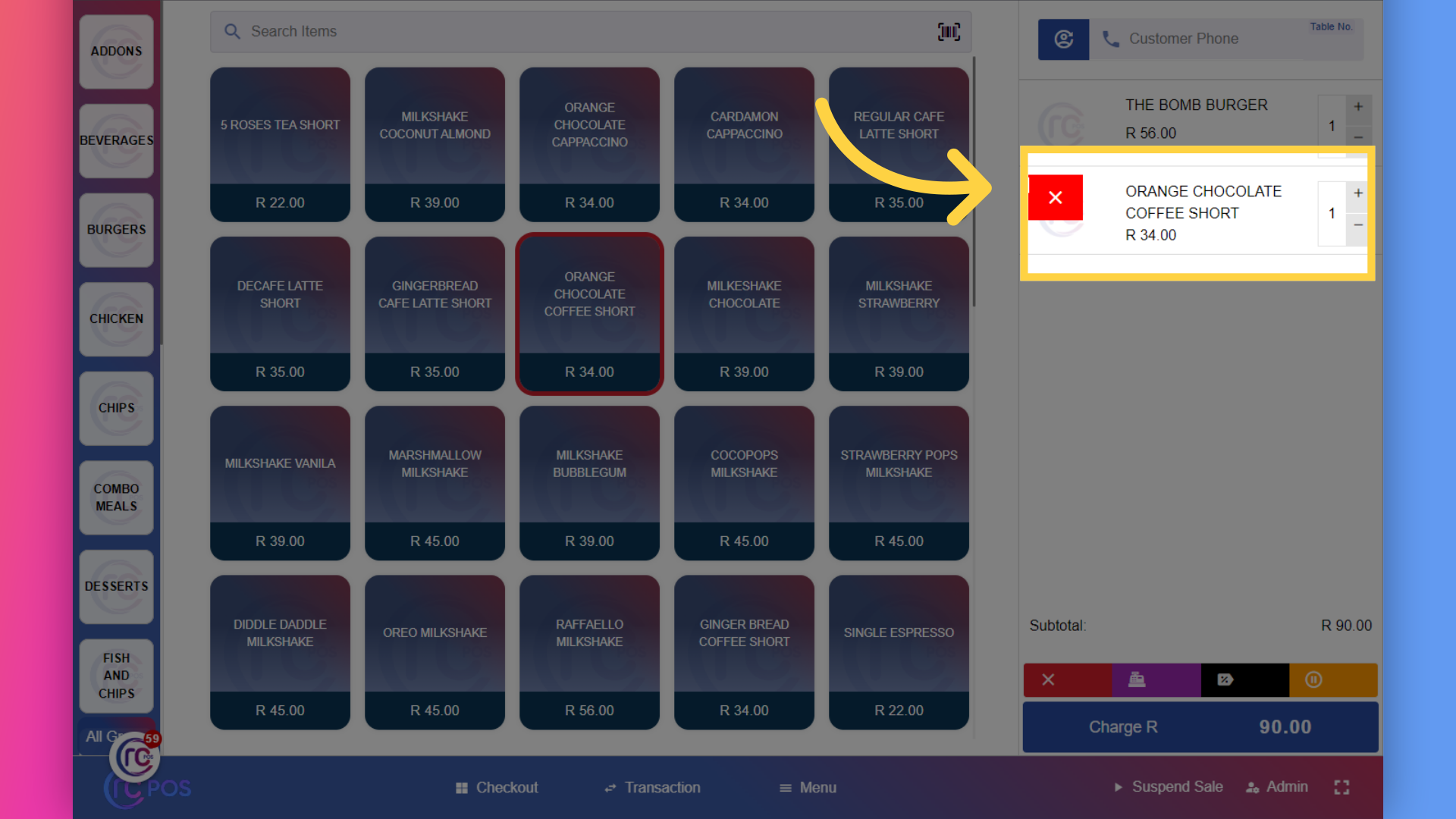
50. Click here "to cancel the product"
to view void or cancel sale,first I'll add some product to cart and then cancel it
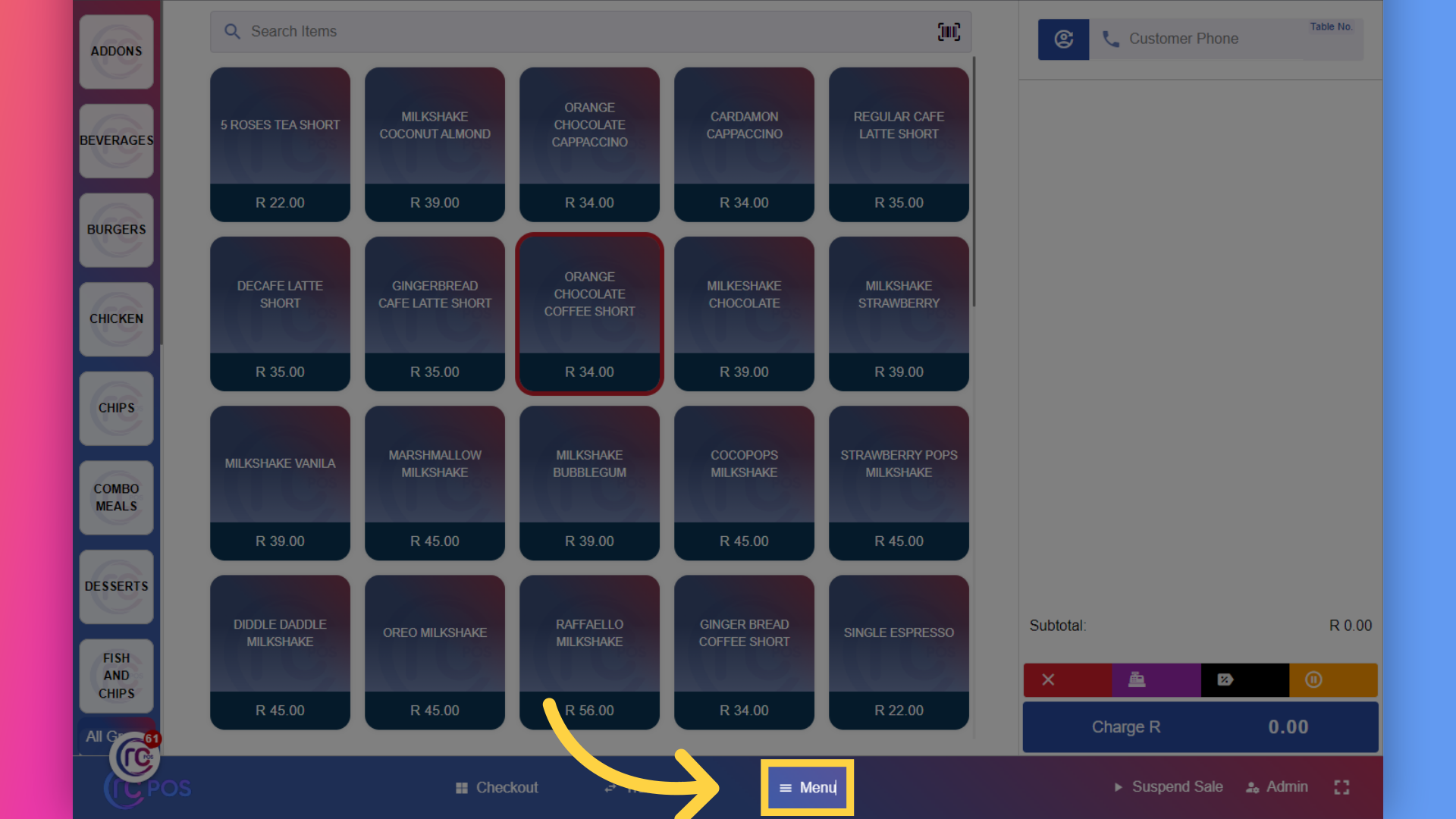
51. Click "Menu"
to view all the void sale,click on Menu
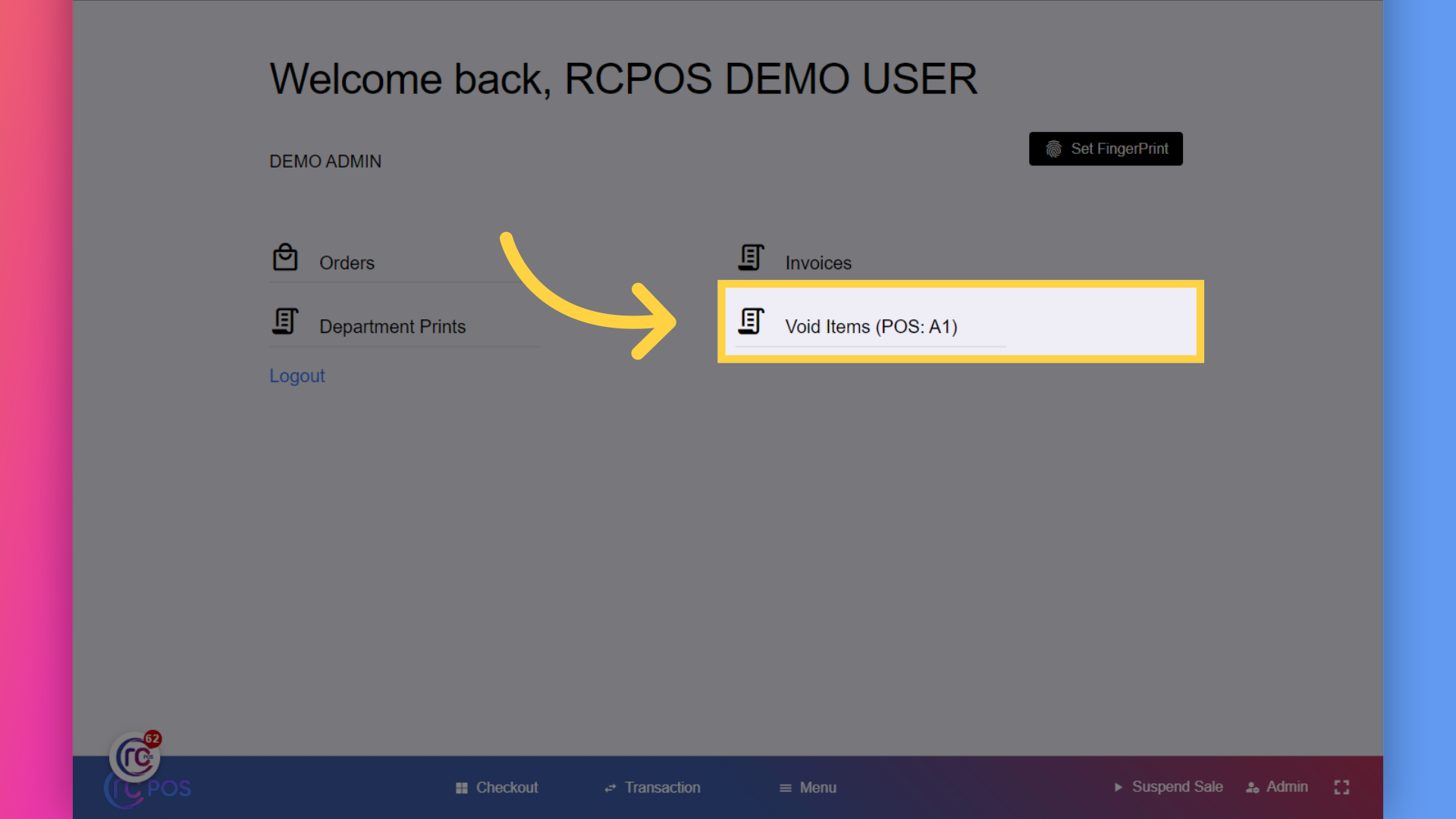
52. Click "Void Items"
Click on "Void Items".
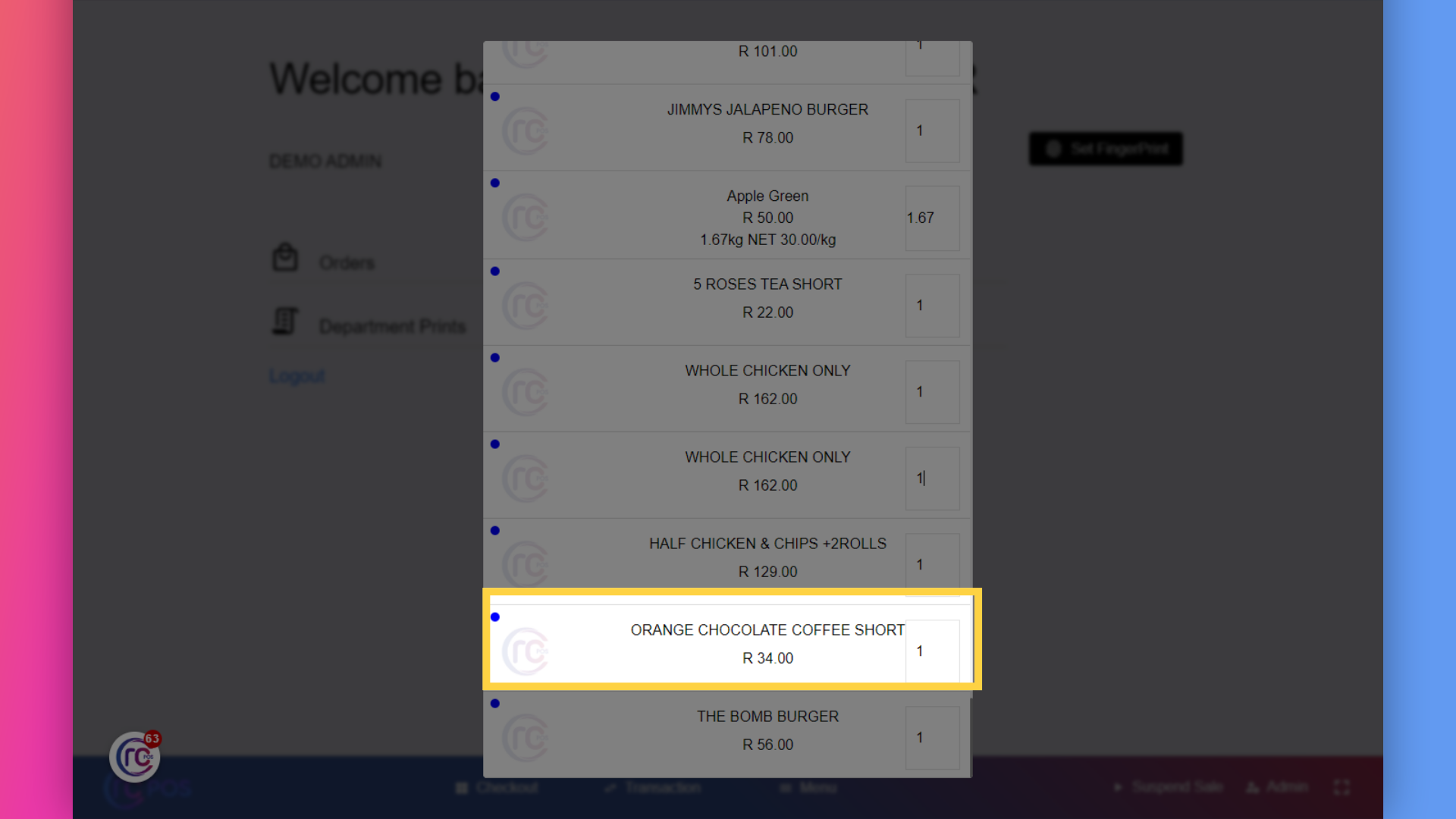
53. View Void Items
you can view all voided sales under this section
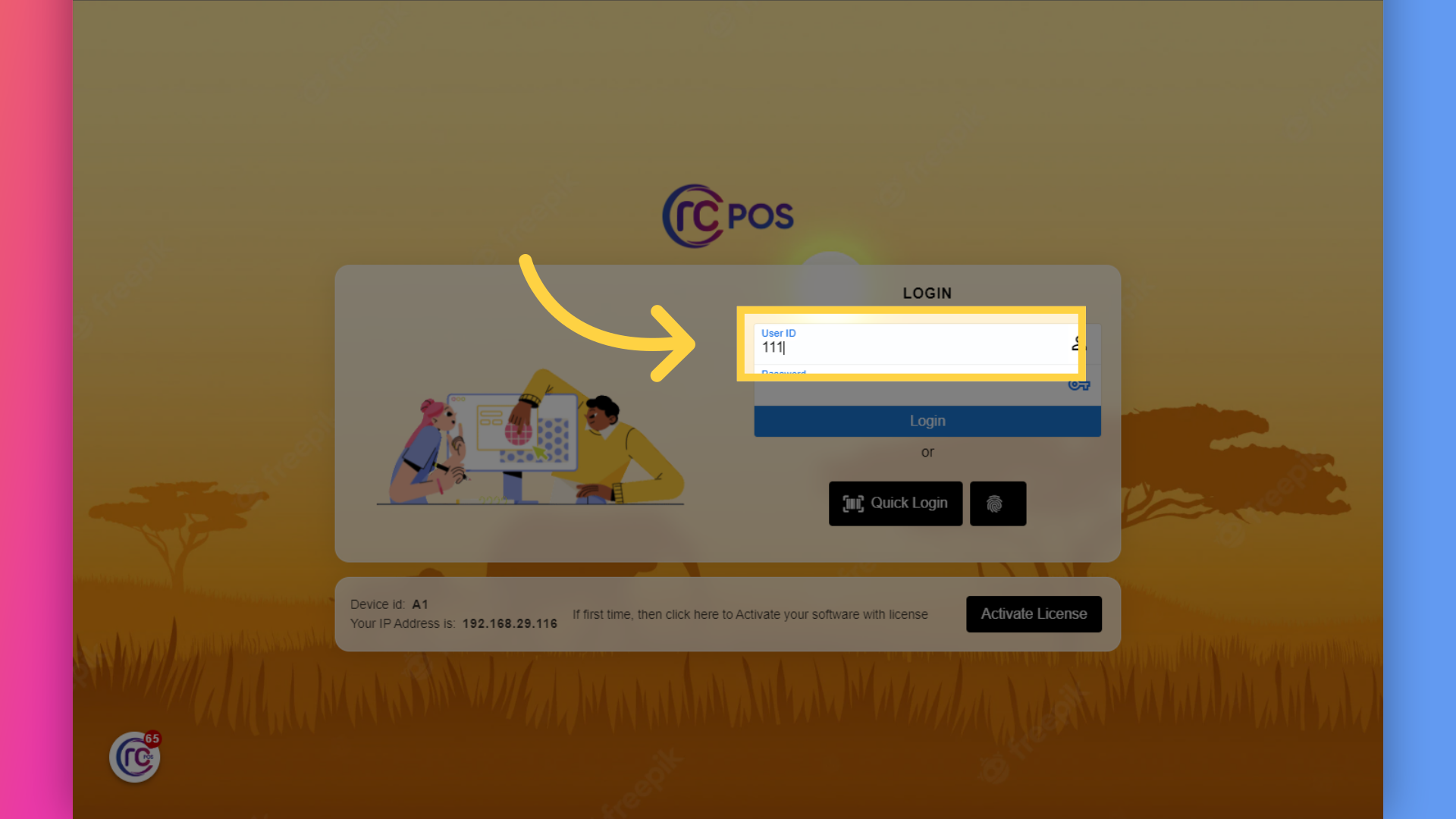
54. Fill "[ User ID]"
Now let's login as staff. Log in to RCPos as a staff member. Enter the User Id by default it is 111 and the password is 123
55. Fill "[password]"
Enter the password in the designated field.
![Fill '[password]'](RCPos_Guide_files/55.png)
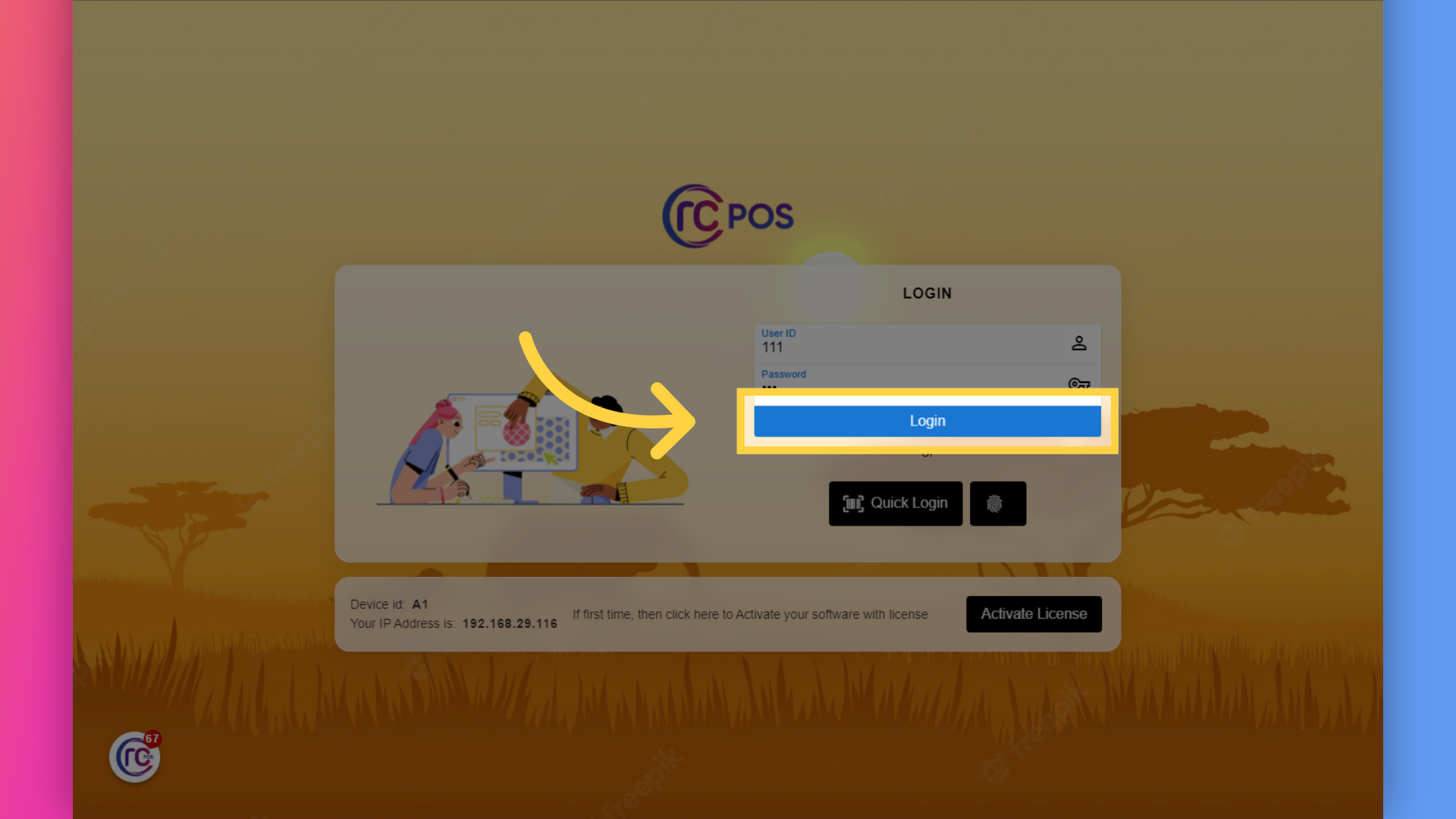
56. Click "Login"
Click on the "Login" button.
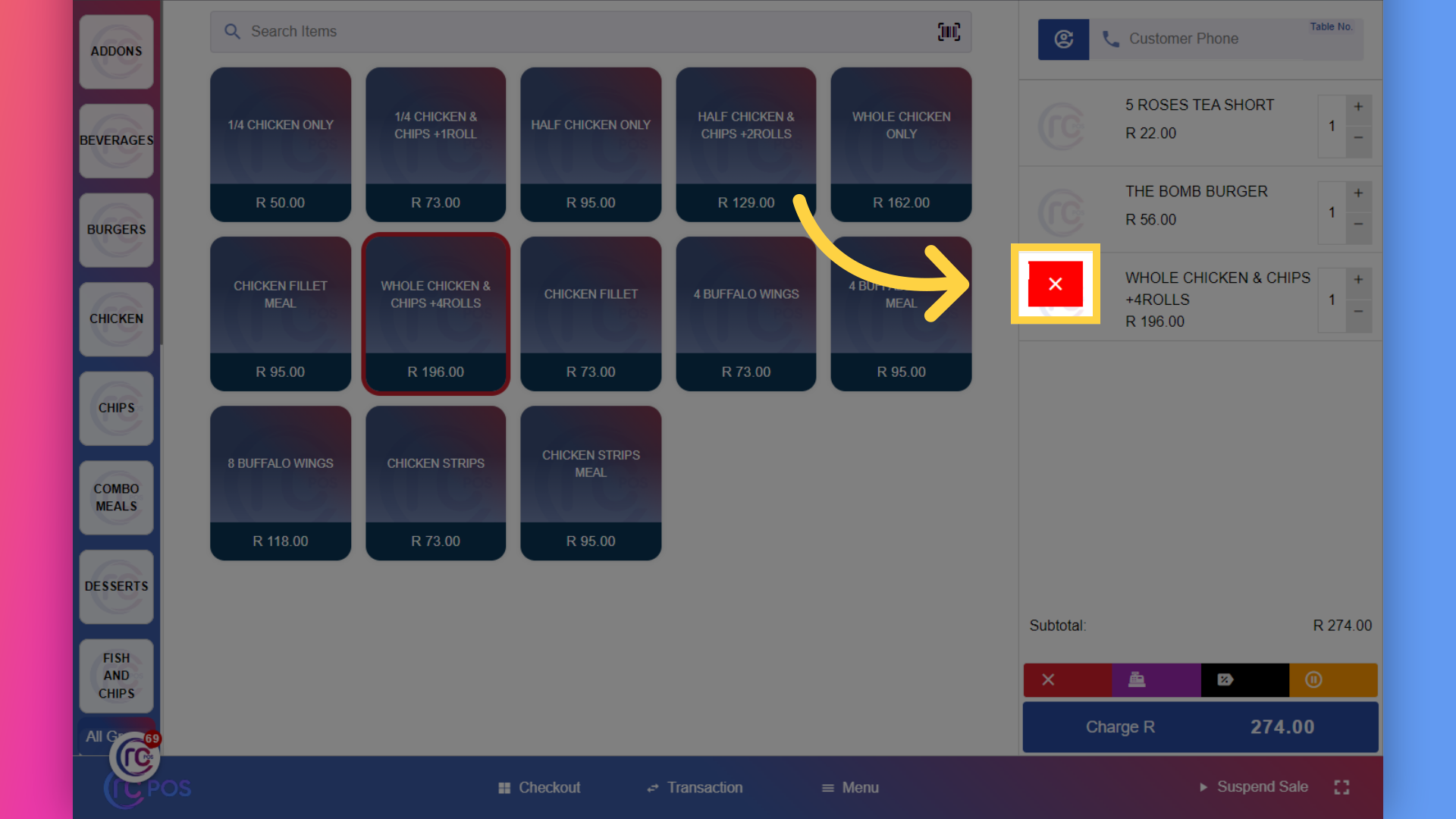
57. Click here
I'll add some product here,and later to delete a product from cart you cannot delete it directly.
58.
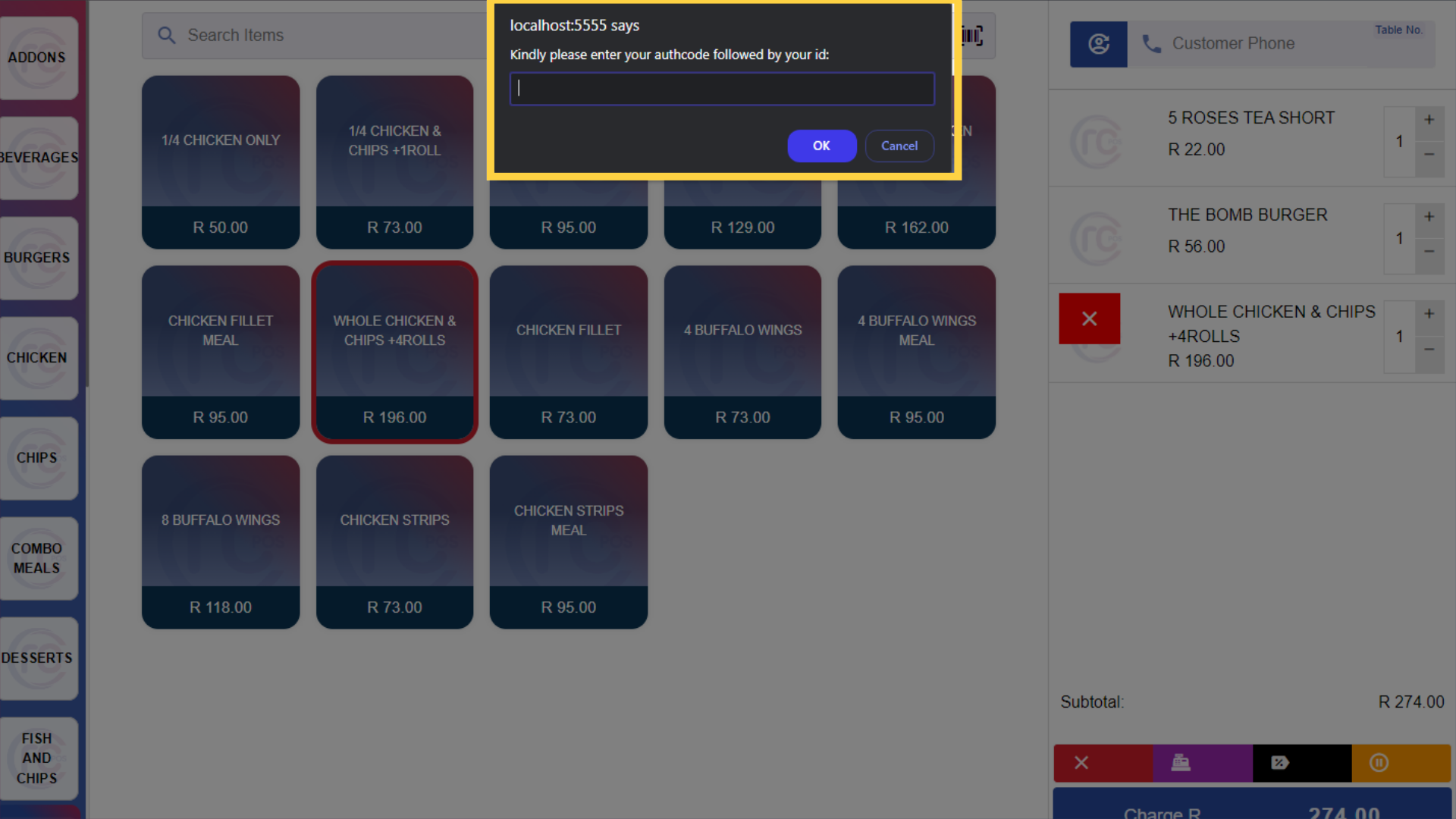
you will be prompted to enter an authorization code.Scan the barcode for the authcode,which your manager will provide.Once the code is scanned,the product will be deleted from the cart
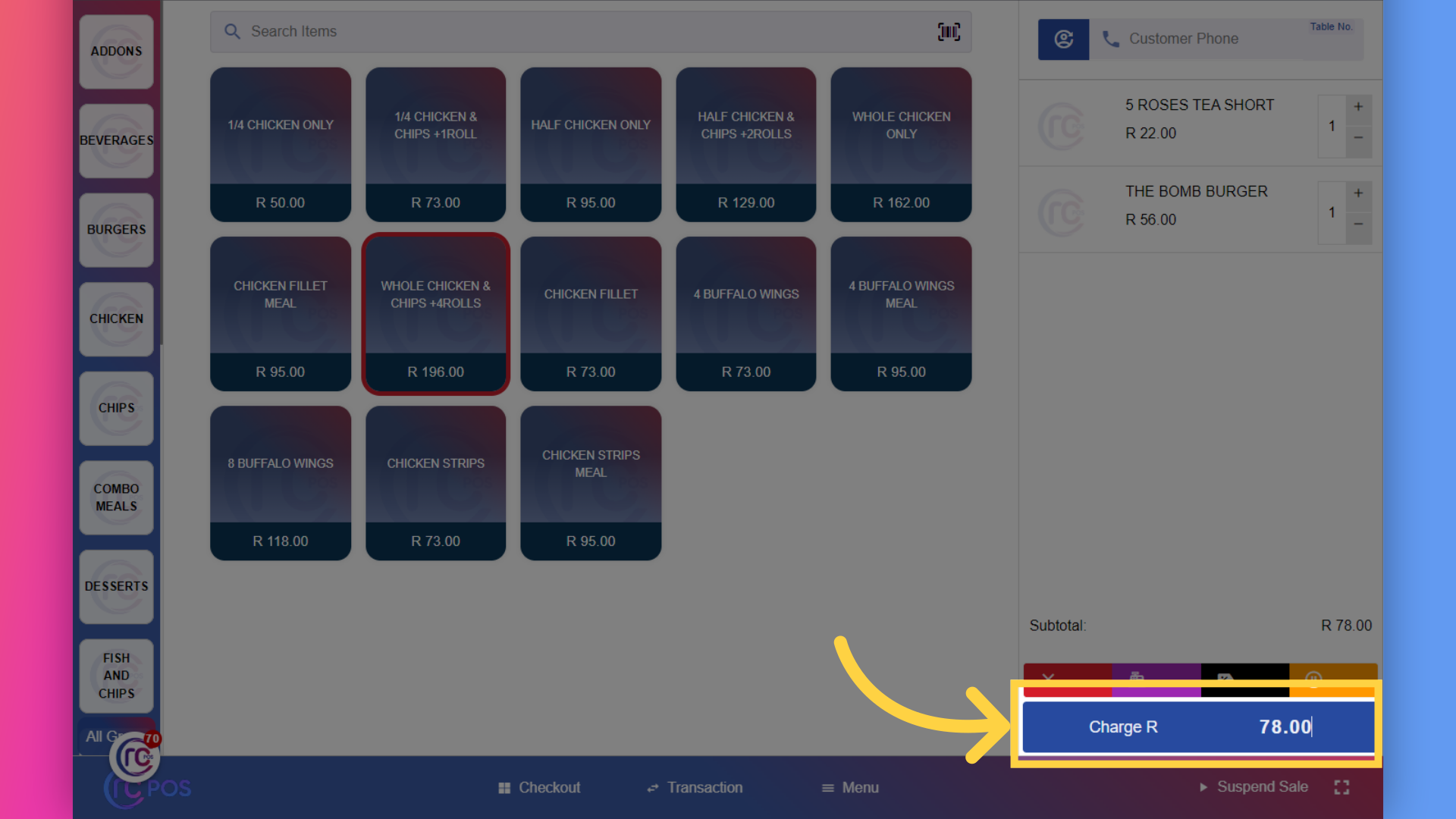
59. Click here "to mark the sale"
Let's look at how to give credit to a customer.Click here.
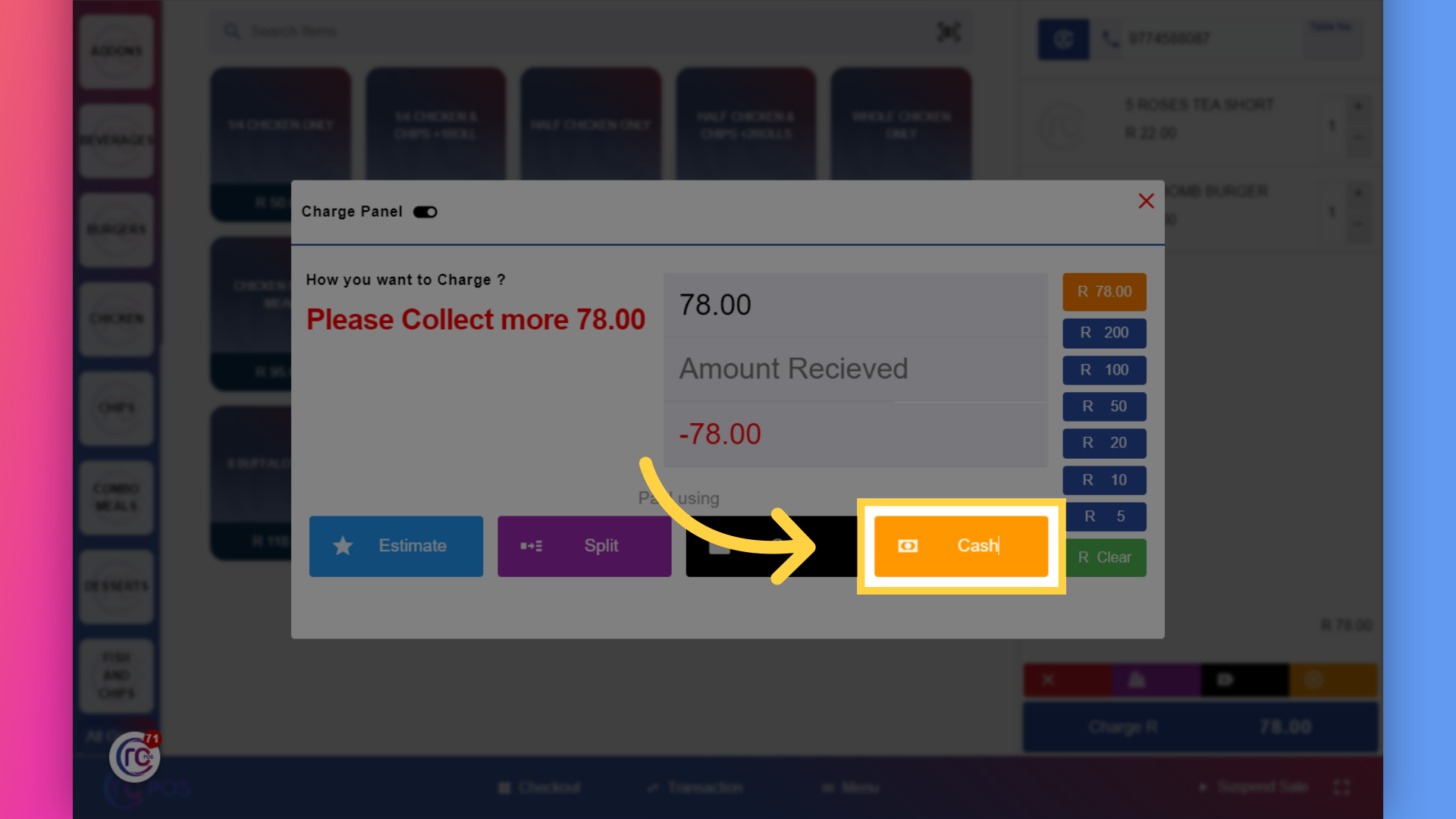
60. Click "Cash"
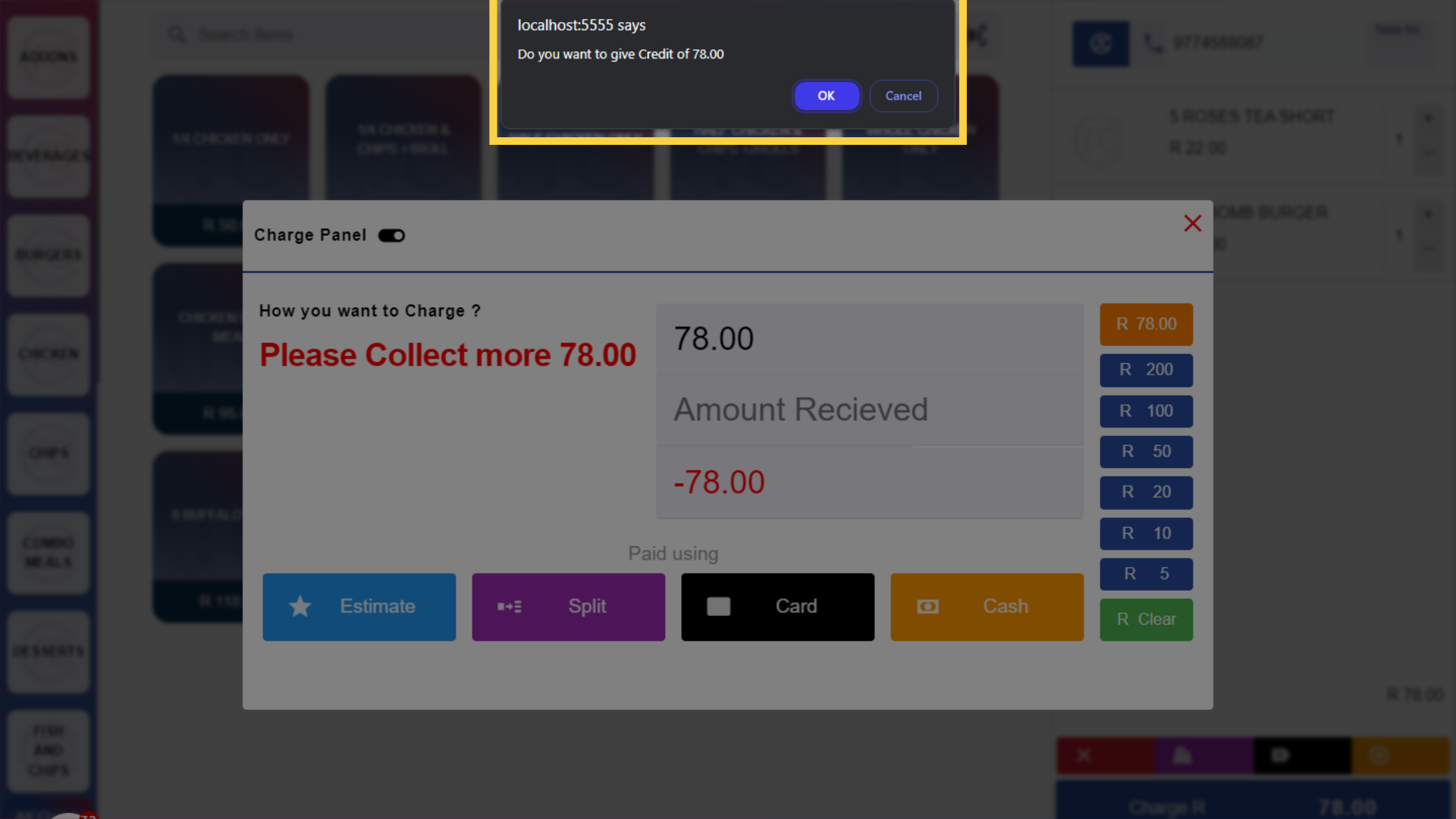
Then click on cash button.You will be asked if you want to give credit.
61.
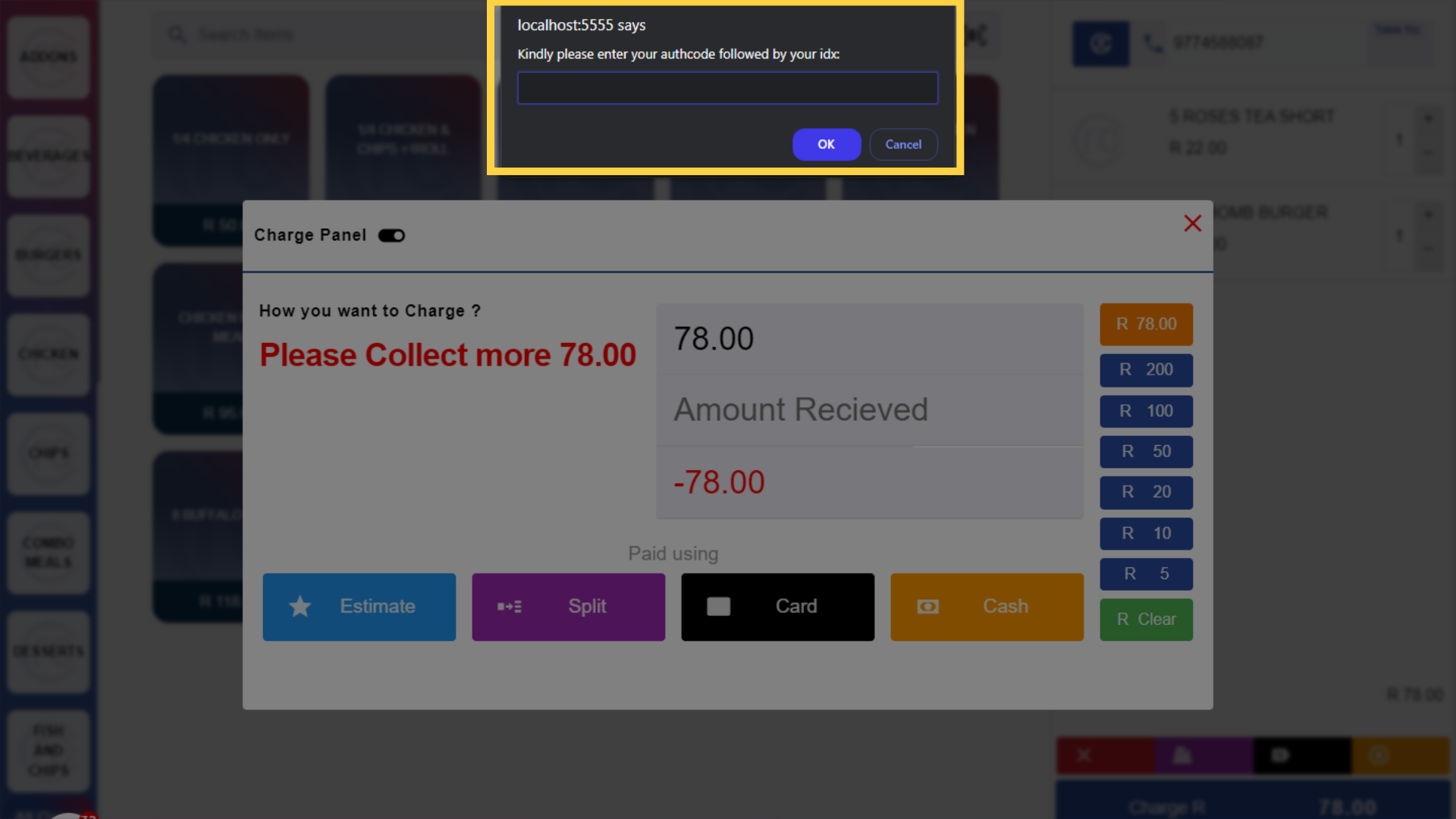
Click "OK".The system will then ask for an authcode.
62.
Scan the authcode.Once the code is scanned,the transaction will be completed
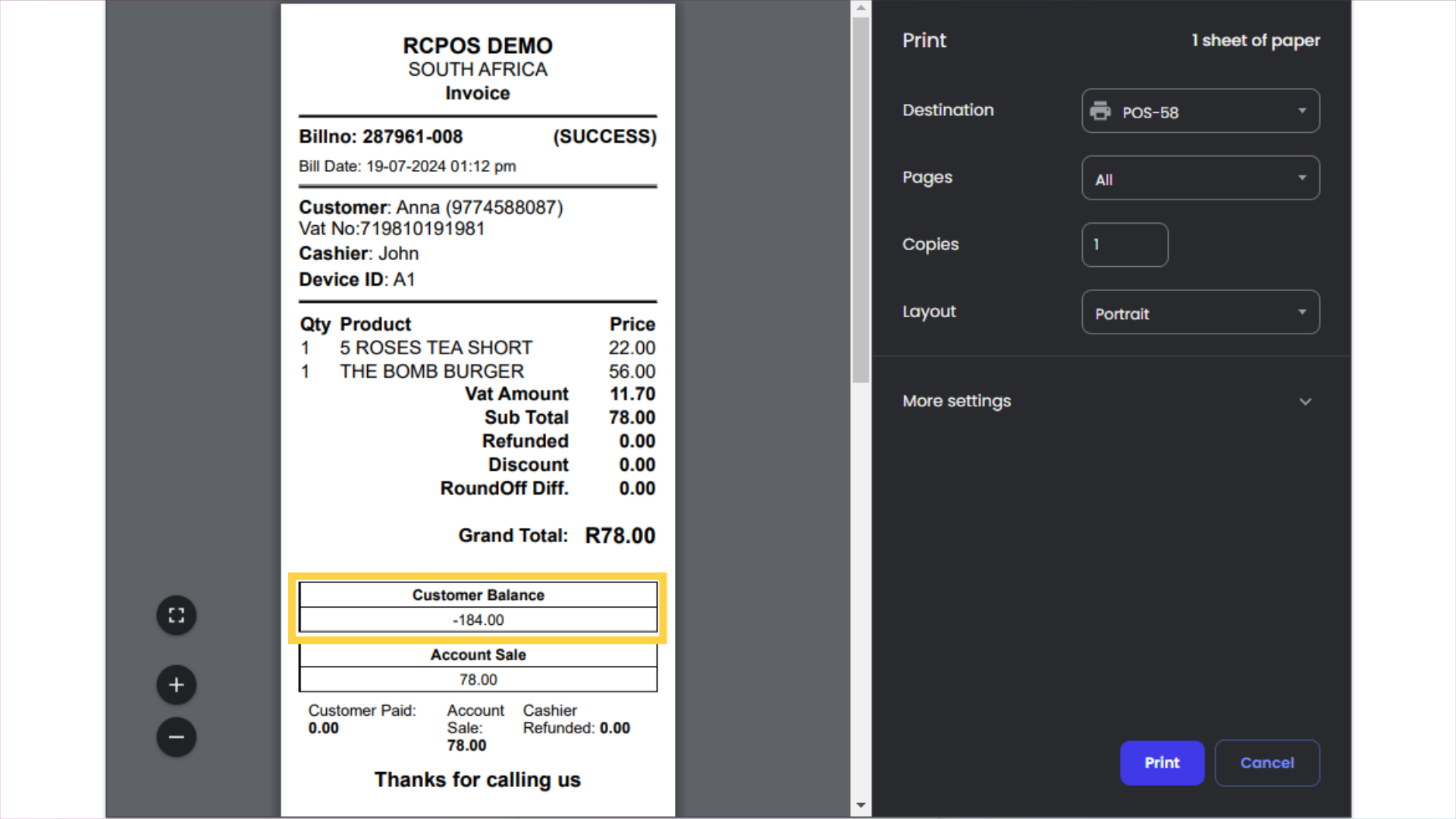
63.
and the invoice will be printed,showing the customer's balance.
The guide walks you through key functions in RCPos, including logging in, processing transactions, managing refunds, and voiding items. These step-by-step instructions are designed to enhance employee training and ensure smooth operations within the application.